CAN Bus Workshop_Version 03__06-2008_EN.pdf - 第125页
CACCIA Manual 1 Caccia Student Guide Issue 04/2007 EN 33 1 The data ca n be written to the following targe ts: 1 1 1 1.4.4.1 Loading Axis Machine Dat a (Read Only) Note The axis reference run and editing of the axes may …
1 Caccia Student Guide CACCIA Manual
Issue 04/2007 EN
32
Note
Although the main axes can be moved with the default values, you must observe the follow-
ing values for all head axes:
- Zero point correction
- Maximum travel distance
- Minimum travel distance 1
→ After entering the values, confirm your entries and click on the Write to Axis button.
→ Specify the travel profile at Profile. Observe the different travel profiles for main and head
axes.
→ Check the status display. The SRV (servo release switch) signal must be green.
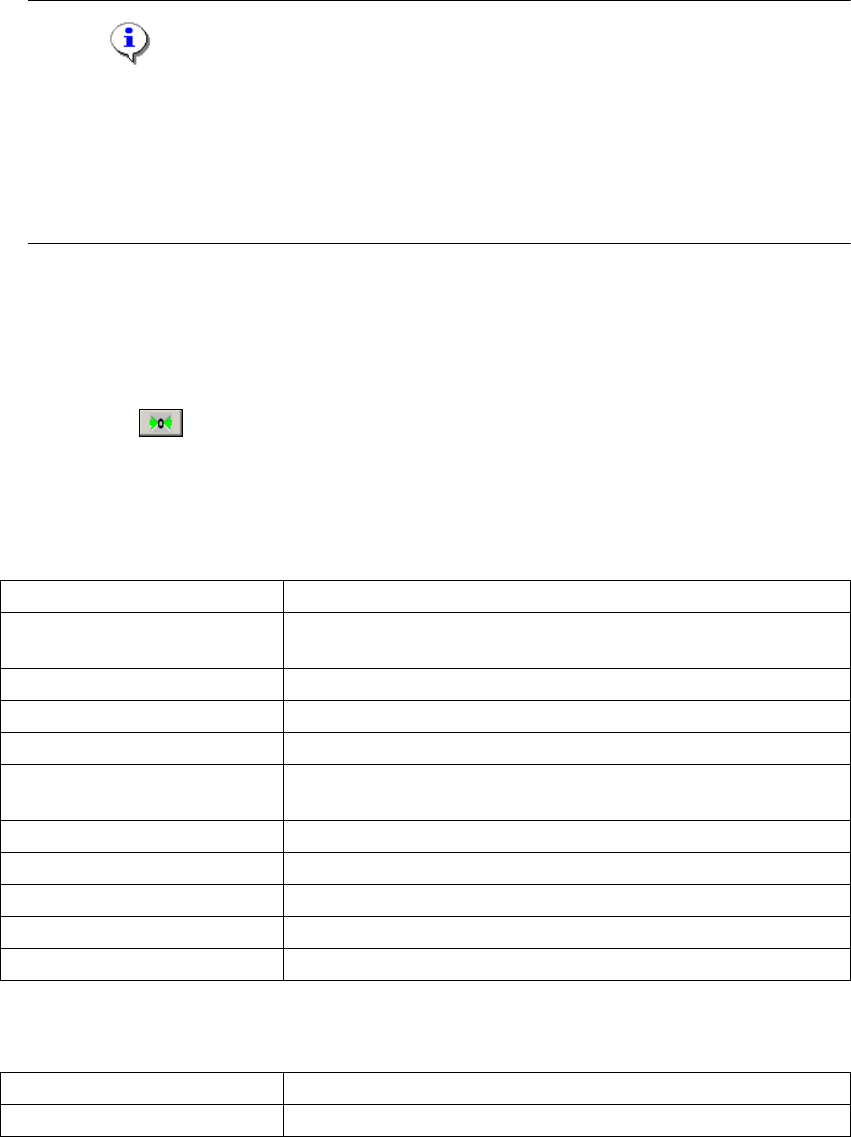
→ Click on the button, to start the reference run.
1
For simplification, the axis travel parameters for each axis have been divided into blocks, as
shown in the following table: 1
1
1
The data can be loaded from the following sources: 1
1
Axis option data Axis monitoring mode.
Geometric data
Min. /Max. travel distance; zero point correction; Z-axis param-
eters.
Configuration data Control mode.
Regulation parameters Axis positioning and position regulation parameters.
Distance parameters Description parameters for axis.
Profile parameters - accel-
eration
Distance-related acceleration values.
Profile parameters - delay Distance-related delay values.
Control parameters For determination of the axis controller positioning profile.
Reference parameters Reference run parameters.
Path profile parameters Path-related parameters for positioning profile calculation.
Communication data Communication data for MC.
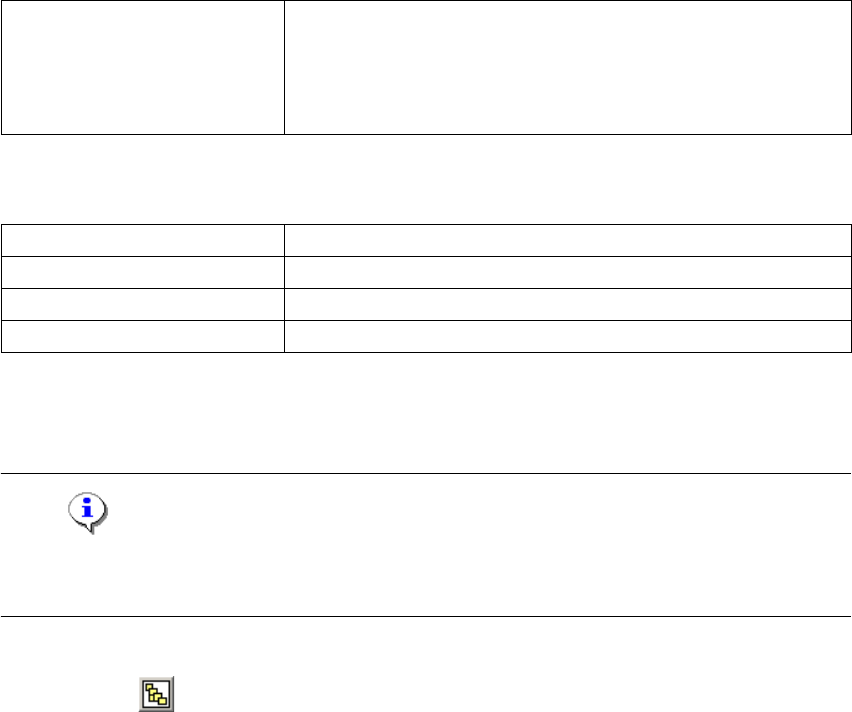
Load from File Loads a valid file which has been copied to the service laptop.
Load from Axis Loads data from the axis controller with Caccia.
CACCIA Manual 1 Caccia Student Guide
Issue 04/2007 EN
33
1
The data can be written to the following targets: 1
1
1
1.4.4.1 Loading Axis Machine Data (Read Only)
Note
The axis reference run and editing of the axes may only be performed by specially trained person-
nel. 1
1
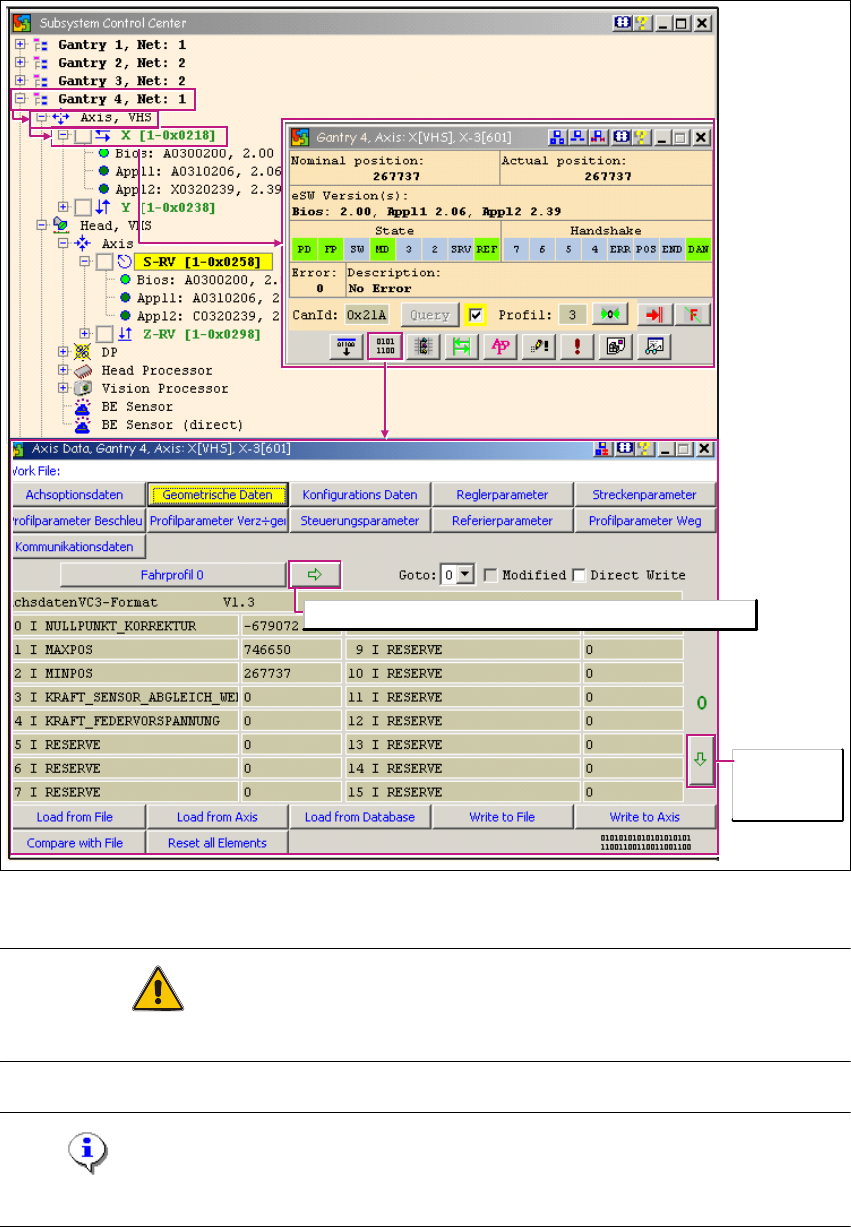
→ Click on the button to open the Subsystem Control Center dialog box:
Load from DataBase
Loads an AXIS MA database (previously copied to the service
laptop) valid for the machine SW. 1
Important: make sure you enter the currently valid zero point
corrections for the S/Z axes beforehand. 1
Write to File Writes the data in a file.
Write to Axis Writes the data in the axis controller.
Compare with File Compares the axis controller data with the contents of a file.
Reset all Elements Resets the axis controller data.
1 Caccia Student Guide CACCIA Manual
Issue 04/2007 EN
34
1
Fig. 1 - 19 Loading axis machine data (read only)
ATTENTION
These are develop functions which could destroy the axis data record if used incorrectly. 1
Note
These labels are always in German. 1
Browse to
further data
sheets
Copy current travel profile to travel profile with index 0