CAN Bus Workshop_Version 03__06-2008_EN.pdf - 第162页
1 Caccia Student Guide CACCIA Manual Issue 04/2007 EN 70 1 Fig. 1 - 46 CanScope dialog box → In the CanScope (Net 1 and Net 2) dialo g boxes, click on the Add Al l button to reco rd the com- munication protocols of a ll …
CACCIA Manual 1 Caccia Student Guide
Issue 04/2007 EN
69
1.10 Trace Menu
The recording of CAN traces should only be performed in coordination with system developers,
who use this information for data interpretation and error analysis purposes. If errors occur when
the software is started, CAN traces can be recorded for diagnosis reasons. Add these CAN traces
to your bug reports. 1
1
How to record a CAN trace at machine startup:
Note
Follow the instruction below to record a CAN trace. This description is an example and additional
CAN traces can be recorded with the same procedure. Before following these instructions, make
sure that the machine is switched off. 1
Note
Developers can only use CAN traces which have been recorded in HEX format. Make sure that
the Decode field has been disabled. 1
1
→ Open the CanScope dialog box for Net 1 and Net 2:
1
1
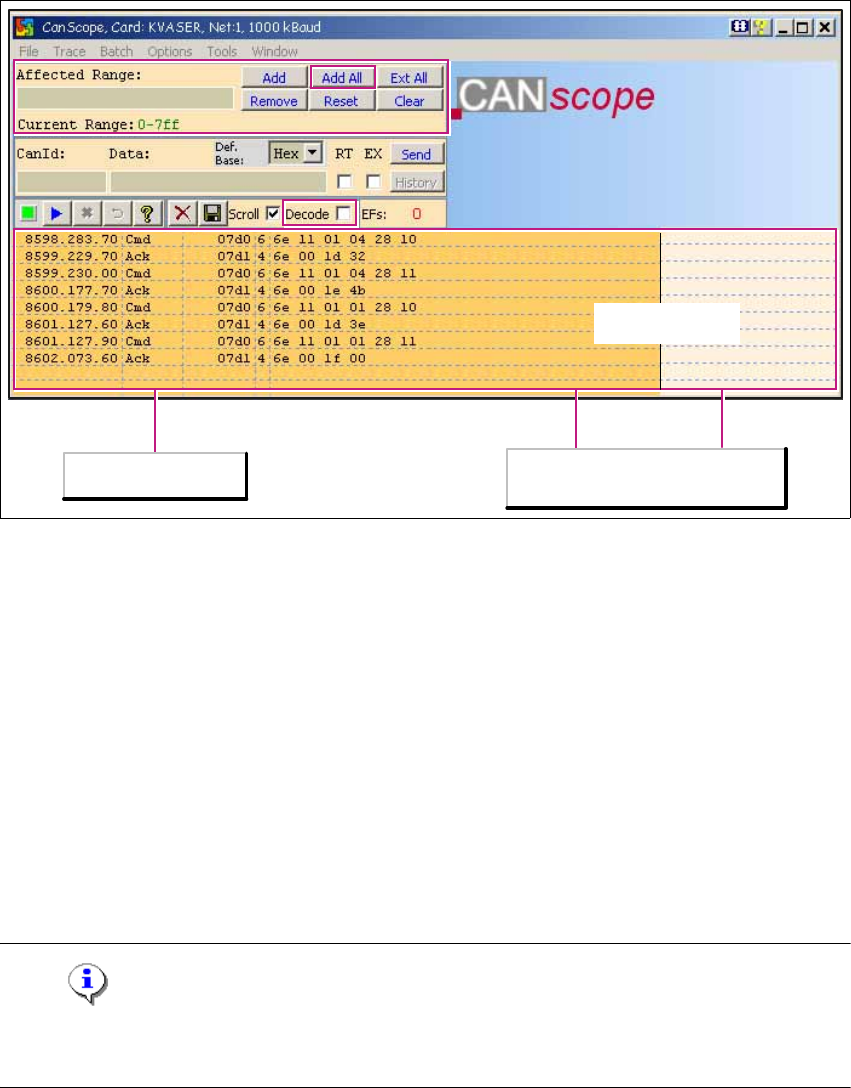
The CanScope dialog box can be used to record all CAN Bus commands in a file during the ma-
chine start phase (for R&D error analysis). 1
Opens the Can Scope dialog box for Net 1.
Opens the Can Scope dialog box for Net 2.
1 Caccia Student Guide CACCIA Manual
Issue 04/2007 EN
70
1
Fig. 1 - 46 CanScope dialog box
→ In the CanScope (Net 1 and Net 2) dialog boxes, click on the Add All button to record the com-
munication protocols of all CAN telegrams.
→ To start the recording, select Trace - Start Trace from the menu. The write file to dialog box
will open. Select the name and path of the file in which the trace is to be stored.
→ Switch on the machine and the communication to the subsystems will be loaded via the rele-
vant CAN command.
The recording will start. You can see this by the orange color of the recording field. If no record-
ing is being performed, the field will be light beige. 1
The contents of the recording field will be stored in the specified file. 1
→ To stop the recording, select Trace - Stop Trace from the menu.
Note
With the help of the trace data, the developer can detect which subsystem has not reported itself.
The error message explains where the problem is located. 1
1
Trace
inactiveactive
Tracing field
Left (orange ): Trace active
Right (brown): No Trace
CACCIA Manual 1 Caccia Student Guide
Issue 04/2007 EN
71
Affected Range 1
This is where you can define the address range for which a trace is to be recorded: 1
1
1
Decode 1
Set a tick at Decode if you want to display the figures in the right column of the recording field in
short clear text passages. 1
Note
This option is not suitable for remote diagnosis by R&D. 1
→ Complete the recording by selecting Trace - Stop Trace from the menu. The recording field
will return to beige.
→ When you leave the CanScope dialog box, the file last chosen will remain as the prompt value
for the next time.
1
Example:
Contents of file: CAN control window Net 1 @11_03_2005_16_56_08.txt
(This file name is assigned automatically.) 1
T: 257122.779.20 CanId: 07d0 L: 6 Data: 6e 11 01 04 28 10
T: 257122.779.60 CanId: 07d1 L: 4 Data: 6e 00 1d 32
T: 257123.725.50 CanId: 07d0 L: 6 Data: 6e 11 01 04 28 11
T: 257123.725.80 CanId: 07d1 L: 4 Data: 6e 00 1e 4b
T: 257124.671.40 CanId: 07d0 L: 6 Data: 6e 11 01 01 28 10
1
Add All
Records the communication protocols for all CAN telegrams.
Note The evaluation may be extensive if this option is chosen.