CAN Bus Workshop_Version 03__06-2008_EN.pdf - 第138页
1 Caccia Student Guide CACCIA Manual Issue 04/2007 EN 46 1.6.1 Multiple Downloads T o perform multiple downloads, sele ct the required subsystems in the Subsystem Control Cen- ter and then click on n Download . 1 1.6.2 S…
CACCIA Manual 1 Caccia Student Guide
Issue 04/2007 EN
45
1.6 Firmware Download
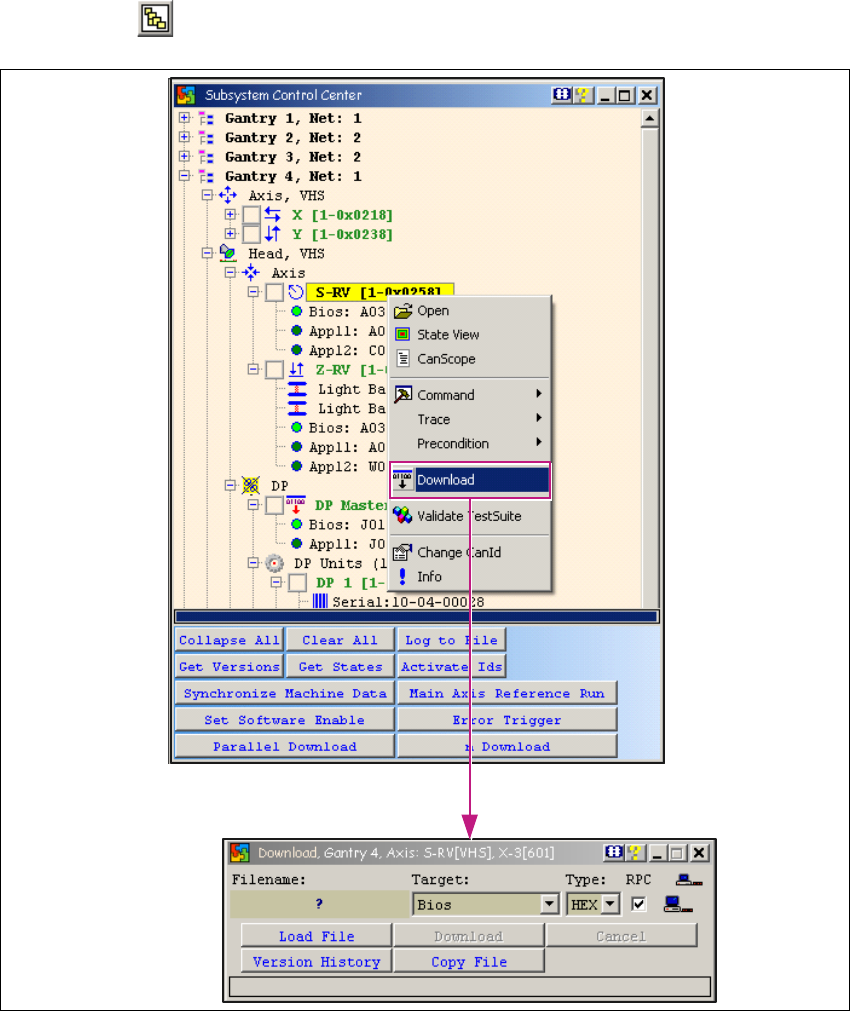
→ Click on the button to open the Subsystem Control Center dialog box:
1
Fig. 1 - 25 Firmware download
→ To perform a firmware download, right-click with the mouse on the required subsystem.
→ A context menu will appear. Select the menu item Download.
→ The Download dialog box will open. An individual download can be performed here for the se-
lected subsystem (CAN ID).
1 Caccia Student Guide CACCIA Manual
Issue 04/2007 EN
46
1.6.1 Multiple Downloads
To perform multiple downloads, select the required subsystems in the Subsystem Control Cen-
ter and then click on n Download. 1
1.6.2 Selecting the Firmware to be Loaded
Note
In the Change Properties - Advanced Subsystem Configuration dialog box, select the option
Allow suitable download file only. This ensures that you will only be shown suitable targets
(BIOS, Appl1 or Appl2) for selection of the download files. 1
1
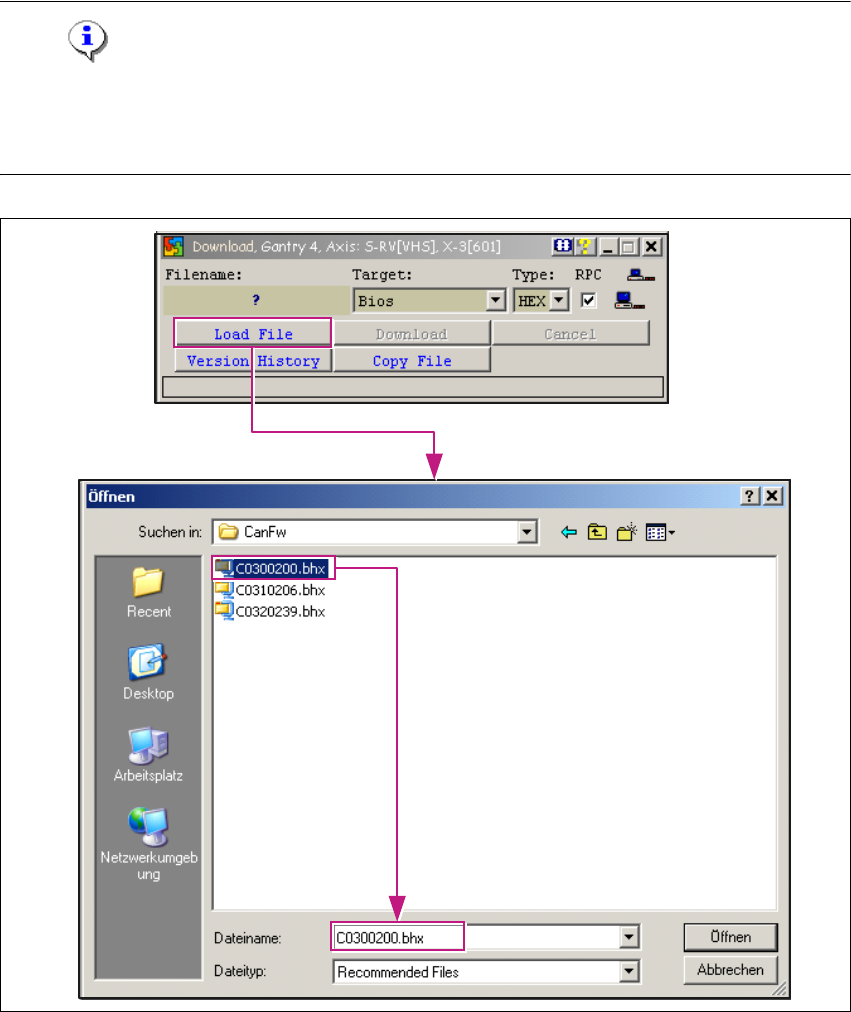
Fig. 1 - 26 Selecting the firmware to be loaded

CACCIA Manual 1 Caccia Student Guide
Issue 04/2007 EN
47
→ In the Download dialog box, click on the Load File button.
→ The Open dialog box will open.
→ Select the correct file in the Search in: dialog box.
→ Select the SW file for the selected subsystem and click on the Öffnen button.
1.6.3 Starting the Download
1
Fig. 1 - 27 Starting the download
Click on the Download button to start the download. After all downloads have been performed
successfully, you will need to restart the machine. 1
Starting the Download
Download performed successfully