CAN Bus Workshop_Version 03__06-2008_EN.pdf - 第153页
CACCIA Manual 1 Caccia Student Guide Issue 04/2007 EN 61 1.7 CAN SCOPE for Net 1 / Net 2 on Feeder Menu 1.7.1 X-Series Feeders → Click on the button to open the Subsystem Co ntrol Center d ialog box: 1 Fig. 1 - 38 CAN SC…
1 Caccia Student Guide CACCIA Manual
Issue 04/2007 EN
60
1
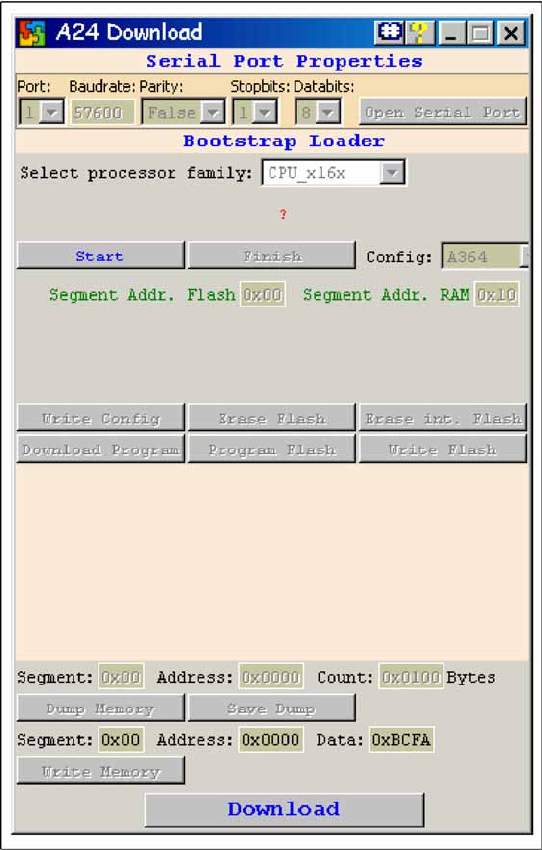
Fig. 1 - 37 Download successfully completed
→ In case of a successful download the ad-
joined window is shown. Only in case of a
download failure the error message ap-
pears.
→ Switch OFF the bootstrap switch and
press the reset switch The green LED (be-
low left) on the axis card should flash now.
The BIOS download is completed.
The application 1 and 2 can be loaded via
CACCIA or SITEST by standard procedure.
CACCIA Manual 1 Caccia Student Guide
Issue 04/2007 EN
61
1.7 CAN SCOPE for Net 1 / Net 2 on Feeder Menu
1.7.1 X-Series Feeders
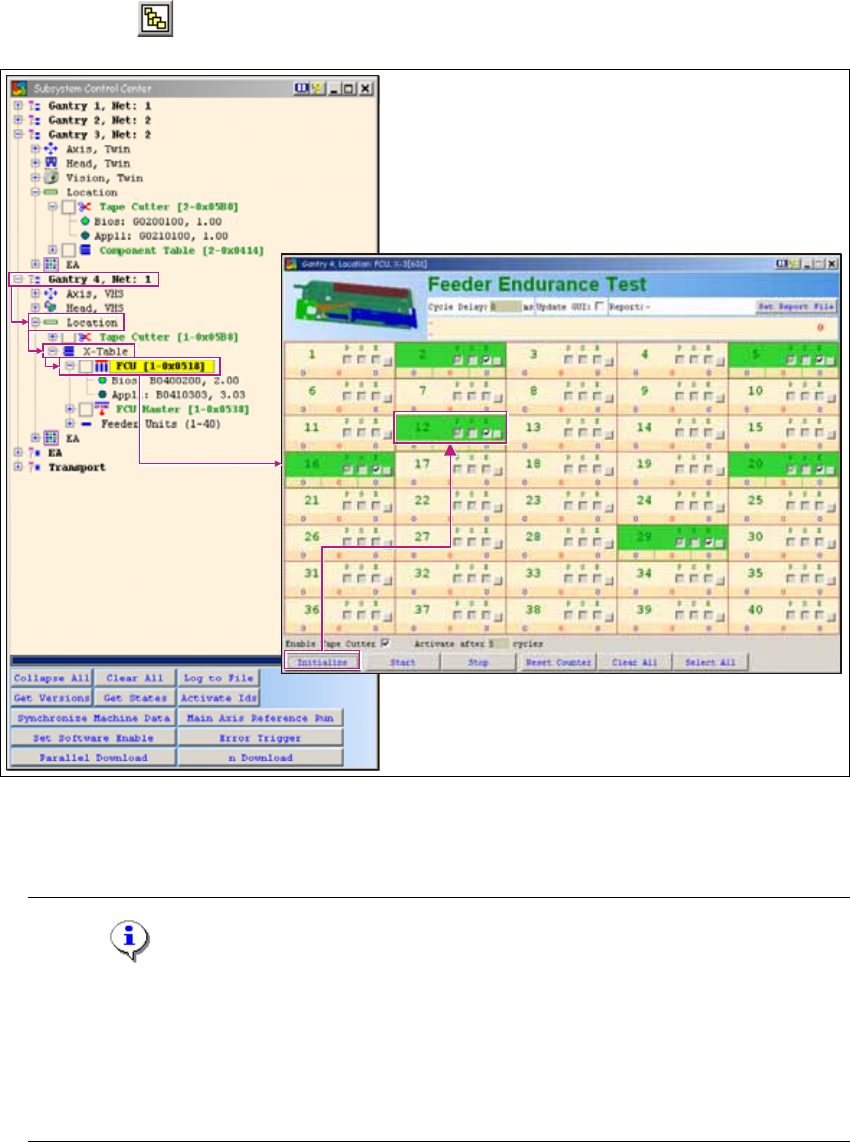
→ Click on the button to open the Subsystem Control Center dialog box:
1
Fig. 1 - 38 CAN SCOPE for Net 1 / Net 2 on feeder menu
→ Activate the function Enable Tape Cutter, according to your machine options.
Note
Once you have activated the function Enable Tape Cutter, you need to fulfill the following
requirements for an X-series feeder endurance test:
- SW released must be issued
- Control must be on
- Security circuit must be closed 1
1 Caccia Student Guide CACCIA Manual
Issue 04/2007 EN
62
→ Click on the Initialize button and all available feeders will be shown in green.
→ Click on the Start button to start the endurance test.
→ The button next to each feeder can be used to enable the histogram for splice point detection.
→ The Set Report File button can be used to generate a Trace file during the endurance test.
1.7.2 S Feeder
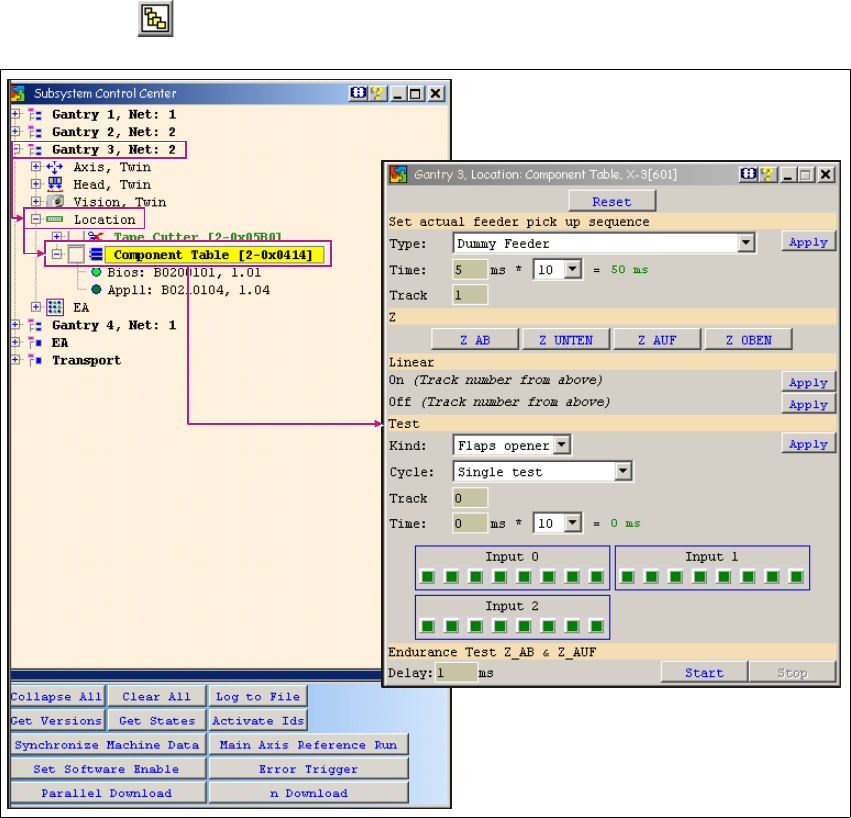
→ Click on the button to open the Subsystem Control Center dialog box:
1
Fig. 1 - 39 CAN SCOPE for Net 1 / Net 2 - S feeder
1