CAN Bus Workshop_Version 03__06-2008_EN.pdf - 第98页
1 Caccia Student Guide CACCIA Manual Issue 04/2007 EN 6 1 Fig. 1 - 2 Kvaser card → S tart CACCIA. → Click on the button to perform a CAN selftest: → Click on the S t art Self test button in the dialog box which ap pears.…
CACCIA Manual 1 Caccia Student Guide
Issue 04/2007 EN
5
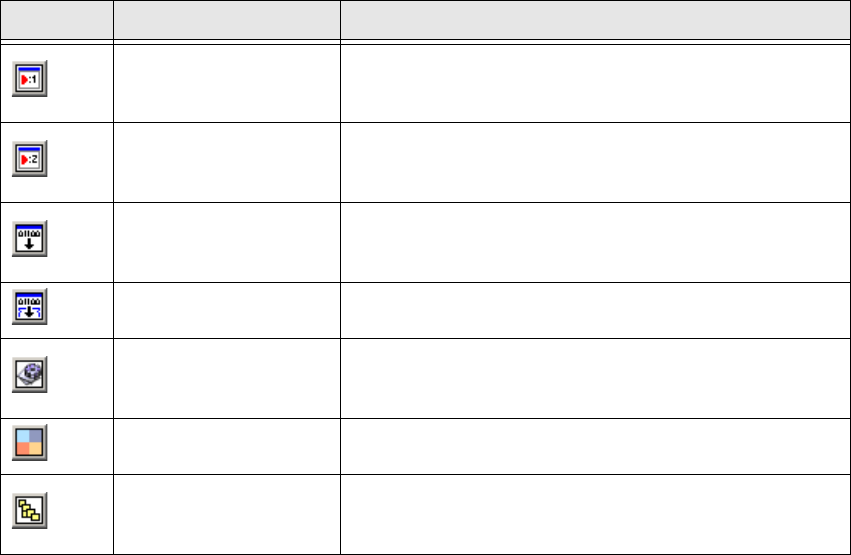
Tab. 1 - 1 Configuration Toolbar
1.1.2 CAN Selftest
Before you begin error localization, perform a software and wiring test: 1
→ Insert Kvaser or respective CAN-Test adapter into your computer and start the computer with
the respective profile.
→ Connect the two CAN transceivers to the Net1 and Net2 inputs of the CAN card.
→ Loop the SUB-D-connector of the CAN transceivers with the CAN ribbon cable and connect a
terminator.
→ You need to connect a minimum terminating resistance of 120 Ohm.
1
Make sure that the cable is connected properly: 1
– Net 1 at the left card output (front view).
– Net 2 at the right card output (front view).
Command Test Cen-
ter Net 1
Opens the Command Test Center dialog box for Net 1.
This function allows you to record the CAN Bus protocol
and address individual CAN nodes.
Command Test Cen-
ter Net 2
Opens the Command Test Center dialog box for Net 2.
This function allows you to record the CAN Bus protocol
and address individual CAN nodes.
Firmware Download
Opens the Download dialog box, in which a „non atten-
dant“ (unmonitored) firmware download can be per-
formed.
Serial Firmware
Download
Opens the A24 Download dialog box, in which a serial
firmware download can be performed.
Advanced Sub-
system Configura-
tion
Opens the Advanced Subsystem Configuration dia-
log box, in which the CAN card can be selected.
A KVASER card restart can also be performed here.
Machine Control
Opens the Machine Control dialog box, in which a
machine can be selected and subsystems configured.
Subsystem Control
Center
Opens the Subsystem Control Center dialog box, This
shows all subsystems in a tree structure, together with
the software/firmware versions.
Icon Designation Task
1 Caccia Student Guide CACCIA Manual
Issue 04/2007 EN
6
1
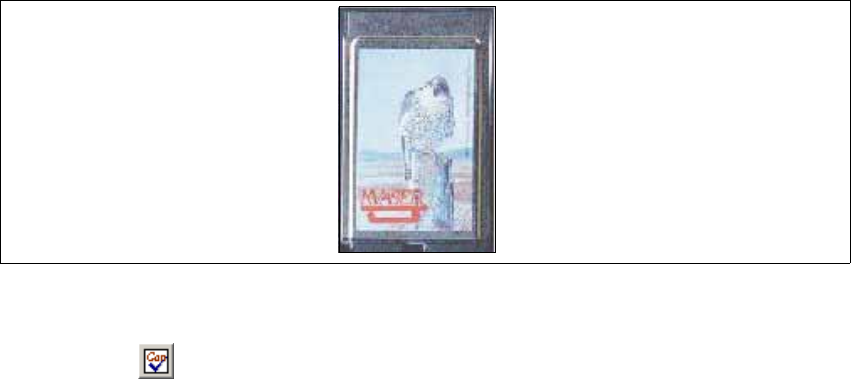
Fig. 1 - 2 Kvaser card
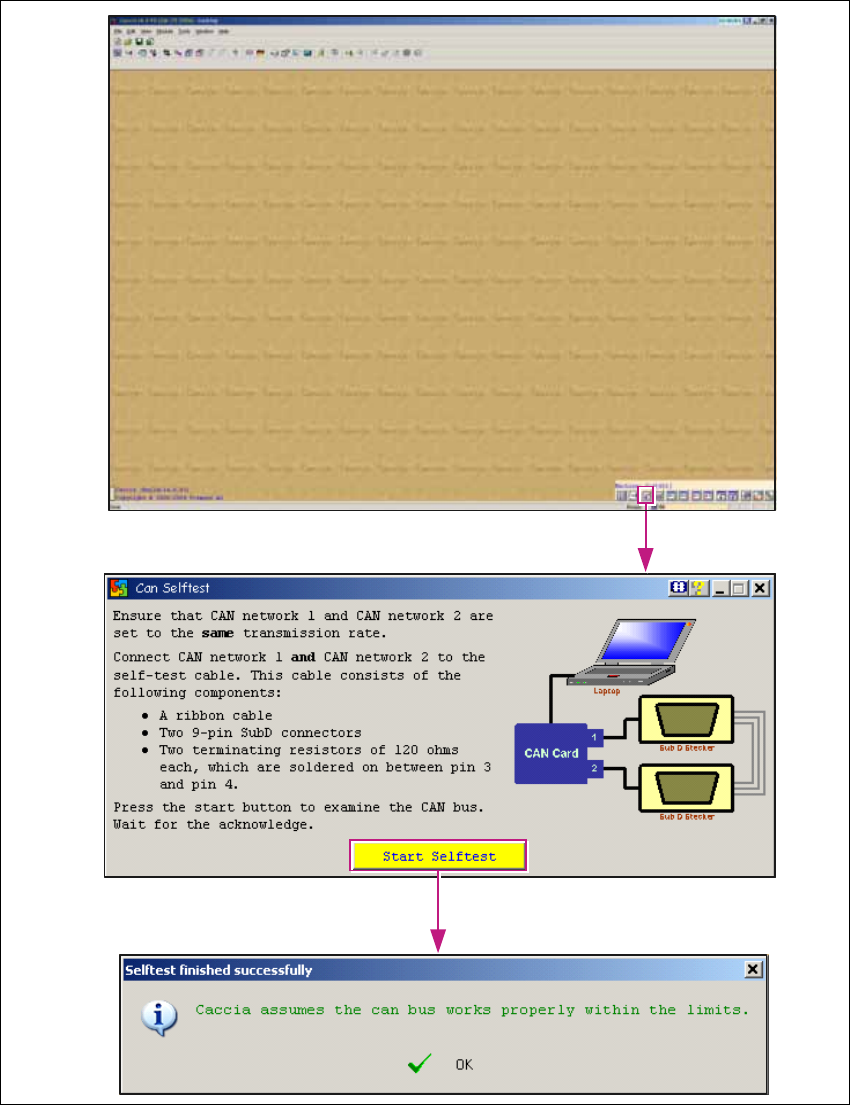
→ Start CACCIA.
→ Click on the button to perform a CAN selftest:
→ Click on the Start Selftest button in the dialog box which appears.
You will see a message, telling you whether the selftest was successful or not. 1
CACCIA Manual 1 Caccia Student Guide
Issue 04/2007 EN
7
1
Fig. 1 - 3 CAN selftest