CAN Bus Workshop_Version 03__06-2008_EN.pdf - 第111页
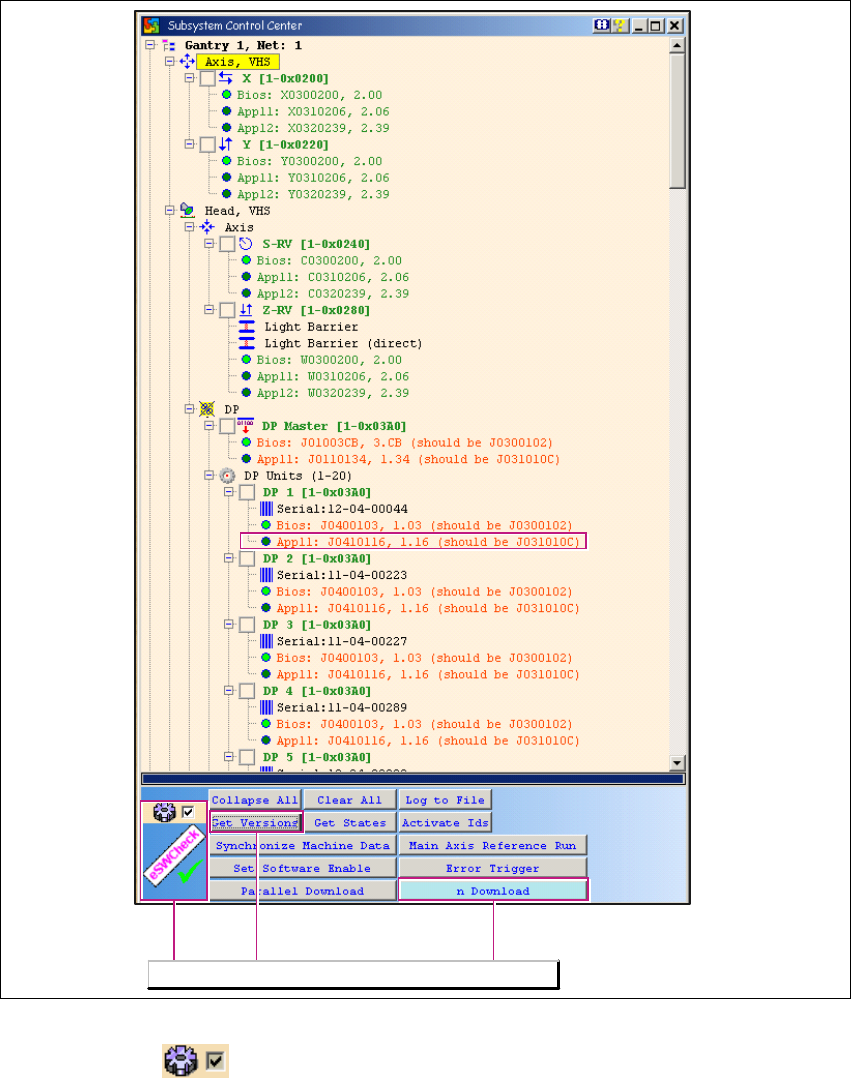
CACCIA Manual 1 Caccia Student Guide Issue 04/2007 EN 19 – The (eSW) firmware version marked in the diagram shows the curr ent SW J04101 16 on the subsystem axis controller and compares this to th e version in the firmwa…
1 Caccia Student Guide CACCIA Manual
Issue 04/2007 EN
18
1
Fig. 1 - 9 Subsystem Control Center dialog box
– If the tick is set , you will only see responding subsystems with - a minimum of - loaded
BIOS versions. In this case, the eSW Check can be performed by clicking on the Get Versions
button. The different eSW versions will be shown behind the respective CAN subsystem. If
there is no difference between the software versions, the tree structure will remain closed and
the CAN subsystem will be marked green.
– The eSW Check is only performed for CAN subsystems which are connected to the CAN Bus.
The eSW Check functions will be available.
CACCIA Manual 1 Caccia Student Guide
Issue 04/2007 EN
19
– The (eSW) firmware version marked in the diagram shows the current SW J0410116 on the
subsystem axis controller and compares this to the version in the firmware folder XML file. In
this case, this is the file J031010C.
– The exact meaning of firmware file names is explained in Chapter 1.6.4 „Download - File Code“
auf Seite 48.
– If CAN test leads are incorrectly connected to the station, the version request and other actions
will fail.
1
How to correctly connect CAN test leads to the station:
→ Net 1 (left card output) is connected to the CAN1 connector (top) of the COM assembly in the
X-series machine computer unit.
→ Net 2 (right card output) is connected to the CAN2 connector (bottom) of the COM assembly
in the X-series machine computer unit.
1 Caccia Student Guide CACCIA Manual
Issue 04/2007 EN
20
1.3 Function Check
The following requirements need to be met before some of the function checks can be per-
formed: 1
– SW release needs to be issued
– Security circuit must be closed
– Control needs to be switched on
– CAN IDs must be assigned to each subsystem to be tested
1.3.1 PCB Camera Illumination
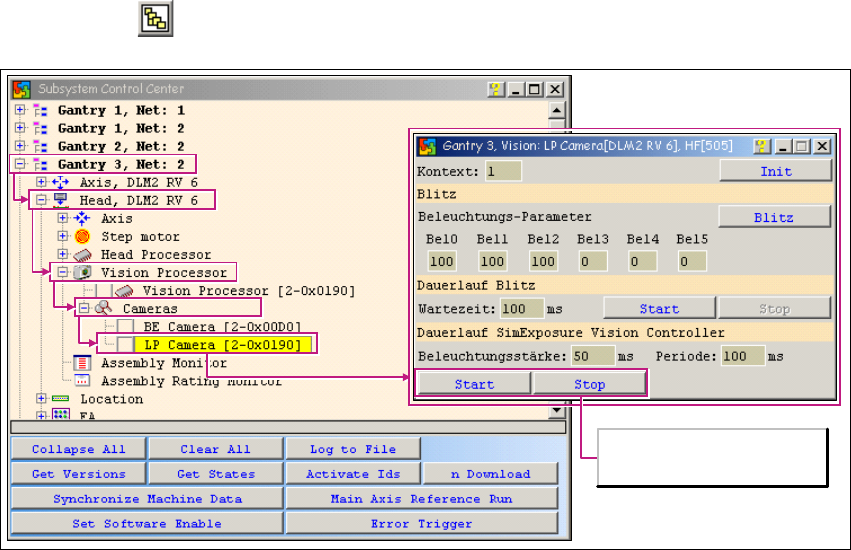
→ Click on the button to open the Subsystem Control Center dialog box:
1
Fig. 1 - 10 PCB camera illumination function
Camera illumination
endurance test