00191413-01.pdf - 第100页
3 Desktop (Root W indow) User Manual Line Computer UNIX 3.2 Desktop User Interface Software Version 501.xx 01/99 Issue 3 - 30 Setting up an account for a new user ● In the v iew area of the "Ad ministr ation of us e…

User Manual Line Computer UNIX 3 Desktop (Root Window)
Software Version 501.xx 01/99 Issue 3.2 Desktop User Interface
3 - 29
"USER" Menu
- New user
This function is used to set up an account for a new user.
● The further procedure to be followed is described on page 3 - 30.
- Delete user
This function is used to delete a user account from the user account list .
● Select the user account to be deleted in the view area.
● Click on USER --> Delete user.
Prior to the deletion operation, a dialog box is displayed with a verification query as to whether
you really want to delete the selected user account.
● Click on OK to confirm the deletion.
The dialog box closes, and the user account is no longer contained in the account list.
- Change user
This function allows you to change the description, the password and the access right settings of a
user account.
● The further procedure to be followed is described on page 3 - 32.
- Reset user to default account
This menu function allows the settings of the access rights assigned to the function groups to be reset
to the settings of the default account provided such an account exists for the selected user.
NOTE
If a user account was set up with the aid of a default account (see page 3 - 30), the name of the
default account is displayed in the "Default account" column next to the user’s name (see Fig. 3.2.1).
● In the view area click on the entry containing the user’s name whose account is to be reset to the
default account.
● On the menu bar, click on USER --> Reset user to default account.
The settings of the access rights assigned to the function groups are reset to the settings of the
default account.
If no default account is available (i.e. it has been deleted), a corresponding message is displayed.
3 Desktop (Root Window) User Manual Line Computer UNIX
3.2 Desktop User Interface Software Version 501.xx 01/99 Issue
3 - 30
Setting up an account for a new user
● In the view area of the "Administration of user accounts" dialog window (see Fig. 3.2.1) click on
the entry containing the user’s name whose account is to serve as template (default account) for
the new account.
NOTE
If an account is to be set up without any template, the preceding work step is dispensed with.
● Click on USER --> New user on the menu bar.
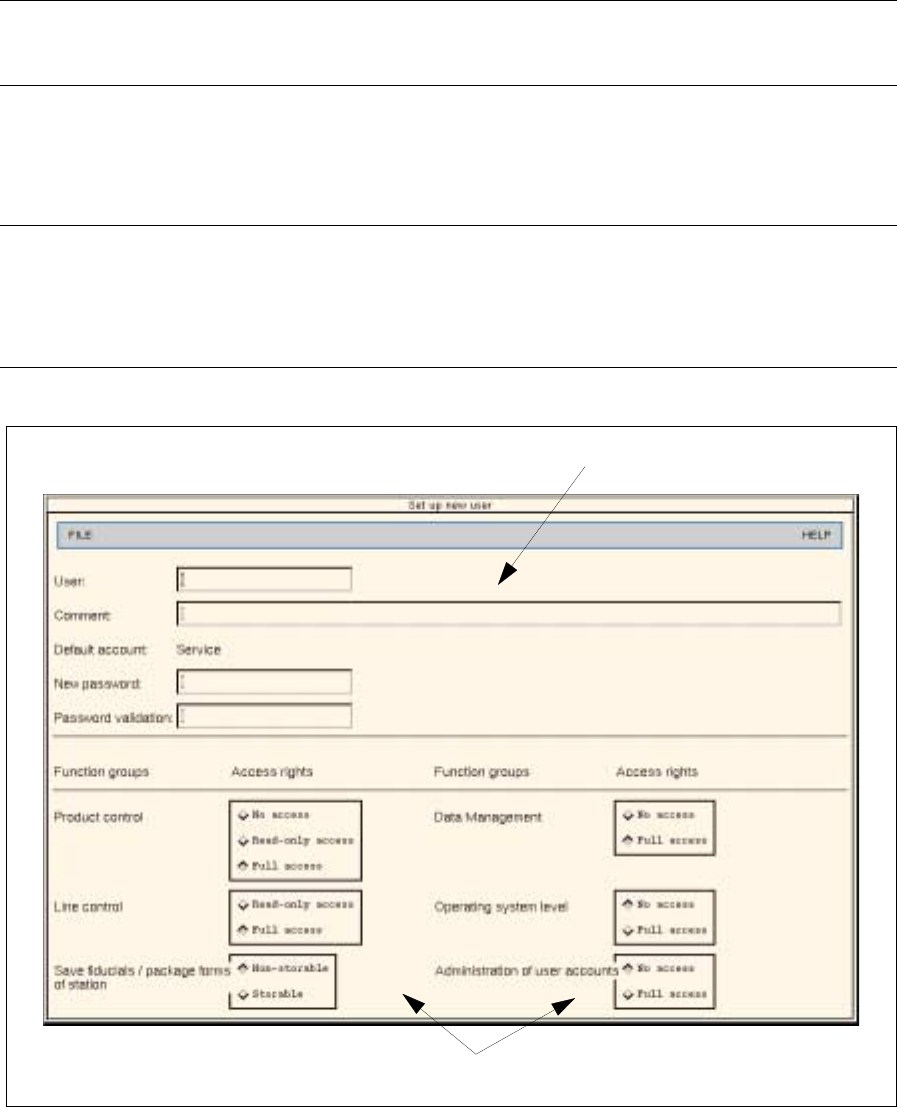
The user account configuration window for entering the user data and the settings of the access
rights opens (see Fig. 3.2.2).
NOTE
If a template (default account) was used, its name will be displayed in the editing area.
The access right settings were adopted from the default account.
The default account’s name cannot be edited.
Fig. 3.2.2 User Account Configuration Window (Example: New User)
The menu bar of the configuration window contains the "FILE" and "HELP" menus.
The menu functions of the "FILE" menu are briefly described in the following.
Editing area
Setting area

User Manual Line Computer UNIX 3 Desktop (Root Window)
Software Version 501.xx 01/99 Issue 3.2 Desktop User Interface
3 - 31
"FILE" Menu
- Reset
This functions is used to reset the assignments of access rights to function groups, as specified in the
setting area, to the settings of the default account.
- Close
The configuration window closes.
If data or settings were modified, a corresponding dialog box is displayed containing a query as to
whether the changes are to be saved.
The configuration window is subdivided into the editing and the setting area.
- The user data are entered into the editing area.
NOTE
If no password has been defined, an appropriate message will be displayed upon exiting the configu-
ration window (see page 3 - 26).
- The allocations of access rights to function groups are specified in the setting area (see description
below).
Access rights - setting options
The line computer applications are arranged by function groups. Each function group can be assigned an
access right.
The assignment is effected by activating the applicable button.
- No access
If this button is activated, this signifies that the user has no right to access the function group. This
means that the respective application cannot be started, or that the associated menu function is
disabled.
NOTE
If a user change is carried out, any open applications (except for MaDaMaS and error displays) will
be closed immediately and corresponding messages will be displayed.
If a setup changeover action is in progress, the user change will not be performed. The changeover
action must first be completed or aborted for the user change to be able to take place.
If the configuration window for setting up a new user account without template is called up, the
access rights are, by default, set to "No access" or "Non-storable" for all function groups (except for
"Line operation").
- Read-only access
If this button is activated, this means that the user has read-only access to the function group. This
means that the respective application can be started, but no change of the data is possible. (The but-
tons and editing fields are dimmed or grayed-out).