00191413-01.pdf - 第59页
User Manual Line Computer UNIX 2 General Information on Using the P rogram Software Version 501.xx 01/99 Issue 2.5 Menu Bar in the Application Window 2 - 25 2.5 Menu Bar in the Ap plication Window In ever y applic ation …
2 General Information on Using the Program User Manual Line Computer UNIX
2.4 File Selector Box FSB Software Version 501.xx 01/99 Issue
2 - 24

User Manual Line Computer UNIX 2 General Information on Using the Program
Software Version 501.xx 01/99 Issue 2.5 Menu Bar in the Application Window
2 - 25
2.5 Menu Bar in the Application Window
In every application window a menu bar is located at the upper window border (see Fig. 2.2.2).
It contains the menus with the functions that are required for the respective application program. When the
name of the menu is clicked on, the respective menu is opened and a menu option can be selected.
The number of menus contained on the menu bar depends on the application program concerned. The individual
menus and their functions are explained in the associated chapters.
The menu bar comprises three menus that are included in most of the application windows of the LC software
and which contain the same menu options. These are the following menus:
FILE
OPTIONS
HELP
These identical menu options having the same functions in the application program, are described in the
following sections.
2.5.1 Functions of the FILE Menu
The "FILE" menu is a so-called
pulldown menu
. It contains several options whose functions and use are
explained in this section.
NOTE
Some of the menu options described in the following are not available in all application programs.
- Open
Allows a new file (with a new window) to be opened in addition to the current file (and its current
window).
● Click on FILE --> Open.
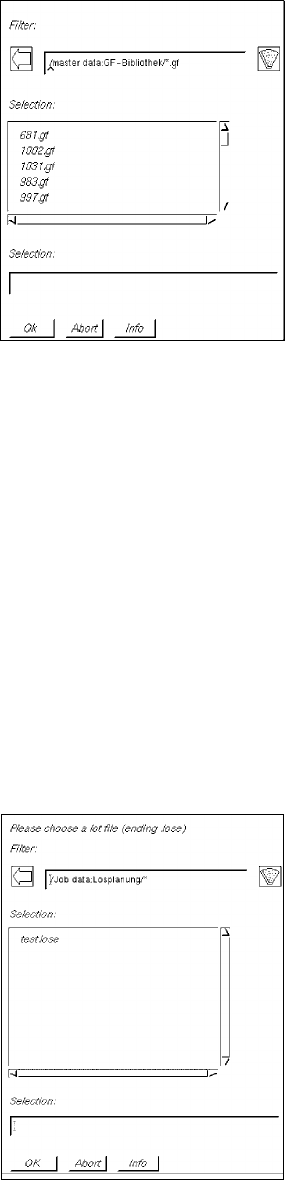
The file selector box relevant to the current application window is opened (e.g. Master data/
GF-Bibliothek/*.gf for the "Package Form Editor" application program).
2 General Information on Using the Program User Manual Line Computer UNIX
2.5 Menu Bar in the Application Window Software Version 501.xx 01/99 Issue
2 - 26
● Select the desired file by double-clicking (or by single-clicking and OK or RETURN).
The FSB is closed and a new window of the current application program is opened.
On the title bar of the window the name of the selected file is displayed.
- Save
Saves the open file in the current application program under its existing name.
● Click on FILE --> Save.
The file is saved to the master data storage in the predefined path.
- Save as ...
Lets you save the open file in the current application program with a new name.
● Click on FILE --> Save as ...
The respective FSB for entering the new name (or number) is opened (see example below).
● Enter new name (e.g. "rue1.lose") in the selection field of the FSB.
● Click on OK.
The FSB is closed and the current file is saved under the name entered.