00191413-01.pdf - 第453页
User Manual Line Computer UNIX 14 Control / Control Modules Software Version 501.xx 01/99 Issue 0.2 Job Control 14 - 17 14.1.4.5 OPTI ONS Menu - Inse rti ng jobs into the curren t job list Newly c reated j obs can be ins…
14 Control / Control Modules User Manual Line Computer UNIX
0.2 Job Control Software Version 501.xx 01/99 Issue
14 - 16
- Searching
In the search window different search criteria, e.g. for the name of the line or the subline, are availa-
ble. Making use of a search window, the procedure is the same for all search operations (see also
page 14 - 22).
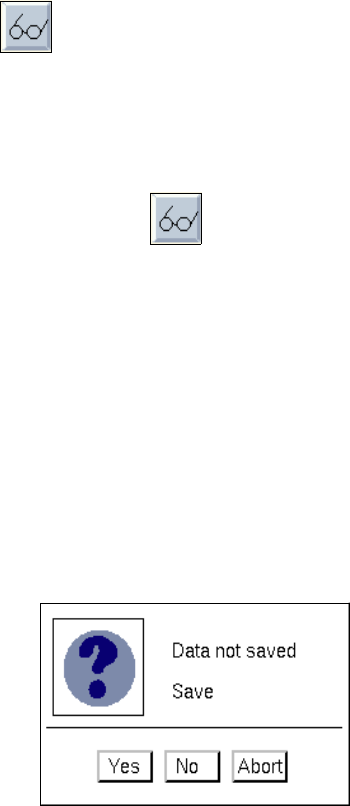
● Deactivate all icons in the command area.
● Click on the icon.
The dialog window "Search for basic optimization data" opens.
● Click on the Subline search criterion, for example.
● Enter the Search word.
● Select Search or Search additively.
The window closes and the matching data are highlighted in the selection area.
● Click on Abort if the search process is to be abandoned.
- Saving the edited basic optimization data
● Click on FILE --> Quit on the menu bar.
The following dialog box opens.
● Click on Yes in the dialog box.
The dialog box and the "Basic optimization data" window close.
The basic optimization data are saved.

User Manual Line Computer UNIX 14 Control / Control Modules
Software Version 501.xx 01/99 Issue 0.2 Job Control
14 - 17
14.1.4.5 OPTIONS Menu
- Inserting jobs into the current job list
Newly created jobs can be inserted at the top of the list (yet behind the jobs already scheduled) or at
the end of the list, or by a mouse-click.
● Select OPTIONS --> Insert --> File beginning or File end or Mouse click, respectively.
If the mouse-click option for inserting jobs is selected, the new job is inserted below the job which
is clicked-on on the current list, without
prior actuation of "OK" in the command area.
- Producibility
This menu item permits the options "Check PCB data only" and "Board Booster" for the producibility
test to be toggled on or off.
If the option "Check PCB data only" is toggled off, the data will be compiled and overwritten, if requi-
red, during the producibility test.
If the "Check PCB data only" option is activated, the processing data of the PCB will not
be over-
written during producibility check or job scheduling. The data will only be checked for consistency. If an
error in the PCB data is detected during the check, the error will be displayed and the job cannot be
scheduled.
If the option "Board Booster" is toggled on, optimization is carried out during the producibility test on the
basis of additional criteria. This leads to improved results, i.e. an increase in the placement performance,
although more time is required for calculation purposes.
● Click on OPTIONS --> Producibility --> Check PCB data only or Board Booster.
The identification mark (°) preceding the option has been changed (
¤).
NOTE
Any new
job must always be compiled first for the processing data to be created completely. For this
purpose, the "Check PCB data only" option must be de
activated (°).
° means that the option is deactivated.
¤ means that the option is activated.
By default, the options "Check PCB data only" and "Board Booster" are deactivated.
The currently applicable status of the two options is displayed in the upper right corner of the main
window of Job Control (see Fig. 14.1.1).
The most recent settings will be lost when the LC session is terminated unless they were saved using
the "Save default values" command (see page 14 - 18).
- Printer selection ...
This option is used to select a connected printer.
● Click on OPTIONS --> Printer selection ...
The window for printer selection is opened (see chapt. 2).
● Select the desired printer type.
● Confirm the selection with OK, or abort procedure with Abort.

14 Control / Control Modules User Manual Line Computer UNIX
0.2 Job Control Software Version 501.xx 01/99 Issue
14 - 18
- Auto-schedule ON/OFF
Setting this software switch enables jobs, which are edited within the editing area or which have been
newly created, to be automatically selected for processing provided "Auto-schedule ON" had been
activated earlier under "OPTIONS". This means that the jobs are then automatically subjected to a "pro-
ducibility" check (see section 14.1.4.6) and if they can be processed a standard number of jobs can be
preassigned to each subline. The maximum number is preset and cannot be changed by the operator.
NOTE
"Auto-schedule" preassigns the jobs from top to bottom.
If an error occurs during "Auto-schedule ON" or if the job cannot be processed, the "Auto-schedule"
program stops after the last job which has been produced with the current set-up. An alarm message
occurs. After acknowledging the alarm message, the operator must either delete the job which has
caused the alarm message to occur or to move it further back in the order of sequence, or to place a
new job in front of it.
● Select OPTIONS --> Auto-schedule ON or Auto-schedule OFF.
- Deleting files with/without confirmation
If "Delete" has been set in the command area, selected entries can be deleted with or without confir-
mation. If "with confirmation" has been set, a dialog box with the question "Do you want to delete the
specified entries?" (see also "Deleting", page 14 - 21) appears.
● Select OPTIONS --> Delete with confirm. or Delete without confirm.
- Saving default values
With this option the currently set values can be saved so that these values will be preset by default
when the Job Control is re-started.
● Activate OPTIONS --> Save default values.
The set values are saved.