00191413-01.pdf - 第444页
14 Control / Cont rol Modules User Manual Line Computer UNIX 0.2 Job Control S oftware Version 501.xx 01/99 Issue 14 - 8 14.1.4.2 SERVICES Menu - Merg e This men u option al lows the follow ing opera tions to b e initiat…
User Manual Line Computer UNIX 14 Control / Control Modules
Software Version 501.xx 01/99 Issue 0.2 Job Control
14 - 7
14.1.4.1 FILE Menu
In the following, only the menu commands "Open", "Reject" and "Quit" are explained. The remaining menu
items are described in detail in chapt. 2.
- Opening the job list or lot file
A job list or a lot file to be selected from the FSB (file selector box) can be opened.
The jobs contained therein are displayed in the display area.
● Select menu item FILE --> Open --> Job list.
The contents of the job list are displayed in the main window.
Or:
● Select menu item FILE --> Open --> Lot file.
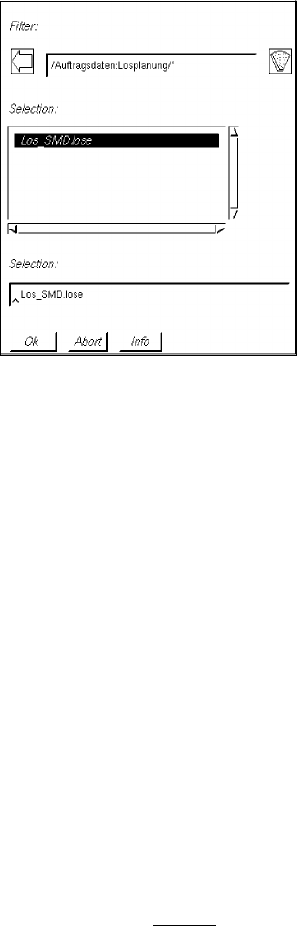
The FSB containing the files of all already-defined lot files opens.
● Select a file from the selection window by double-clicking.
The contents of the selected lot file are displayed in the main window.
Or: (to create an empty, new lot file)
● Enter, for example, new_SMD.lose in the selection field of the FSB and confirm with OK.
- Rejecting edited lot files
This menu item enables the lot file loaded to be reset to its initial state (prior to editing).
● Click on FILE --> Reject.
All changes made will be ignored and the initially loaded data will be redisplayed.
- Closing the main window
● Click on FILE --> Quit.
The current editing session is completed and the main window closed. The background activities
of the job control continue to be available.
If the main window contains a lot file that has been changed but not saved yet, the operator can
either initiate a save via the dialog box which is now displayed („Lot file not saved“) by selecting
Yes, or close the window by selecting No, without
saving the data.
14 Control / Control Modules User Manual Line Computer UNIX
0.2 Job Control Software Version 501.xx 01/99 Issue
14 - 8
14.1.4.2 SERVICES Menu
- Merge
This menu option allows the following operations to be initiated:
- Inserting jobs from the job list displayed in the main window into a selected lot file.
- Inserting jobs from a selected lot file into the job list displayed in the main window.
- Inserting jobs from a selected lot file into the lot file displayed in the main window.
NOTE
All or individual jobs from the job list
or individual jobs from a lot file can only be inserted into the job
list or lot file in the main window from the "Merge" dialog window
.
All jobs from a lot file can also be inserted into the current job list or lot file with the aid of the
command (in the main window) (see section 14.1.4.6).
● Click on SERVICES --> Merge... --> Job list or Lot file.
If "Lot file" is selected, the FSB containing all created lot files appears.
● Select lot file by double-clicking.
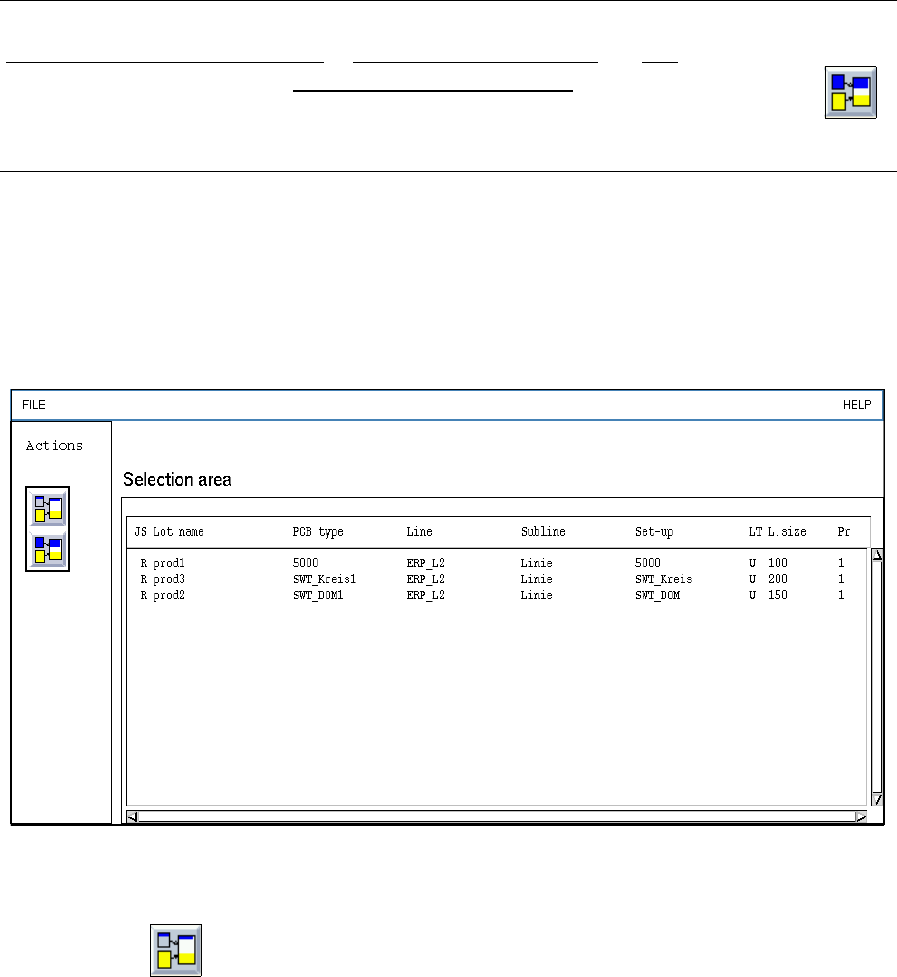
In both cases the dialog window "Merge" is now displayed.
In the selection area all jobs are now listed that are contained in the job list or in the selected lot
file.
Fig. 14.1.2 "Merge" Dialog Window
● Activate the (Merge) in the dialog window.
● Select the desired jobs from the selection area.
The selected jobs are added to the current job list or lot file.
On the menu bar click on FILE --> Quit. The dialog window closes.
User Manual Line Computer UNIX 14 Control / Control Modules
Software Version 501.xx 01/99 Issue 0.2 Job Control
14 - 9
Or:
● Activate the (Merge all) icon.
The dialog window closes and all jobs are added to the current job list or lot file.
●
NOTE
If jobs have been selected that already exist in the job list or lot file, the message "Error during
merging the lot file! Job name used more than once" appears.
If individual
jobs from a lot file are inserted into the current job list, these jobs are no longer contained
in the lot file.
If all
jobs from a lot file are inserted into the current job list or lot file, the lot file is automatically
deleted.
- Barcode type allocation list...
(Description see section 14.1.4.3)
- Basic optimization data...
(Description see section 14.1.4.4)
- Optimization dialog...
This menu option enables the optimization dialog (user interface of Set-Up Optimization to be opened.
● Click on SERVICES --> Optimization Dialog...
The main window of the Optimization Dialog is opened (see chapt. 11).
- Line Control...
The Line Control main window can be opened using this menu item.
● Click on SERVICES --> Line Control...
The main window of Line Control is opened (see section 14.2. Fig. 14.2.1).
- Results...
The "Results..." menu option can only be selected if a job was previously selected from the job list.
The results of the producibility check can be displayed for the selected job.
● Deactivate all buttons in the command area.
● Select the desired job from the job list.
● Select SERVICES --> Results...
The window containing the results of the producibility check is opened (see chapt. 11, Fig. 11.4.5).
The window displays the cycle time, the number of placement positions, the number of cycles and
the performance of the individual placement heads, the individual stations and the entire line.