00191413-01.pdf - 第233页
User Manual Line Computer UNIX 7 Product / Adhesive Pattern Software Version 501.xx 01/99 Issue 7.1 Adhesive Pattern Editor 7 - 3 Me nu ba r The menu ba r contai ns the "FILE", "O PTIONS" a nd "H…
7 Product / Adhesive Pattern User Manual Line Computer UNIX
7.1 Adhesive Pattern Editor Software Version 501.xx 01/99 Issue
7 - 2
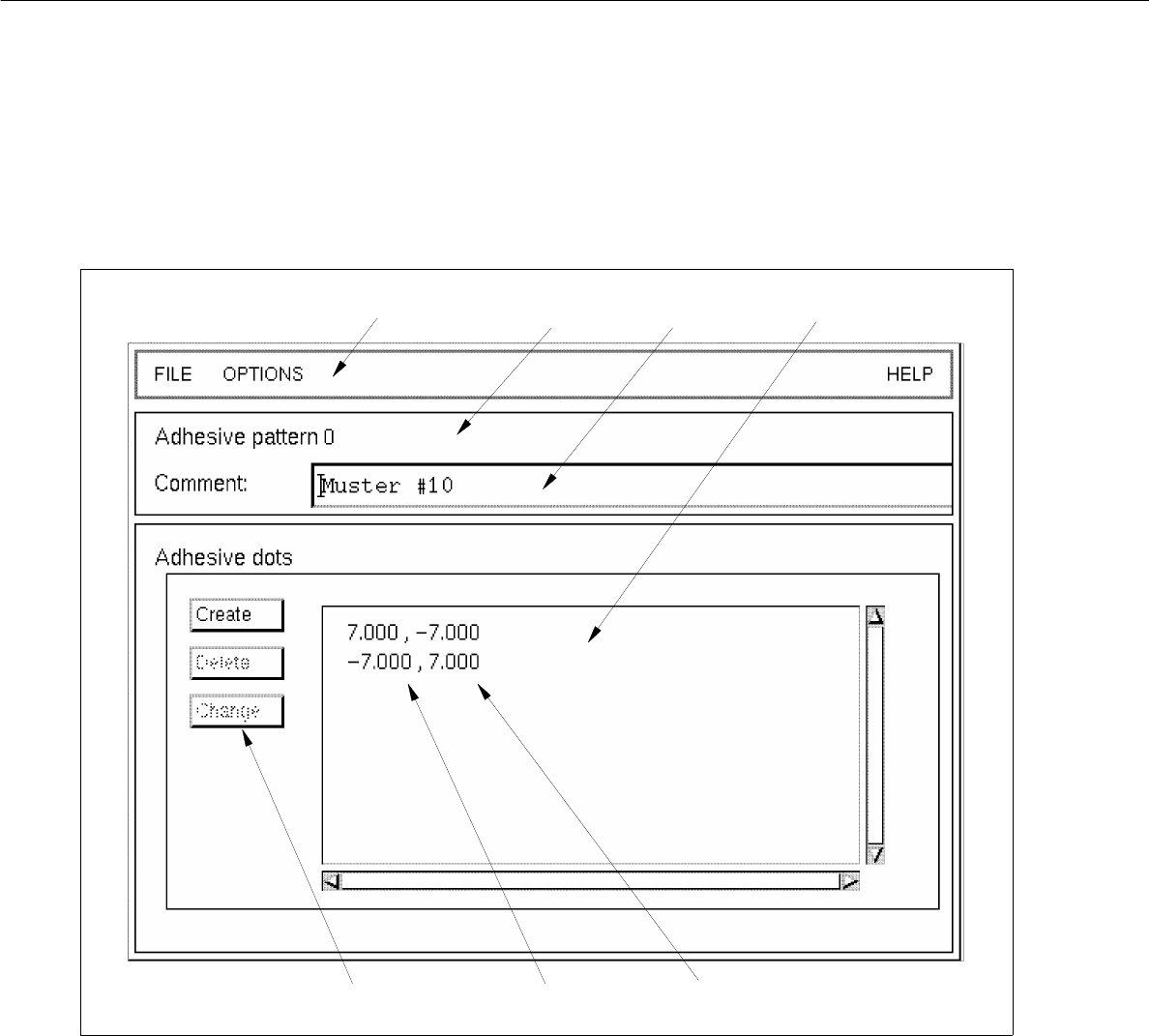
7.1.2 Main Window of Adhesive Pattern Editor
The areas of the main window and their functions are explained in the following.
Fig. 7.1.1 Main Window "Adhesive Pattern Editor"
The main window is subdivided as follows:
- Menu bar
- Title bar
- Editing field
- Command area
- Display area
menu bar title bar
editing field
x-coordinate
command area
display area
y-coordinate
User Manual Line Computer UNIX 7 Product / Adhesive Pattern
Software Version 501.xx 01/99 Issue 7.1 Adhesive Pattern Editor
7 - 3
Menu bar
The menu bar contains the "FILE", "OPTIONS" and "HELP" menus.
NOTE
Since the functions and operation of the menus are similar to those in other application programs of the line
computer, they are described comprehensively in chapt. 2.
Title bar
The title bar displays the number of the currently used adhesive pattern.
Editing field
An optional comment can be entered in the editing field below the title bar.
(Inverted commans and quotation marks are not accepted).
Command area (see section 7.1.2.1)
The adhesive dots forming the adhesive pattern can be created, deleted or changed by means of the
corresponding commands activated in this area.
Display area
The data of the x and y-coordinates of all created adhesive dots are displayed in the display area of the main
window.
7.1.2.1 Adhesive Pattern Editor Command Area
In the command area the adhesive dots of an adhesive pattern can be created, deleted or changed by means
of the corresponding commands.
COMMANDS
The procedures to be followed for the execution of the commands are described in the following.
- Creating
This command enables a new adhesive dot for the current adhesive pattern to be created.
● Click on Create in the command area of the main window of the "Adhesive Pattern Editor"
(see Fig. 7.1.1).
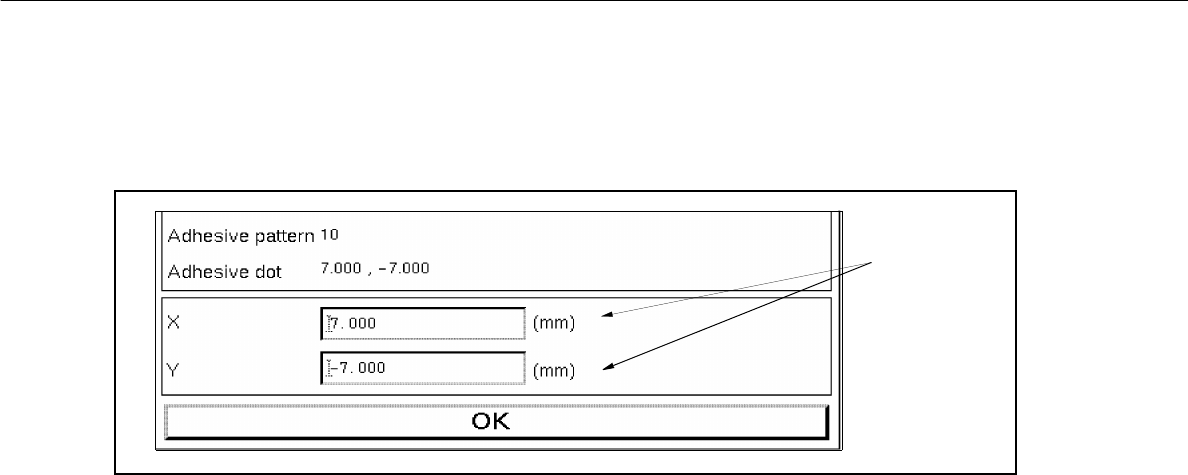
The window for entering the x/y-coordinates of the new adhesive dot is opened (see Fig. 7.1.2).
7 Product / Adhesive Pattern User Manual Line Computer UNIX
7.1 Adhesive Pattern Editor Software Version 501.xx 01/99 Issue
7 - 4
Fig. 7.1.2 Window "Entries of x/y-coordinates for adhesive dot"
- Deleting
A created adhesive dot can be deleted.
● Select coordinate ddata of the adhesive dot to be deleted from the display area of the main
window "Adhesive Pattern Editor".
● Click on Delete.
The coordinate data of the adhesive dot are no longer displayed.
- Changing
The coordinate data of an existing adhesive dot can be edited.
● Select coordinate data from the display area.
● Click on Change.
The window for editing the x/y-coordinates is opened (see Fig. 7.1.2).
● Click on editing field containing the value to be changed (cursor to be positioned in front of the
value).
● Delete entry using the DELETE key and enter new value.
● Confirm entries with OK.
The window is closed. The edited values are displayed in the main window "Adhesive Pattern
Editor".
editing fields