00191413-01.pdf - 第73页
User Manual Line Computer UNIX 3 Desktop (Root Window) Software Version 501.xx 01/99 Issue 3.1 Introduction 3 - 3 Fig. 3.1.3 E xample of a Layout of the Desktop with Blocked Applications (Function Groups) NOTE pertai nin…
3 Desktop (Root Window) User Manual Line Computer UNIX
3.1 Introduction Software Version 501.xx 01/99 Issue
3 - 2
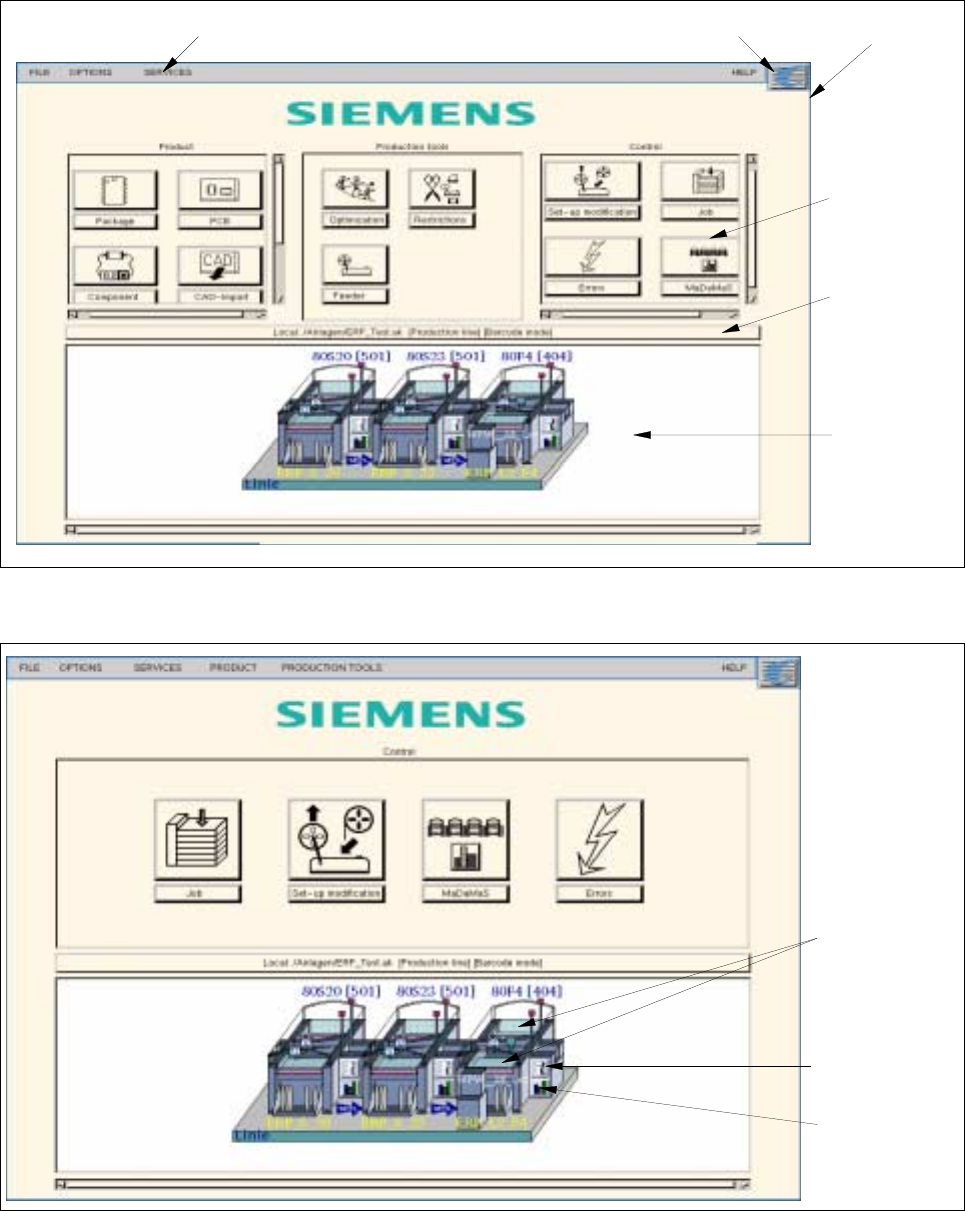
Fig. 3.1.1 Layout of the Desktop in the Programming Mode
Fig. 3.1.2 Layout of the Desktop in the Control Mode
desktop menu bar SMD symbol
main group
line selection
(current line
configuration)
main menu
display
area
button (for the
selection of a
new line)
feeder parts
symbol "i“ for
station
controller
bar chart
symbol for
MaDaMaS
User Manual Line Computer UNIX 3 Desktop (Root Window)
Software Version 501.xx 01/99 Issue 3.1 Introduction
3 - 3
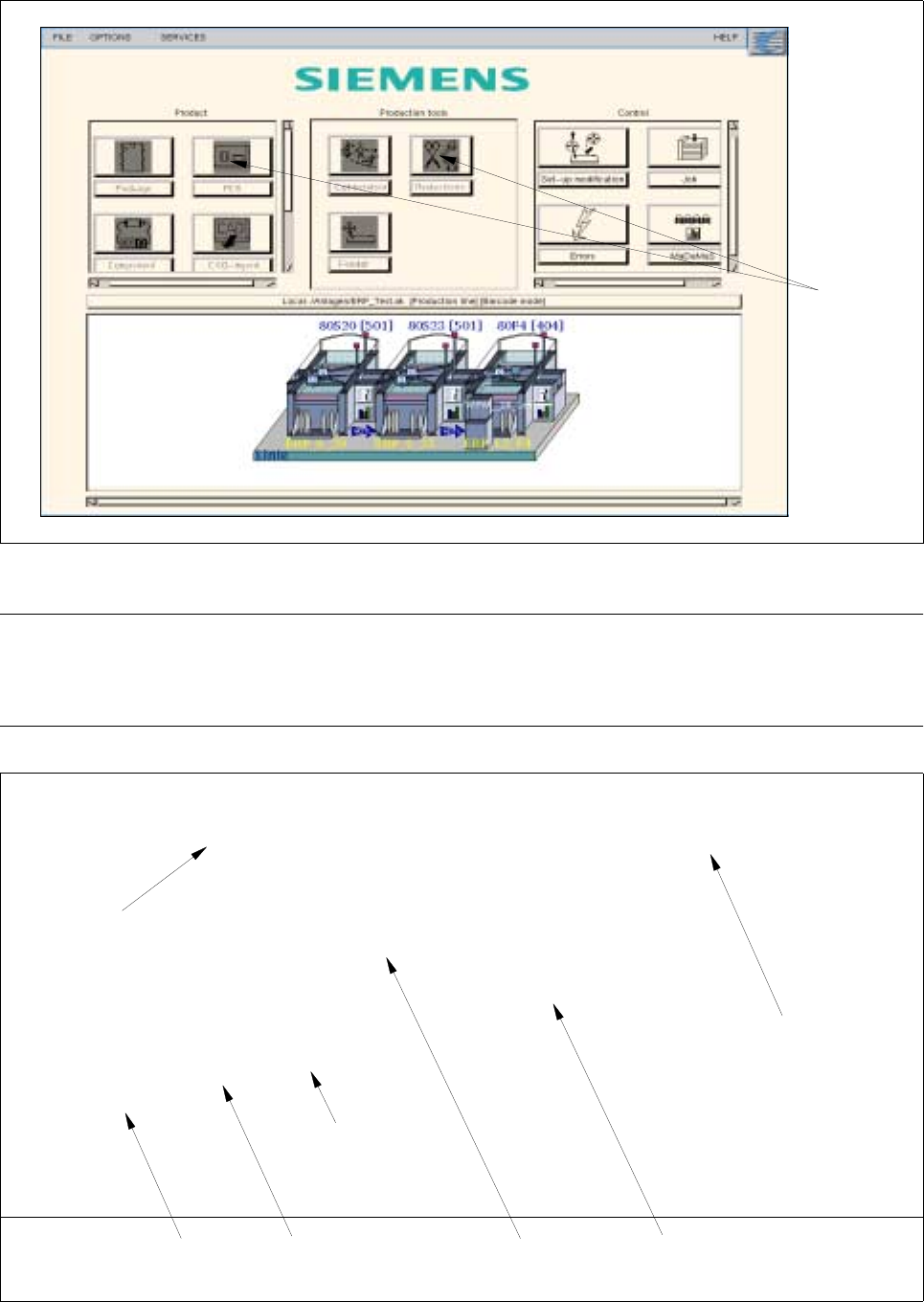
Fig. 3.1.3 Example of a Layout of the Desktop with Blocked Applications (Function Groups)
NOTE pertaining to Fig. 3.1.3
In the case that individual LC program functions or menu options are not accessible to the currently-logged on
user (see section 3.2.1.3, page 3 - 31), these will be displayed in reverse video and cannot be selected.
Fig. 3.1.4 Example of Station Characteristics of the Line Configuration Displayed
blocked
applications
Selected
Machine type
Name of the
12-nozzle revolver WPC designation
head set up
Name of the
subline
software version
station
Option "Whispering
down the line" active

3 Desktop (Root Window) User Manual Line Computer UNIX
3.1 Introduction Software Version 501.xx 01/99 Issue
3 - 4
The desktop is subdivided into the three sections described below:
- Upper area containing the desktop menu bar
The menu bar contains the following menus:
FILE
OPTIONS
SERVICES
PRODUCT (only available in the control mode)
PRODUCTION TOOLS (only available in the control mode)
- Middle area containing the main groups
Product (only available in the programming mode)
Production Tools (only available in the programming mode)
Control
Each of these main groups contains the modules of the LC software. These modules are the LC pro-
grams which are displayed in the respective main group as icons when they have been logged on to the
desktop.
- Bottom section featuring the
Line selection button
and the view area
The
Line selection button
displays the pathname of the current line. The type of data storage ("local" or
"central") currently accessed is indicated in front of the pathname as an additional piece of information.
- If the overall line was defined as a production line in the Line Editor, the entry [production line]
is displayed behind the path name (see Fig. 3.1.4).
- If the "with barcode" option was activated for the overall line, the entry [barcode mode] is
displayed behind the path name (see Fig. 3.1.4).
The FSB enabling the selection of a different line can be opened by clicking on the button.
The view area contains a display symbolizing the current line configuration including all stations
existing in the line.
NOTE
The meaning and functions of all elements of the desktop in the programming and control modes are
described in section 3.2.