00191413-01.pdf - 第157页
User Manual Line Computer UNIX 4 Data Management Software Version 501.xx 01/99 Issue 4.6 CAD Import 4 - 47 - PCB thickn. Thic kness o f the P CB in m m 5 mm ar e entered as the de fault val ue for the maximum value . - C…
4 Data Management User Manual Line Computer UNIX
4.6 CAD Import Software Version 501.xx 01/99 Issue
4 - 46
- Change cluster data
The cluster size calculated during conversion of the placement data from the outermost placement
positions, can be transformed into its actual size in a separate window of the CAD Import. In addition,
the selected coordinate system can be changed as well.
● Select the SERVICES --> Change cluster data menu item.
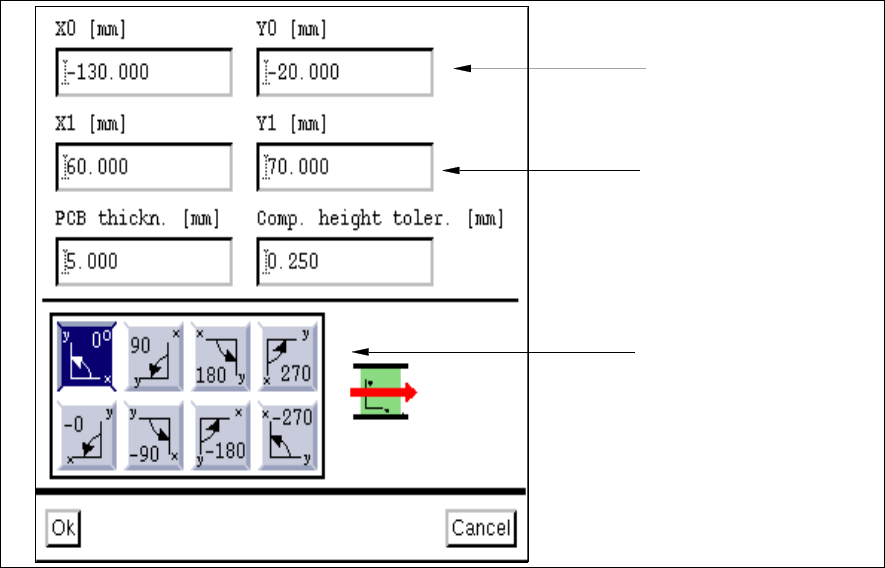
The "Adapt cluster data" window opens (see Fig. 4.6.3).
Fig. 4.6.3 "Adapt cluster data" Window
Input Possibilities:
- X0
Vector from the PCB zero point to any corner of the PCB in x-direction.
- Y0
Vector from the PCB zero point to any corner of the PCB in y-direction.
- X1
Vector from the previously defined corner to the opposite corner of the PCB in x-direction. This value
represents the length of the PCB.
- Y1
Vector from the previously defined corner to the opposite corner of the PCB in y-direction. This value
represents the width of the PCB.
Dimensions of PCB
(cluster size or offset
vector)
Vector to any one corner
of the PCB
Position of PCB in the
machine
User Manual Line Computer UNIX 4 Data Management
Software Version 501.xx 01/99 Issue 4.6 CAD Import
4 - 47
- PCB thickn.
Thickness of the PCB in mm
5 mm are entered as the default value for the maximum value.
- Comp. height toler.
Specifies the max. permissible lead bending value of a component in
1
/
1000
mm.
An entry is only required if a coplanarity check is to be performed.
As default value 250 µm are entered.
- Coordinate systems
These icons permit you to set the position of the coordinate system of the CAD data in relation to the
coordinate system of the machine, with reference to the direction of PCB travel.
If a mirrored coordinate system is selected (- 0°, - 90°, -180° or - 270°), all angles of the placement
positions are additionally turned by 180°.
Editing cluster data:
● Position the mouse cursor in the desired editing field and perform the changes using the key-
board.
● If required, change the angle between the machine coordinate system and the PCB coordinate
system by clicking on the appropriate icon.
● Click on OK.
The "Adapt cluster data" window closes.
If the graphical data display mode was selected in CAD Import, the PCB is displayed in the dis-
play area together with the modified cluster data (see Fig. 4.6.2).
4.6.2.3 Command Area
The commands are symbolized by icons.
- (Start)
Clicking on this icon causes the conversion of the current CAD file (or individual lines) to be started
using the current filter.
Converting the entire file:
● Click on the icon in the command area (see Fig. 4.6.1).
Conversion is started using the selected filter.
Converting individual lines:
● Successively click on the desired lines using the left mouse button.
They are now highlighted in dark.
4 Data Management User Manual Line Computer UNIX
4.6 CAD Import Software Version 501.xx 01/99 Issue
4 - 48
NOTE
Clicking once more on a selected line using the left
mouse button will cancel the selection of the line.
Clicking on a selected line using the right
mouse button causes the entire selection to be canceled
again.
If several consecutive lines are to be selected, click on the first line of the group of lines to be selected
by clicking the left mouse button, hold down the SHIFT key while selecting the last line by a click with
the left mouse button. Every line between the two will be highlighted.
● Click on the icon in the command area.
Conversion is started using the selected filter.
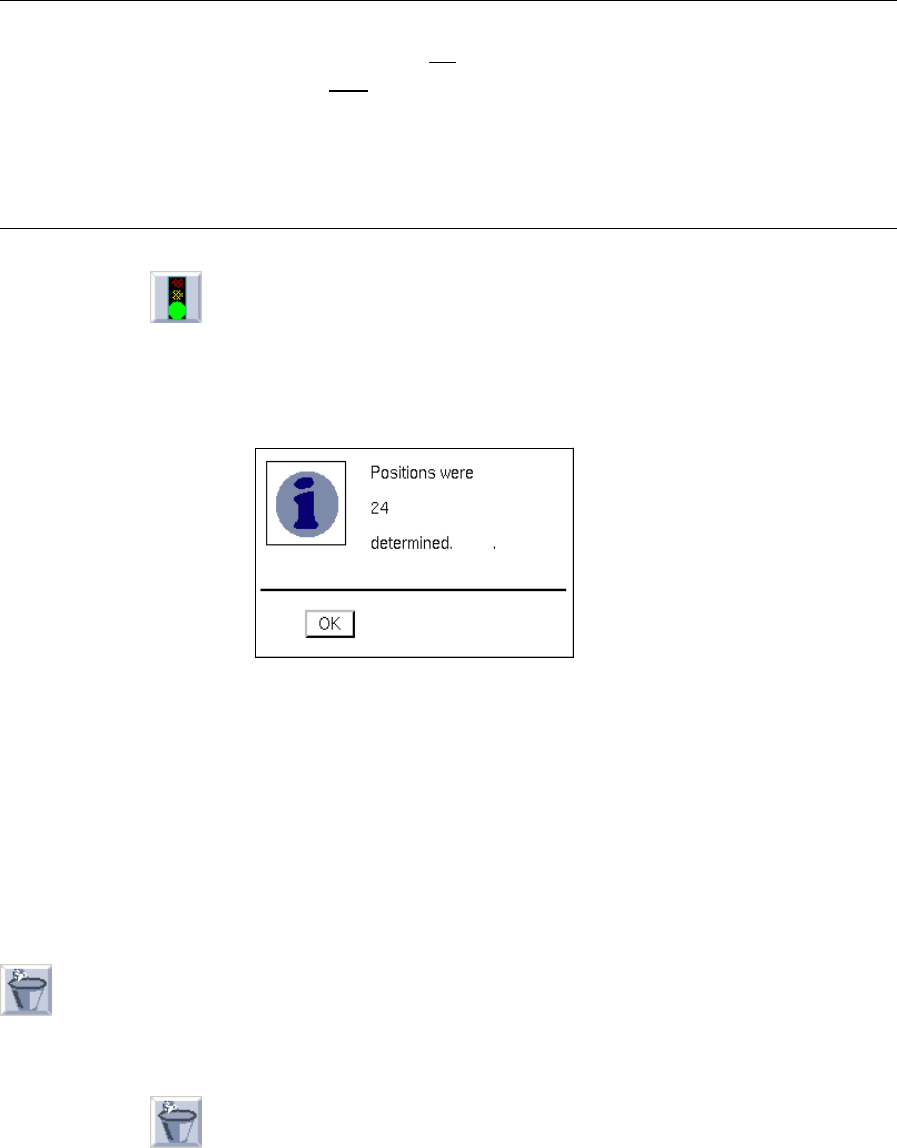
After the conversion process has been successfully completed, the following dialog box opens
displaying the number of converted data records.
If the conversion could not be completed successfully, a dialog box containing a corresponding
message is displayed.
● Close the dialog box by choosing OK.
For reviewing purposes, the placement positions determined can now be displayed graphically
(see Fig. 4.6.2), or the cluster data can be edited in the "Adapt cluster data" window (see Fig.
4.6.3).
● Save the converted structure (see section 4.6.2.1).
- (Discard)
Clicking on this icon causes the converted data (not saved yet) to be discarded, and the conversion of
the current CAD file can be restarted.
● Click on the icon in the command area.
The converted data are discarded.