00191413-01.pdf - 第52页
2 General Information on Using the P rogram User Manual Line Co mputer UNIX 2.2 Window System Software Version 501.xx 01/99 Issue 2 - 18 Closing a Window If your scre en has becom e cluttered with too many open wind ows,…

User Manual Line Computer UNIX 2 General Information on Using the Program
Software Version 501.xx 01/99 Issue 2.2 Window System
2 - 17
Changing a Window into an Icon (Minimizing)
As you work, your screen can become cluttered with windows. This can be avoided by iconifying (minimizing)
windows. To minimize a window, activate FILE --> Iconify on the menu. When so doing, the minimized
window is not closed, but the programs continue to execute in an iconified window.
● In the window to be minimized select menu option FILE --> Iconify.
The window immediately changes into an icon and appears on the desktop on a colored back-
ground. The colored icon is an indication that the window has been minimized.
By clicking on the icon the window is restored to its previous size.
NOTE
The menu option
Iconify
is not available in all windows so that only some of the windows can be
minimized.
Scrolling Contents of a Window
When a display area contains more information than can fit in a window, vertical and horizontal
scroll bars
are provided along the right and bottom edges of a display area (see Fig. 2.2.2).
At each end of the scroll bars
arrow buttons
are provided and a rectangular
scroll box
moves within the
scroll bars between the arrow buttons. The position of the scroll box indicates which portion of the file can
currently be seen in the window. Otherwise invisible file contents can thus come into view by using the
elements of the scroll bar.
Scrolling line-by-line
● Click on the up or down arrow button in the right scroll bar by pressing left mouse button. With
each click of the mouse the contents of the window move up or down by one line. The scroll box
reflecting the relative position within a document moves up or down accordingly.
Continuous scrolling:
● Click on the down arrow button in the right scroll bar by pressing the left mouse button; keep
mouse button depressed until scrolling operation is terminated or specific location has been
reached.
● Release mouse button. The last part of the file or the desired section is displayed in the window.
● Moving the scroll box:
● With the mouse cursor point at the scroll box in the right scroll bar, click with the left mouse button
and keeping the mouse button depressed slowly move mouse cursor in upward or downward
direction.
Thus the scroll box is moved within the scroll bar and parallel to it the contents of the file.
● Release mouse button once the desired file contents come into view inside the window.
Scrolling to the left/right
● Proceed as for scrolling up/down, but using the horizontal scroll bar at the bottom edge of the
window.

2 General Information on Using the Program User Manual Line Computer UNIX
2.2 Window System Software Version 501.xx 01/99 Issue
2 - 18
Closing a Window
If your screen has become cluttered with too many open windows, there is the possibility to close windows
that are no longer needed.
● In the desired window select menu option FILE --> Quit.
The window is closed.
If this is performed in the main window, the window including any existing subwindows are closed.
It appears now as an icon on the desktop.
Terminating Line Computer Program / Restarting (only as special procedure)
● With the mouse cursor point at the right edge of the screen.
The mouse cursor has an x shape.
● Press and hold left mouse button.
The main menu appears.
● Move the mouse cursor over the menu option LC-End and release the mouse button.
Shortly afterwards the desktop disappears and the screen darkens.
● Wait for approx. 2 minutes before restarting the LC-Program.
● After the waiting time has elapsed, move mouse cursor to any position on the screen.
The mouse cursor has an x shape.
● Press and hold mouse button until the
Main Menu reappears.
● Select LC-Start.
After approx. 3 minutes the desktop with the 3 main groups is redisplayed on the screen.
CAUTION !
To prevent any communication problems between line computer and station computer(s) from occurring, the
following steps should be performed:
é Turn off all stations after having terminated the line computer session by "LR-End" (or "Shutdown").
é When restarting the line computer by means of "LR-Start" (or booting the LC), do not turn on the
stations before the root window ("Desktop") is displayed on the screen.
é Activate icon (Schedule) from the "Job Control" user interface (see chapt. 14) and click on
the most recently processed job (now in the "Ready" state) to re-schedule it.
User Manual Line Computer UNIX 2 General Information on Using the Program
Software Version 501.xx 01/99 Issue 2.3 Directories / Files
2 - 19
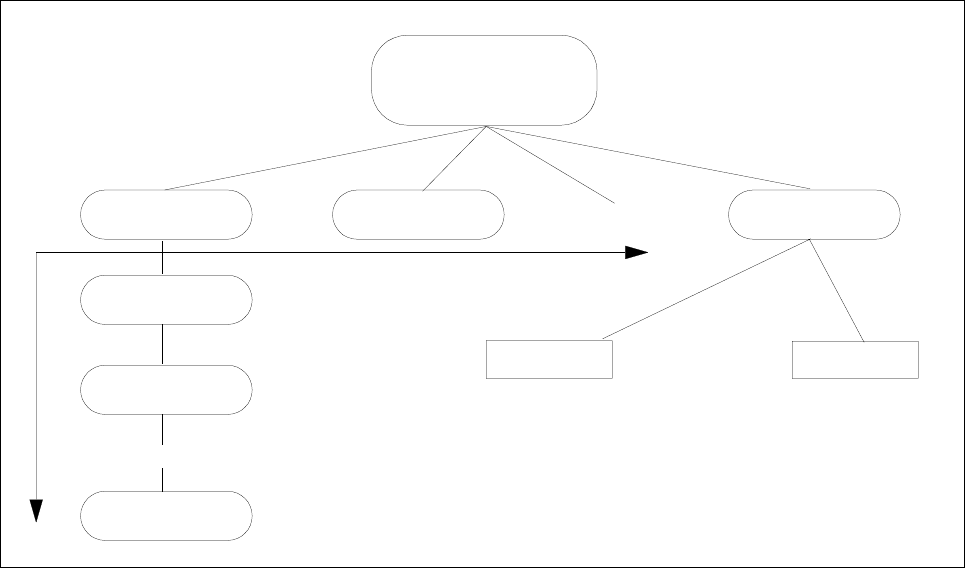
2.3 Directories / Files
Related files are grouped and stored in
directories
. These directories can also contain other directories, so-
called
subdirectories
, which, in turn, contain files and other subdirectories.
Fig. 2.3.1 Directory Structure
Each file is identified by its
path
which specifies its exact position within the directory structure in the following
form:
Example: /DirA/DirA1/DirA2/File.xx
The individual directories and files are separated by a stroke "/".
Directory A
Directory An
Directory A2
Directory A1
File x
File a
Directory x
Directory B
... as many as you like
... as many as you like
... as many as you like
Main Directory