00191413-01.pdf - 第258页
8 Product / PCB User Manual Line Computer UNIX 8.1 PCB Editor Software Version 501.xx 01/99 Issue 8 - 20 8.1.3.5 Display of the Cluster Data in the Structure Editor (Graphic M ode) In the Graph ic Mo de of the S truct ur…
User Manual Line Computer UNIX 8 Product / PCB
Software Version 501.xx 01/99 Issue 8.1 PCB Editor
8 - 19
● Activate or deactivate the desired display options (graphical elements) by clicking on the
respective buttons.
● Click on OK.
The window closes, and the PCB with the selected graphical elements is displayed in the display
area (see Fig. 8.1.6).
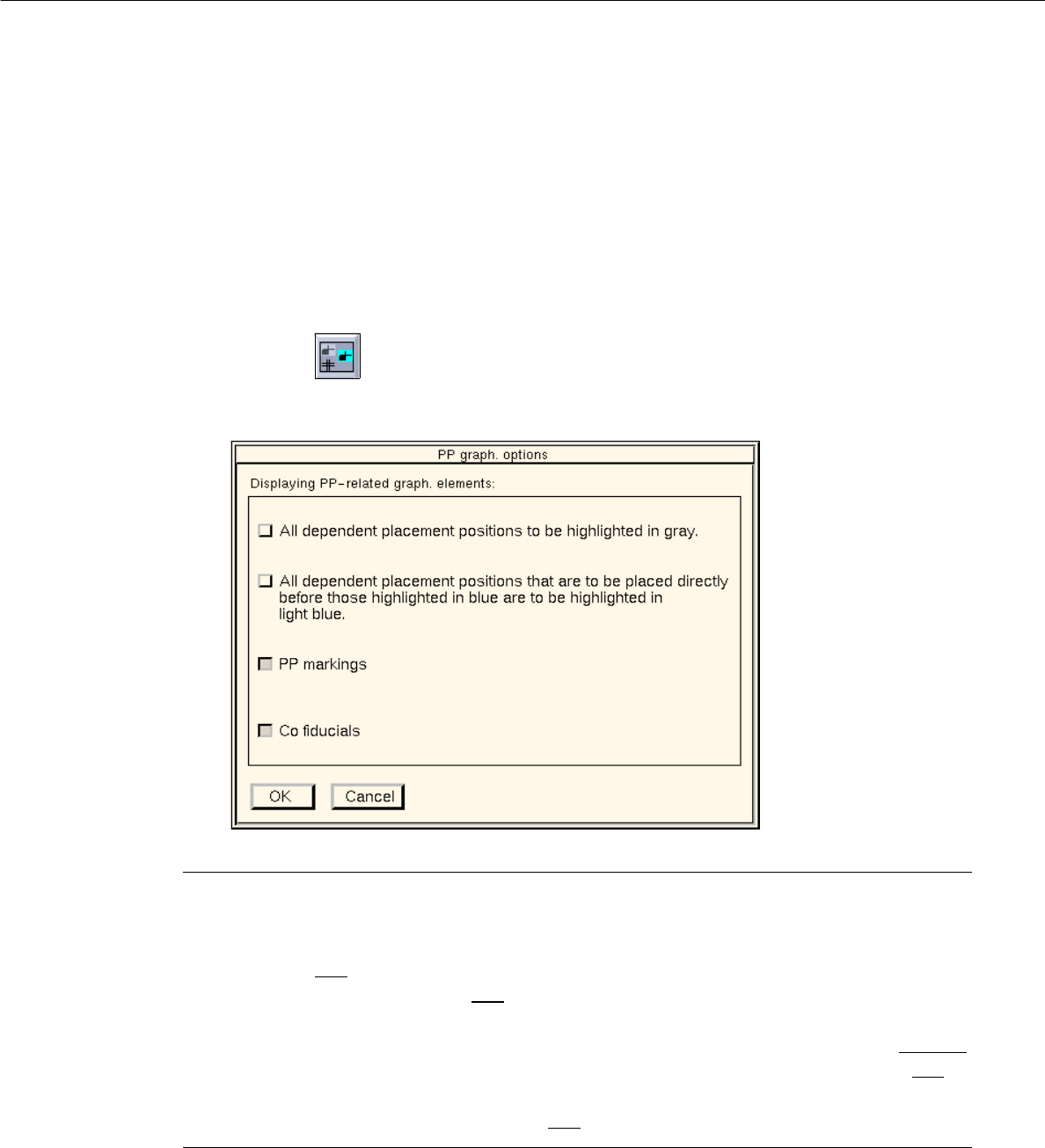
- Displaying PP-related graph. elements
● Click on the icon.
The following window opens:
NOTE
- If the topmost button in the window and the "PP markings" button are activated and if no place-
ment level is entered, all placement positions that are associated with placement levels are displayed
highlighted in gray
. If a placement level is entered, the placement positioned allocated to this
level are displayed - highlighted in blue
.
- If the second button and the "PP markings" button are activated, all placement positions associated
with the placement level preceding the currently selected placement level, are highlighted in light blue
.
The placement positions allocated to the currently selected placement level are highlighted in blue
.
- If the "PP markings" button is activated and if a placement level is entered, the placement positions
associated with that level are highlighted in blue.
● Activate or deactivate the desired display options by clicking on the appropriate buttons.
● Click on OK.
The window closes.
● Enter a placement level, if required (see page 8 - 40).
The selected graphical elements are displayed in the view area in the appropriate colors.
8 Product / PCB User Manual Line Computer UNIX
8.1 PCB Editor Software Version 501.xx 01/99 Issue
8 - 20
8.1.3.5 Display of the Cluster Data in the Structure Editor (Graphic Mode)
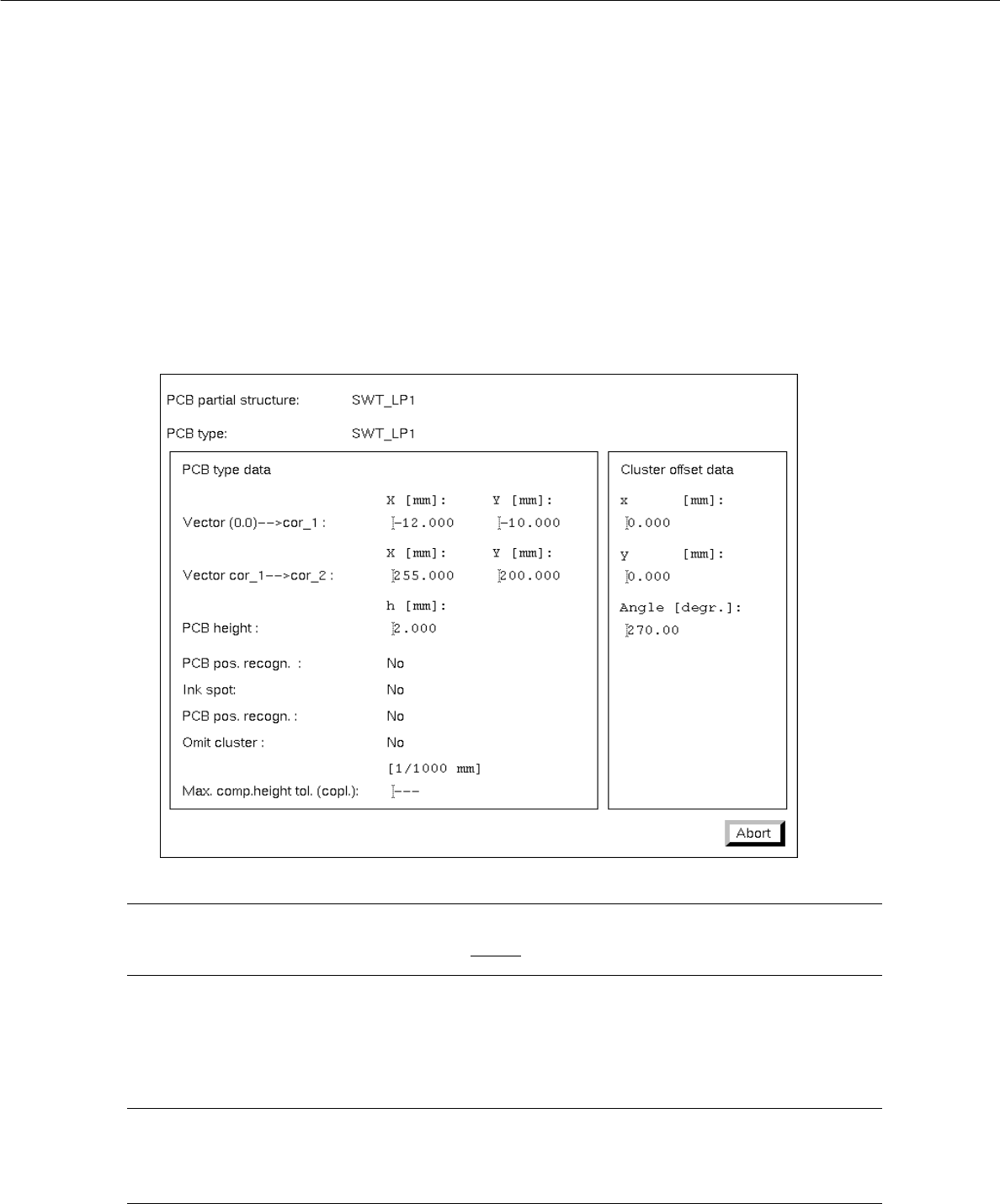
In the Graphic Mode of the Structure Editor the cluster data of the PCB and those of every substructure can
be displayed in separate windows.
● Select the outline of the PCB structure by double-clicking on it.
The outline is highlighted by a selection frame in bold type.
The "PCB info" window containing the cluster data of the selected structure is opened.
NOTE
The data contained in the "PCB info" window cannot be changed.
● Click on the Abort button.
The "PCB info" window is closed.
NOTE
In addition, the "PCB info" window can be opened for a substructure from the "PP information"
window (see page 8 - 21).
User Manual Line Computer UNIX 8 Product / PCB
Software Version 501.xx 01/99 Issue 8.1 PCB Editor
8 - 21
8.1.3.6 Display of PP-Data in the Structure Editor (Graphic Mode)
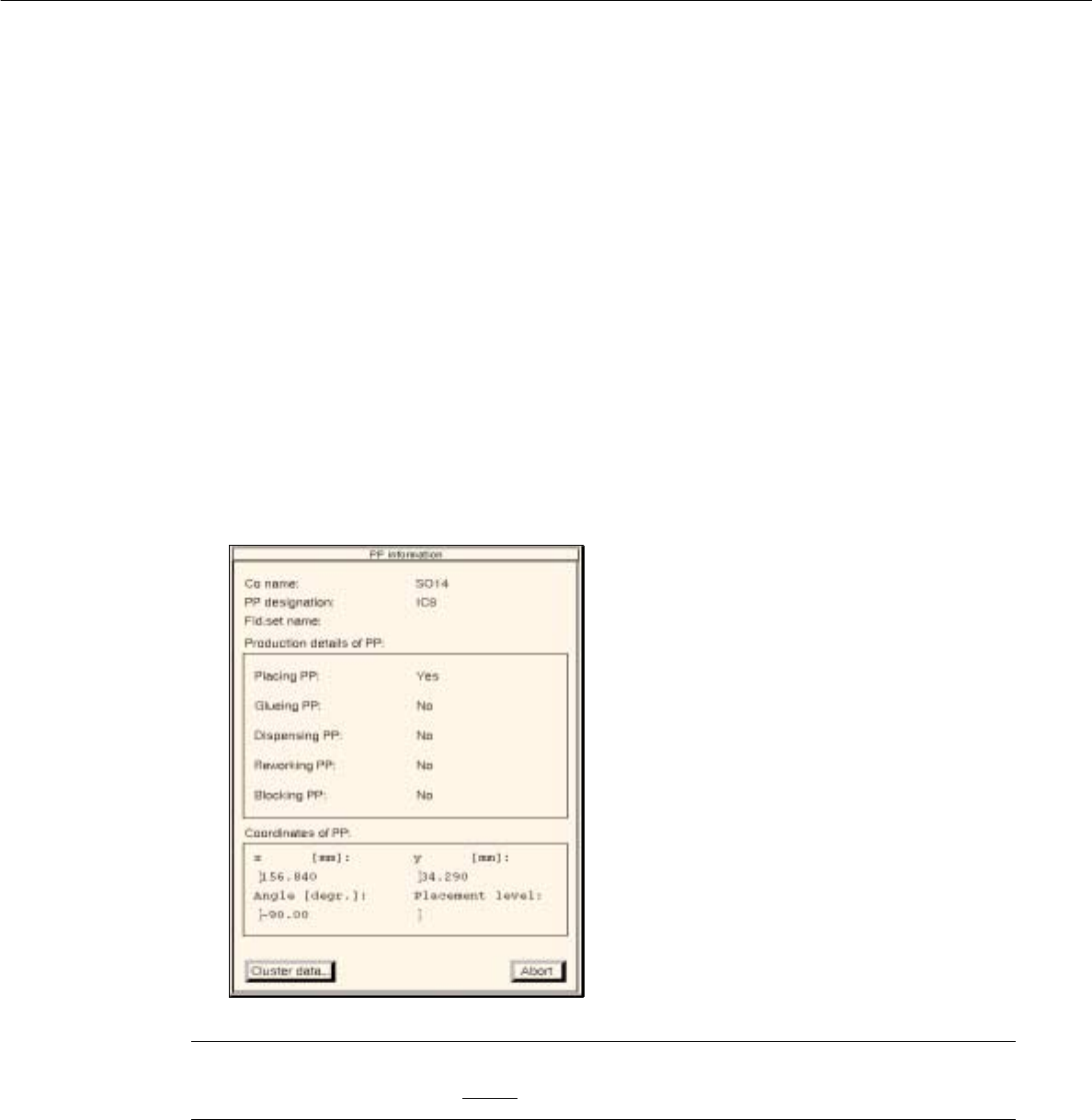
In the graphic mode of the Structure Editor, it is possible to display the data of a selected placement position
either directly underneath the graphical display of the PCB, or in a separate window.
If only the most essential data of the placement position is required,
● single-click on the desired placement position to select it.
The placement position is surrounded by a bold-type frame.
The data of the selected placement position is displayed underneath the graphical display of the
PCB (see Fig. 8.1.6).
If all data of the placement position is required,
● select the desired placement position by double-clicking on it.
The placement position is surrounded by a frame in bold type.
The "PP information" window containing the data of the selected placement position is opened.
NOTE
The data in the "PP information" cannot be changed.
- Cluster data...
This button permits the "PCB info" window to be opened that contains the cluster data of the sub-
structure in which the selected placement position is located.
● Click on the Cluster data... button.
The "PCB info" window is opened.
● Click on the Abort button in the "PCB info" window.
The "PCB info" window is closed.
● Click on the Abort button in the "PP information" window.
The "PP information" window is closed.