00191413-01.pdf - 第138页
4 Data Management User Manu al Line Computer UNIX 4.4 User Interface of Pri nt and Update Server Software Version 501.xx 01/99 Issue 4 - 28 Display Area All printe rs, flop py disk and tape d rives phy sicall y availab l…
User Manual Line Computer UNIX 4 Data Management
Software Version 501.xx 01/99 Issue 4.4 User Interface of Print and Update Server
4 - 27
4.4 User Interface of Print and Update Server
The user interface of the print and update server basically serves to log on (activate) and log off (deactivate)
the physical devices available within the LC system, such as printers, floppy disk and magnetic tape drives.
Moreover, data carriers can be prepared (formatted) for data saving operation.
4.4.1 Starting the Print and Update Server
● Click on SERVICES -> Equipment on the menu bar of the desktop.
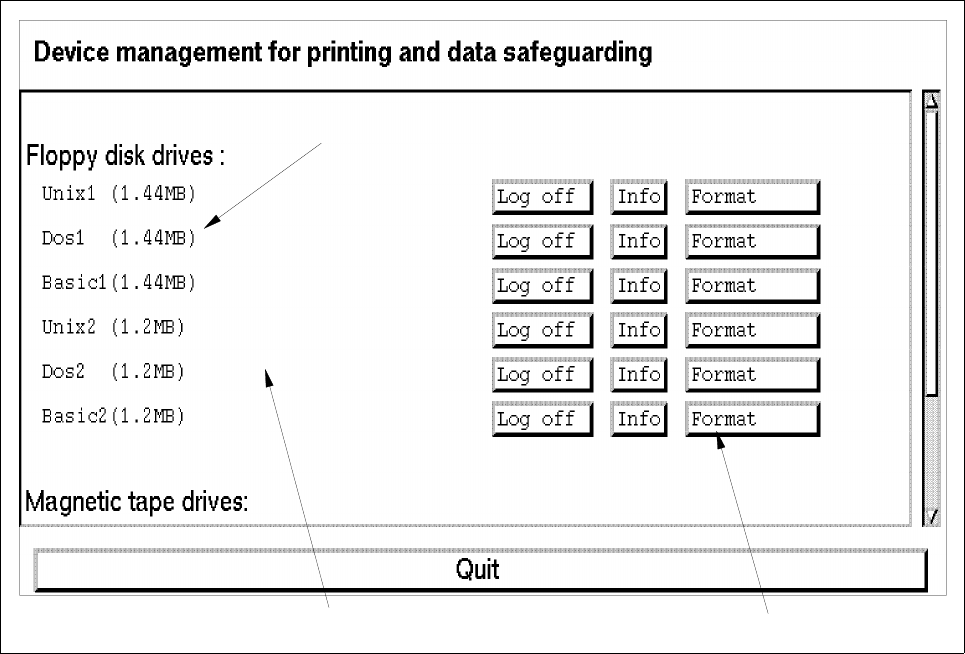
The main window of the print and update server is opened (see Fig. 4.4.1).
4.4.2 Main Window of Print and Update Server
The various areas of the main window and their functions are described in the following.
Fig. 4.4.1 Main Window "Print and Update Server"
The main window of the print and update server is subdivided as follows:
- display area
- command area
device name
command area
display area

4 Data Management User Manual Line Computer UNIX
4.4 User Interface of Print and Update Server Software Version 501.xx 01/99 Issue
4 - 28
Display Area
All printers, floppy disk and tape drives physically available in the LC system are displayed in this area
together with their device names and states (logged on or logged off).
The meaning of the device names is described in section 4.4.2.1.
Command Area
In the command area several buttons are provided next to each device name with the aid of which the respective
device can be logged on (activated) to the user system or logged off (deactivated), information on the device
can be called up and formatting of a data carrier can be initiated in the respective disk drive.
Functions and execution of the commands are described in section 4.4.2.2.
4.4.2.1 Display Area
NOTE
Prerequisite for the display of the device names is that the devices have been entered in the configuration file
of the print and update server and that they have been logged on to the UNIX system.
The meaning of the device names displayed is explained below:
Floppy Disk Drives
Unix1 (1.44MB) => 3.5 inch floppy disk drive
for 3.5 inch HD diskettes that have to be formatted in the UNIX format
Dos1 (1.44MB) => 3.5 inch floppy disk drive
for 3.5 inch HD diskettes that have to be formatted in the DOS format
Basic1 (1.44MB) => 3.5 inch floppy disk drive
for 3.5 inch HD diskettes that have to be formatted in the BASIC format
(DOS compatible)
NOTE
On Pentium-based computers, no 5.25-inch disk drive is installed (see chapt. 1).
For this reason, the descriptions of the three device names mentioned below only apply to the
"SIPLACE 486/66 DX2" computer type.
Unix2 (1.2MB) => 5.25 inch floppy disk drive
for 5.25 inch HD diskettes that have to be formatted in the UNIX format

User Manual Line Computer UNIX 4 Data Management
Software Version 501.xx 01/99 Issue 4.4 User Interface of Print and Update Server
4 - 29
Dos2 (1.2MB) => 5.25 inch floppy disk drive
for 5.25 inch HD diskettes that have to be formatted in the DOS format
Basic2 (1.2MB) => 5.25 inch floppy disk drive
for 5.25 inch HD diskettes that have to be formatted in the BASIC format
(DOS compatible)
Magnetic Tape Drives
Tape => magnetic tape drive
Printer
Line printer => line printer
4.4.2.2 Command Area
In the following, the functions of the individual buttons required for the execution of the commands are
described.
- Logging On or Logging Off Devices in the User System
Click on button Log on or Log off next to the name of the device you wish to select.
The button is a software toggle switch always indicating the state that will be obtained when
the button is clicked on, e.g. Log off when the device is in the logged on state.
NOTE
Devices that are logged on to the print and update server (activated), are displayed as data
partners in the window of the Data Manager (see Fig. 4.3.1). If a device has been logged off
(deactivated) it is no longer displayed and is therefore not available as data partner.
- Having Info displayed for a device
● Click on Info button next to the name of the device you wish to select.
An information box is opened containing additional information on the device selected
(see following example).