00191413-01.pdf - 第36页
2 General Information on Using the P rogram User Manual Line Co mputer UNIX Software Version 501.xx 01/99 Issue 2 - 2

User Manual Line Computer UNIX 2 General Information on Using the Program
Software Version 501.xx 01/99 Issue
2 - 1
2 General Information on Using
the Program
This part of the instructions describes the user interface with its basic elements and functions. It teaches you
the following basics of using the user interface and its constituent elements:
- Starting/stopping the line computer program
- Shapes of the mouse cursor and mouse handling conventions
- Window types, window layout, window operations
- Directory/file structures
- Layout and operation of the FSB (File Selector Box = dialog box for file selection)
- Description of the application program menus "FILE", "OPTIONS" and "HELP"
- Working with the Help Index
Users who are not yet familiar with the user interface of WINDOWS should be sure to read this chapter before
attempting to use the program.

2 General Information on Using the Program User Manual Line Computer UNIX
Software Version 501.xx 01/99 Issue
2 - 2
User Manual Line Computer UNIX 2 General Information on Using the Program
Software Version 501.xx 01/99 Issue 2.1 Basics
2 - 3
2.1 Basics
2.1.1 Starting the Line Computer
● Switch on UPS at mains switch (see chapt. 1, Fig. 1.1.1). The Line Computer software is booted.
After approx. 1 minute, the following lines will be displayed on the screen:
Type Control-d to proceed with normal startup,
(or give root password for system maintenance):
● Simultaneously press keys "CTRL" and "D". The loading process is continued.
● When the message "Enter new time ([YYMMDD]hhmm[ss]):" is displayed on the screen, press
the RETURN key.
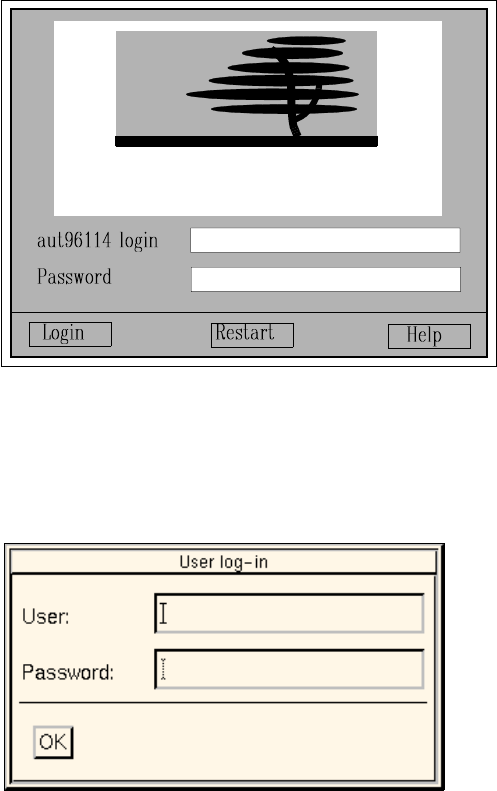
After approx. 1 minute, the following login dialog window is displayed on the screen:
● Enter
plr
in the "login" editing field and press the RETURN key.
● Enter
plr
in the "Password" editing field and press the RETURN key.
The screen darkens.
After approx. 3 minutes, the
Desktop
(see Fig. 2.1.1) with the login dialog box superimposed on it
is displayed on the screen.
SCO