00191413-01.pdf - 第231页
User Manual Line Computer UNIX 7 Product / Adhesive Pattern Software Version 501.xx 01/99 Issue 7.1 Adhesive Pattern Editor 7 - 1 7 Product / Adhesive Pattern 7.1 Adhesive Pattern Editor For the v arious package forms s …
User Manual Line Computer UNIX
Software Version 501.xx 01/99 Issue
7 - II
User Manual Line Computer UNIX 7 Product / Adhesive Pattern
Software Version 501.xx 01/99 Issue 7.1 Adhesive Pattern Editor
7 - 1
7 Product / Adhesive Pattern
7.1 Adhesive Pattern Editor
For the various package forms specific adhesive patterns (adhesive dot patterns) can be applied enabling the
components to be held (glued) securely on the PCB. The specific adhesive patterns for the various package
forms are defined with the aid of the Adhesive Pattern Editor.
7.1.1 Starting the Adhesive Pattern Editor
- In the "programming mode" the Adhesive Pattern Editor is activated by clicking on the Adhesive
Pattern icon on the desktop.
- If the LC program was installed for the "control mode", the Package Form Editor can be started via the
"PRODUCT" menu on the desktop.
● Click on the Adhesive Pattern icon on the desktop (or the "Adhesive Pattern Editor" option on
the "PRODUCT" menu).
The FSB containing the ".dm" file is opened. This file contains all already-defined adhesive
patterns.
● Select adhesive pattern file ".dm" by double-clicking.
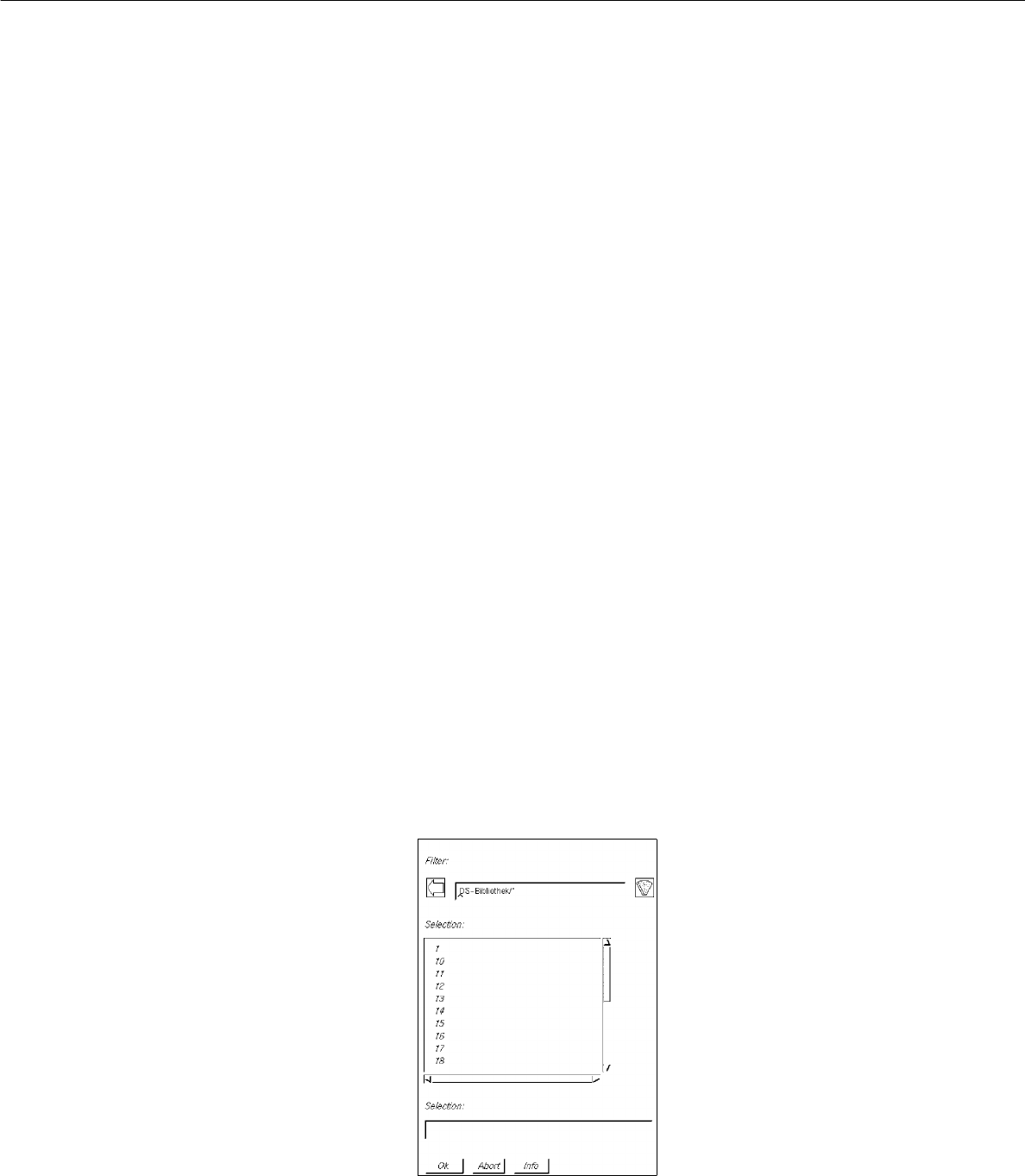
The following FSB containing the numbers of all previously defined adhesive patterns is displayed.
● Select adhesive pattern "xx" by double-clicking or enter new number on the keyboard and confirm
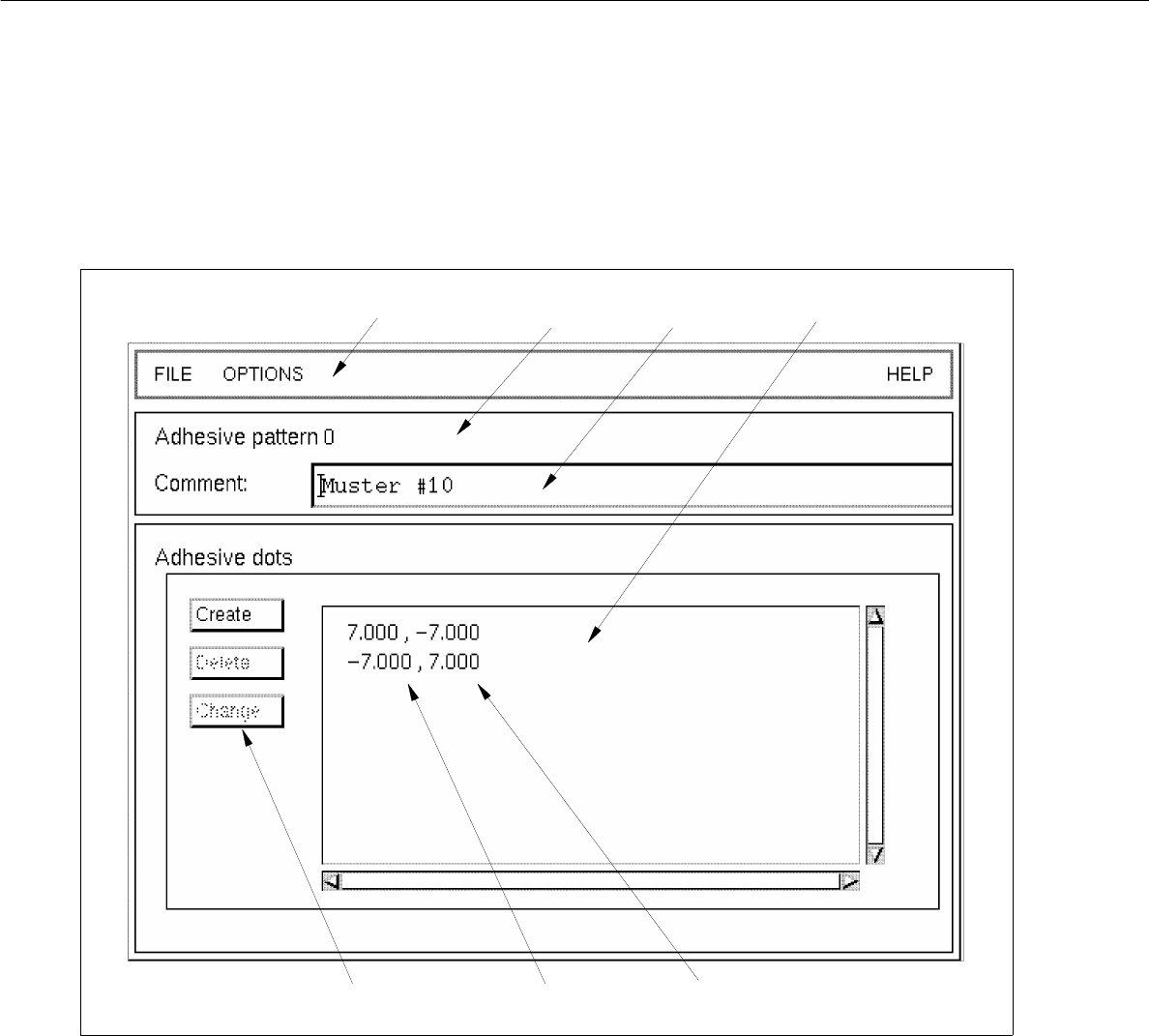
with OK. The main window containing the Adhesive Pattern Editor (see Fig. 7.1.1) is opened.
7 Product / Adhesive Pattern User Manual Line Computer UNIX
7.1 Adhesive Pattern Editor Software Version 501.xx 01/99 Issue
7 - 2
7.1.2 Main Window of Adhesive Pattern Editor
The areas of the main window and their functions are explained in the following.
Fig. 7.1.1 Main Window "Adhesive Pattern Editor"
The main window is subdivided as follows:
- Menu bar
- Title bar
- Editing field
- Command area
- Display area
menu bar title bar
editing field
x-coordinate
command area
display area
y-coordinate