00191413-01.pdf - 第76页
3 Desktop (Root W indow) User Manual Line Computer UNIX 3.1 Introduction Software Version 501.xx 01/99 Issue 3 - 6
User Manual Line Computer UNIX 3 Desktop (Root Window)
Software Version 501.xx 01/99 Issue 3.1 Introduction
3 - 5
In addition to the main groups, the desktop contains the SMD symbol for the display of the currently used LC
version:
● Click on the SMD symbol.
A menu with the entries "Index" and "Version" is opened.
● Select entry Version.
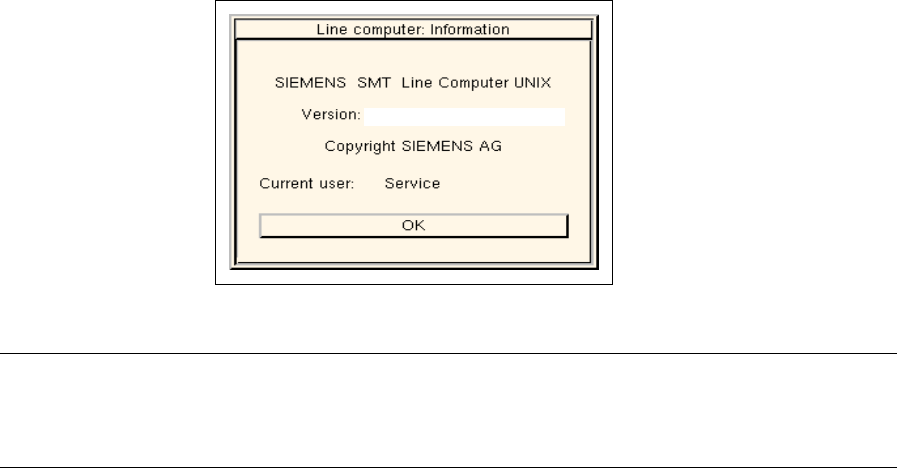
The current version of the LC software and the name of the current user are displayed in an info
box (see example below).
NOTE
If the Index entry is clicked on, the help window containing a listing of all available Help topics is
opened (see chapt. 2, section 2.5.3.1).
LRU.501.01
3 Desktop (Root Window) User Manual Line Computer UNIX
3.1 Introduction Software Version 501.xx 01/99 Issue
3 - 6
User Manual Line Computer UNIX 3 Desktop (Root Window)
Software Version 501.xx 01/99 Issue 3.2 Desktop User Interface
3 - 7
3.2 Desktop User Interface
The line computer application programs are started from the desktop and their main and sub-windows are
opened on the user interface. In addition, all messages (alarm, error and malfunction messages etc.) concerning
your work on the line computer are displayed as windows (dialog boxes) on the user interface and must be
confirmed (closed) by clicking on the OK button.
3.2.1 Desktop Menu Bar
In the programming mode, the menu bar contains three menus, in the control mode five menus.
The structure and functions of the "FILE", "OPTIONS" and "SERVICES" menus are identical in both operating
modes.
With the aid of the additional menus "PRODUCT" and "PRODUCTION TOOLS" provided in the control mode,
also those applications can be started that are represented in the programming mode as icons on the desktop
in the main groups "Product" and "Production tools".
3.2.1.1 FILE Menu
- Data Manager
Serves to open the user interface of the Data Manager. The user interface of the Data Manager is
designed for the manipulation of the files and file structures (e.g. copying, moving, etc.) in the LC
system and is able to serve several data partners. The Data Manager executes the commands that
are activated on the user interface.
● Click on FILE --> Data Manager.
The user interface of the Data Manager is opened (see chapt. 4).
- File contents
This can be used to display the file content of a selected file in a window.
● Click on FILE --> File contents.
The FSB for the selection of the path (directory) containing the desired file is opened.
● Successively select the directory/directories and the file by double-clicking.
The user interface of the file display is opened (see chapt. 4).