00191413-01.pdf - 第255页
User Manual Line Computer UNIX 8 Product / PCB Software Version 501.xx 01/99 Issue 8.1 PCB Editor 8 - 17 Fig. 8.1.7 "Graphic Mode" display with additional structure graphic NOTE pertai ning to Fig . 8.1.7 The S…
8 Product / PCB User Manual Line Computer UNIX
8.1 PCB Editor Software Version 501.xx 01/99 Issue
8 - 16
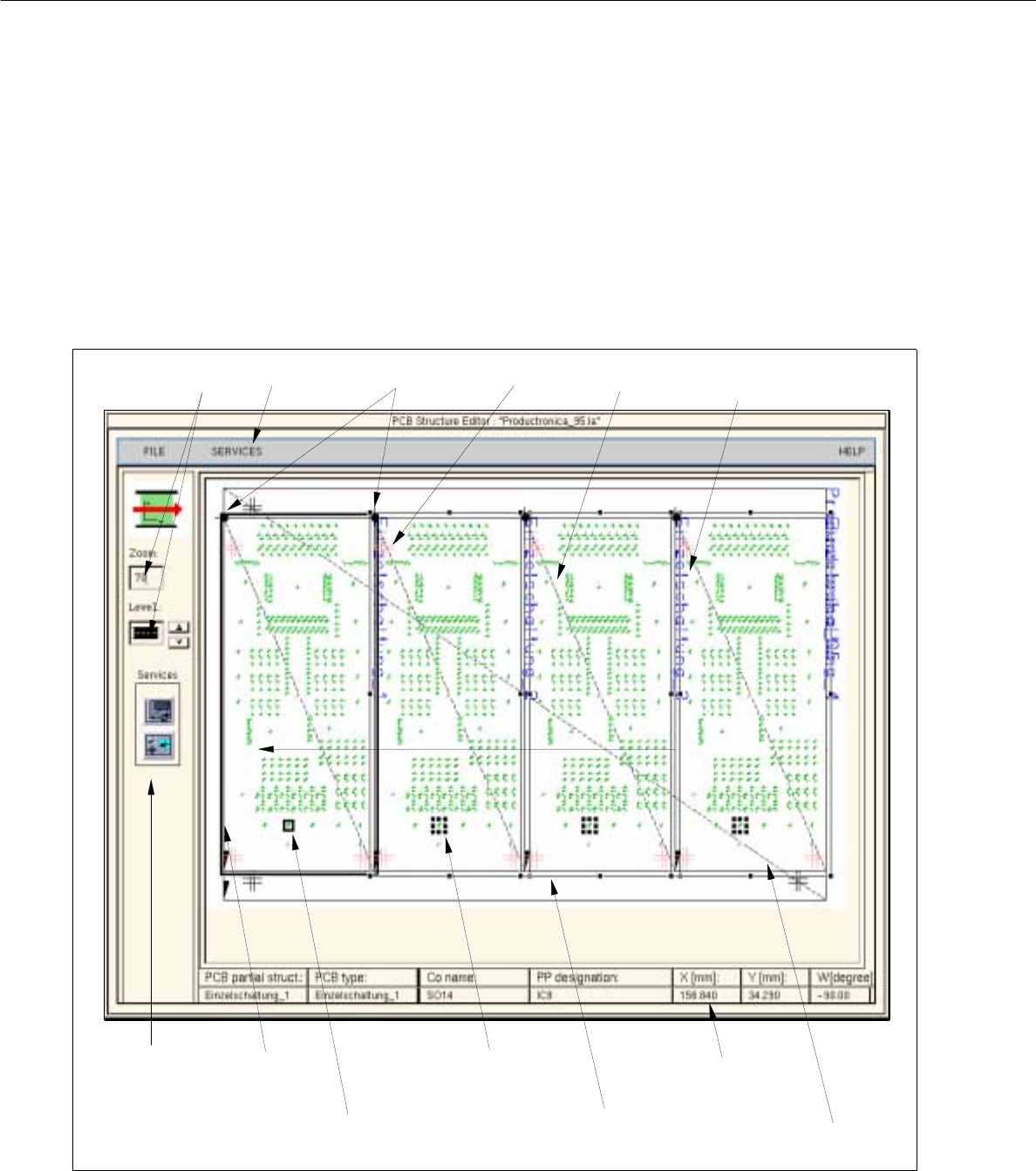
8.1.3.4 Setting Area of Structure Editor (Graphic Mode)
- For a better visualization of the PCB in the display area, a zoom factor (10 - 999%) can be entered in the
editing field of the setting area, with the factor "100" corresponding to reality.
- The remaining display options are symbolized by icons (see Fig. 8.1.6). The desired setting can be achie-
ved by activating an icon (see the description below).
Fig. 8.1.6 Main Window "Structure Editor" ("Graphic Mode" Display)
PCB
dimensional vector
setting area
menu bar name of the PCB
substructure
selected placement
position (PP)
offset vector
PCB zero points
editing fields
fiducial
x-axis (+)
outline (dimensions)
of the PCB
data of the selected
placement position
placement pos.
linked to the selected
placement pos.
User Manual Line Computer UNIX 8 Product / PCB
Software Version 501.xx 01/99 Issue 8.1 PCB Editor
8 - 17
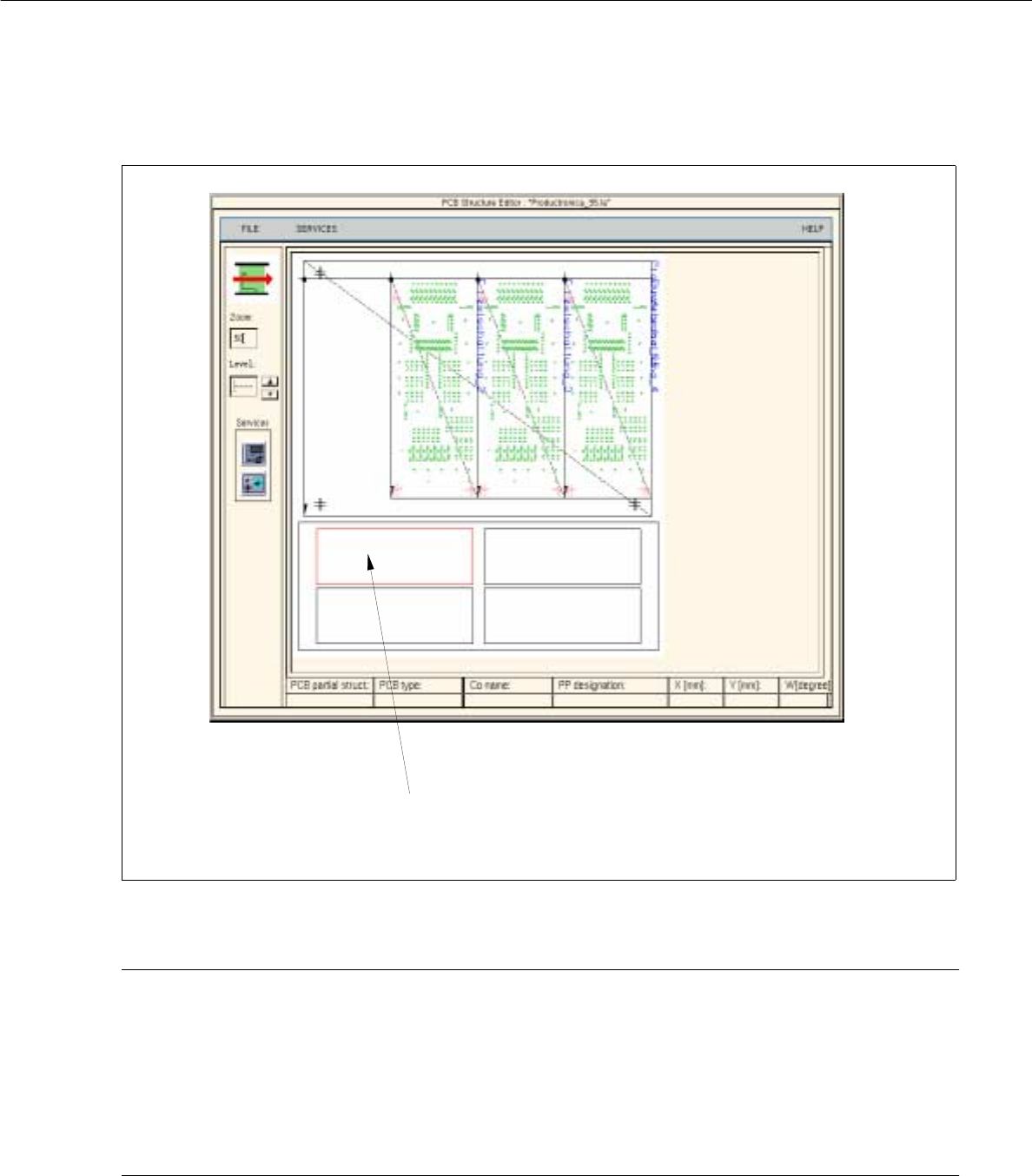
Fig. 8.1.7 "Graphic Mode" display with additional structure graphic
NOTE pertaining to Fig. 8.1.7
The Structure Graphic symbolically represents the overall structure of the PCB and is only created for those
PCBs with at least one substructure whose offset values are not completely defined. The Structure Graphic
does not provide any geometrical information about the substructure, but rather merely reveals the interrelation-
ships of the substructures as well as the status of the offset data of the substructures. In the Structure Graphic
the substructures are represented as rectangles of different colors.
The meaning of the colors is described in section 8.1.3.7.
Structure Graphic
(is only displayed if the offset values are not completely defined)
8 Product / PCB User Manual Line Computer UNIX
8.1 PCB Editor Software Version 501.xx 01/99 Issue
8 - 18
Settings:
- Setting the zoom factor
● Click on the editing field "Zoom" and enter the desired value (10 to 999).
● To accept the entry, press the RETURN key.
The PCB is displayed in the desired size.
- Entering the placement level
The placement level number can be entered in the "Level" editing field. This serves to identify the
placement positions allocated to the respective placement level (see section 8.1.6, page 8 - 40) in the
graphical display of the PCB.
NOTE
The editing field will contain a broken line "-----" if no placement levels are defined or if no placement
level was entered.
I no placement levels have been defined, no entries are possible.
● Click on the "Level" editing field and enter the number of the desired placement level, or select
the placement level using the arrow keys and then press the RETURN key.
If the "PP markings" display option (see page 8 - 19) is activated, at a minimum, the placement
positions of the currently selected level are displayed - highlighted in blue.
Selecting display options
To obtain a clearly arranged display of the PCB, the respectively required graphical elements can be sel-
ected individually (e.g. only the display of the PCB fiducials).
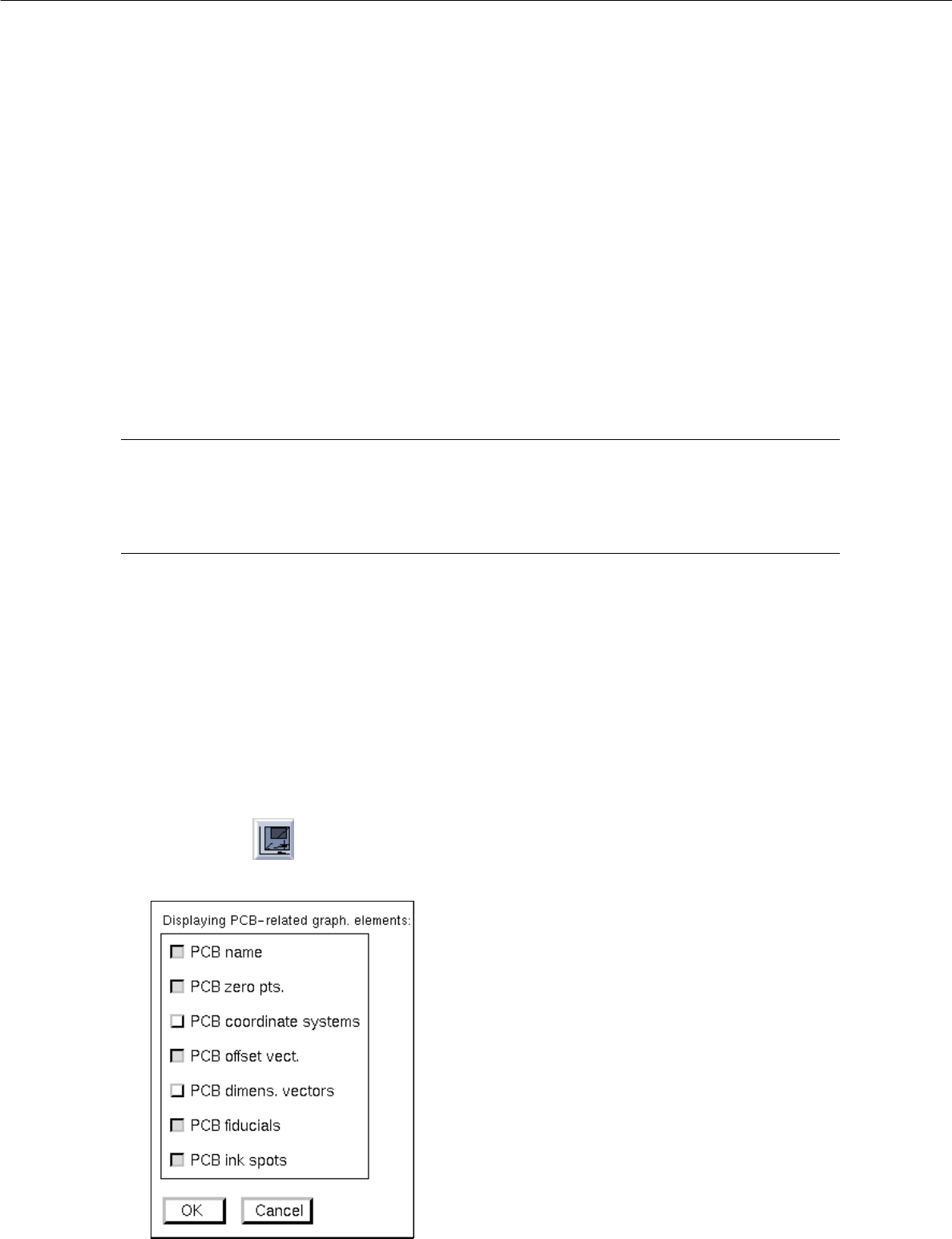
- Displaying PCB-related graph. elements
● Click on icon .
The following window opens: