00191413-01.pdf - 第339页
User Manual Line Computer UNIX 11 Production Tools / Optimization Software Version 501.xx 01/99 Issue 11.4 Optimization Dialog 11 - 19 11.4 Optimization Dialog The Opti mization Dialog is the user i nterface of th e Set-…
11 Production Tools / Optimization User Manual Line Computer UNIX
11.3 Setup Optimization Software Version 501.xx 01/99 Issue
11 - 18
Example for the determination of error causes by means of the error display:
1. The component cannot be set up at feeder location 6 or 7 since nozzle „316“ is not available at these
feeder locations.
2. The two resources 'External optical centering station' and 'Head camera' do not result in any further
restriction since centering can be performed with either resource available.
3. Locations 1, 4 and 6 are not available owing to the user-defined restriction 'direction of transport: left'
(see Chapter 9). Thus, in conjunction with item "1.", only feeder locations 2, 3 and 5 remain available
as possible locations.
4. Based on the pre-determined feeder allocation, the component can be set up at any location with the
exception of location 3. The possible feeder is set up by the optimization program. In conjunction with
items "1." and "3.", the component can thus be set up at feeder location 2 or 5.
5. At the time the error message was released, 6 tracks were still available at location 2, whereas location
5 was already completely occupied. Since feeder S_G_24N (24mm tape) requires 9 tracks, also location
2 is occupied and thus no longer available for this component.
Result:
Locations 2 and 5 that were possible locations for the setup of component "YZ", are overloaded and are
thus no longer available for the component.
The error file was created to facilitate analysis of the causes.
Possibilities of Error Correction:
1. Making the resources required for this component "YX" also available at other locations, e.g. by
allowing nozzle 316 to be set up at locations 6 and/or 7.
2. Cancelling the binding of the component to one side (restriction: direction of travel, left) so that it can
be set up on either side of the line.
3. Removing technical or user-defined restrictions of other components which, at present, can also only
be set up at locations 2 and/or 5 in order to relieve these locations.
4. Increasing the available space at locations 2 and/or 5, if space is limited owing to machine components
already set up.
User Manual Line Computer UNIX 11 Production Tools / Optimization
Software Version 501.xx 01/99 Issue 11.4 Optimization Dialog
11 - 19
11.4 Optimization Dialog
The Optimization Dialog is the user interface of the Set-Up Optimization. Via the Optimization Dialog it is possible
to create lot files, start the optimization process and display the results of the optimization runs. Moreover, all
relevant editors can be invoked from the Optimization Dialog.
11.4.1 Starting the Optimization Dialog
The Optimization Dialog is called up from the desktop:
In the programming mode:
● Click on icon „Optimization“.
The Optimization Dialog is opened.
NOTE
If the "Clustering" option is installed, the "Optimization" icon will be displayed
as follows:
In the control mode:
● On the „PRODUCTION TOOLS“ desktop menu click on the „Optimization“ menu option.
The Optimization Dialog is opened.
11 Production Tools / Optimization User Manual Line Computer UNIX
11.4 Optimization Dialog Software Version 501.xx 01/99 Issue
11 - 20
11.4.2 Main Window of Optimization Dialog
Set-Up Optimization is operated from the main window of the Optimization Dialog.
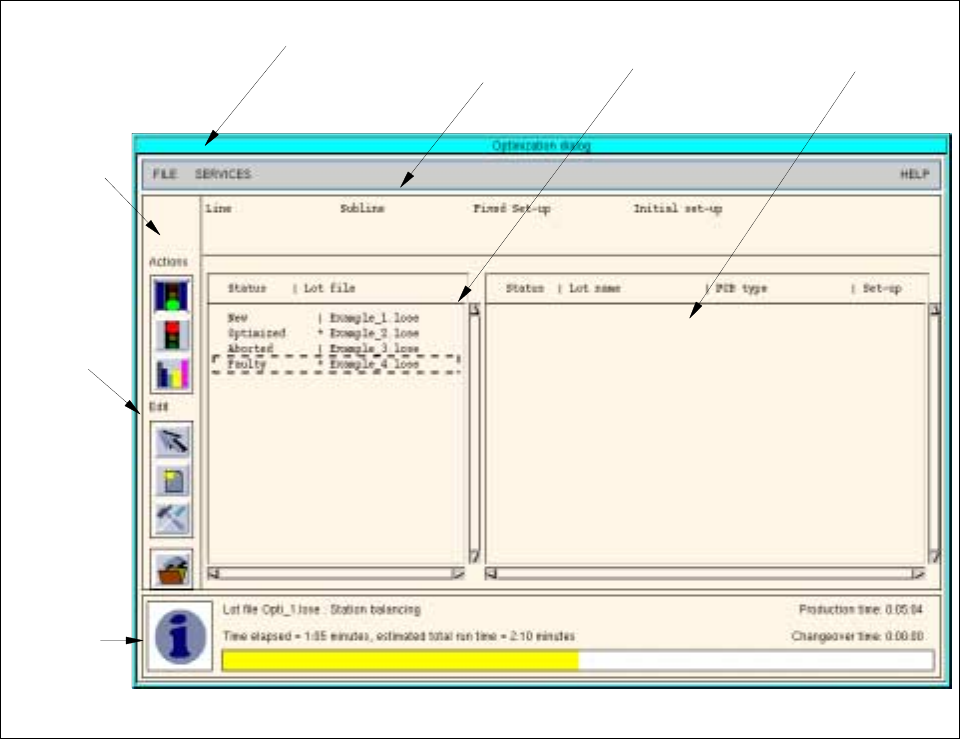
Fig. 11.4.1 Main Window of Optimization Dialog
The main window of the Optimization Dialog is subdivided into the following areas.
- Menu bar
- Field „Basic optimization data“
- Selection field „Lot file“
- Selection field „Jobs“
- Command area „Actions“
- Command area „Editing“
- Info box
menu bar field
„Basic optimization
selection field
„Jobs“
info box
command
area
„Editing“
command
area
„Actions“
selection field
„Lot file“
data“