00191413-01.pdf - 第54页
2 General Information on Using the P rogram User Manual Line Co mputer UNIX 2.3 Directories / Files Software Version 501.xx 01/99 Issue 2 - 20 2.3.1 Dire ctory Name / File Name Each dir ecto ry and e ach fi le must b e a…
User Manual Line Computer UNIX 2 General Information on Using the Program
Software Version 501.xx 01/99 Issue 2.3 Directories / Files
2 - 19
2.3 Directories / Files
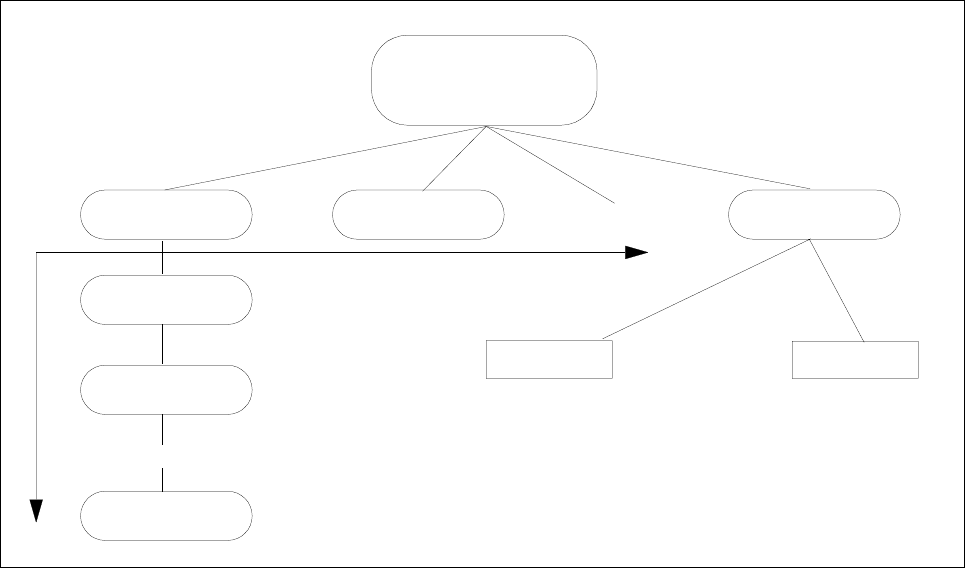
Related files are grouped and stored in
directories
. These directories can also contain other directories, so-
called
subdirectories
, which, in turn, contain files and other subdirectories.
Fig. 2.3.1 Directory Structure
Each file is identified by its
path
which specifies its exact position within the directory structure in the following
form:
Example: /DirA/DirA1/DirA2/File.xx
The individual directories and files are separated by a stroke "/".
Directory A
Directory An
Directory A2
Directory A1
File x
File a
Directory x
Directory B
... as many as you like
... as many as you like
... as many as you like
Main Directory
2 General Information on Using the Program User Manual Line Computer UNIX
2.3 Directories / Files Software Version 501.xx 01/99 Issue
2 - 20
2.3.1 Directory Name / File Name
Each directory and each file must be allocated a name.
Each directory must be assigned a unique name.
Within a directory or subdirectory the names assigned to the individual files must be unique.
Directory names and filenames are allowed to comprise a maximum of 20 characters; in the case of filenames
these include the characters of the extension (e.g. 17 characters for the name + 3 characters for the extension).
The following characters are not permitted when assigning names:
- Question marks (?)
- Asterisks (*)
- Strokes (/ \)
- Blanks ( )
- Brackets ([ ])
- Quotation marks ("" ’)
- Umlaut vowels (ä Ä, ö Ö, ü Ü)
User Manual Line Computer UNIX 2 General Information on Using the Program
Software Version 501.xx 01/99 Issue 2.4 File Selector Box FSB
2 - 21
2.4 File Selector Box FSB
The
File Selector Box FSB
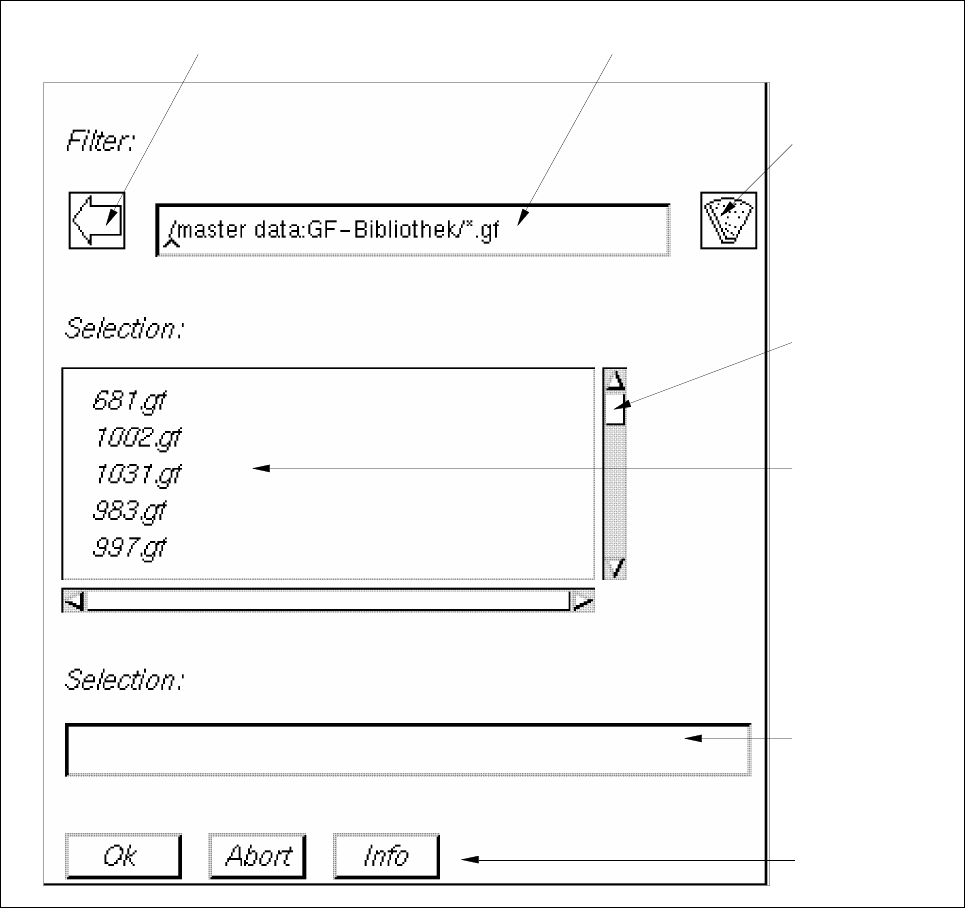
is opened as a dialog box (see Fig. 2.4.1) on the screen.
It enables the user to select a directory or a file within the directory structure (see Fig. 2.3.1) using the mouse.
Fig. 2.4.1 Example "FSB Package Forms"
filter button
filter fieldarrow button
selection list
scroll bar
selection field
title bar
button