00191413-01.pdf - 第369页
User Manual Line Computer UNIX 12 Production Tools / S tation and Line Configuration Software Version 501.xx 01/99 Issue 12.1 Configuration Editor 12 - 7 Selection Field "Machine Types": - Machines This selecti…

12 Production Tools / Station and Line Configuration User Manual Line Computer UNIX
12.1 Configuration Editor Software Version 501.xx 01/99 Issue
12 - 6
NOTE
The following explanations apply if no command is currently activated in the command area.
- Locations
A machine option has been selected in the display area.
The next higher machine option is considered as the location and is displayed on the listing under
"Locations".
If a different machine option is selected in the display area, the next higher machine option is again
displayed as the location. Always the first entry on the list is selected by default (highlighted in dark).
The list of locations can be empty if no locations exist. This is the case when a new station has been
created for which no station configuration has been created yet.
Each entry in the selection field "Locations" is marked by any one of the three letters "B", "U" or "T".
These letters have the following meaning:
B Machine option is part of the machine
U Machine option is not part of the machine
i.e., the machine option is not (yet) integrated in the structure of the machine.
T Machine option partial structure is not (yet) part of the machine
i.e., the machine option partial structure is not integrated in the structure of the
machine. (A machine option partial structure can be, for example, the head onto
which the centering unit and the PCB centering unit are positioned).
- Machine option at Location
A location (entry) has been selected in the selection field.
All machine options allocated to this location are displayed on the listing "Mach. options at locat.".
If another location is selected, the machine options allocated to this location will be listed.
- Placeable mach. opt.
A location has been selected in the display area.
NOTE
"Placeable machine options" are machine options that are positioned away from the machine thus not
forming part of the machine yet.
A "placeable" machine option is created by double-clicking on the respective rectangle in the display
area. The machine option is then displayed in the selection field "Placeable mach. opt." and can be
manipulated (see section 12.1.2.6).
It is also possible to list machine options in the selection field "Placeable mach. opt." that used to be
part of the machine and which have been released (see section 12.1.2.6).
User Manual Line Computer UNIX 12 Production Tools / Station and Line Configuration
Software Version 501.xx 01/99 Issue 12.1 Configuration Editor
12 - 7
Selection Field "Machine Types":
- Machines
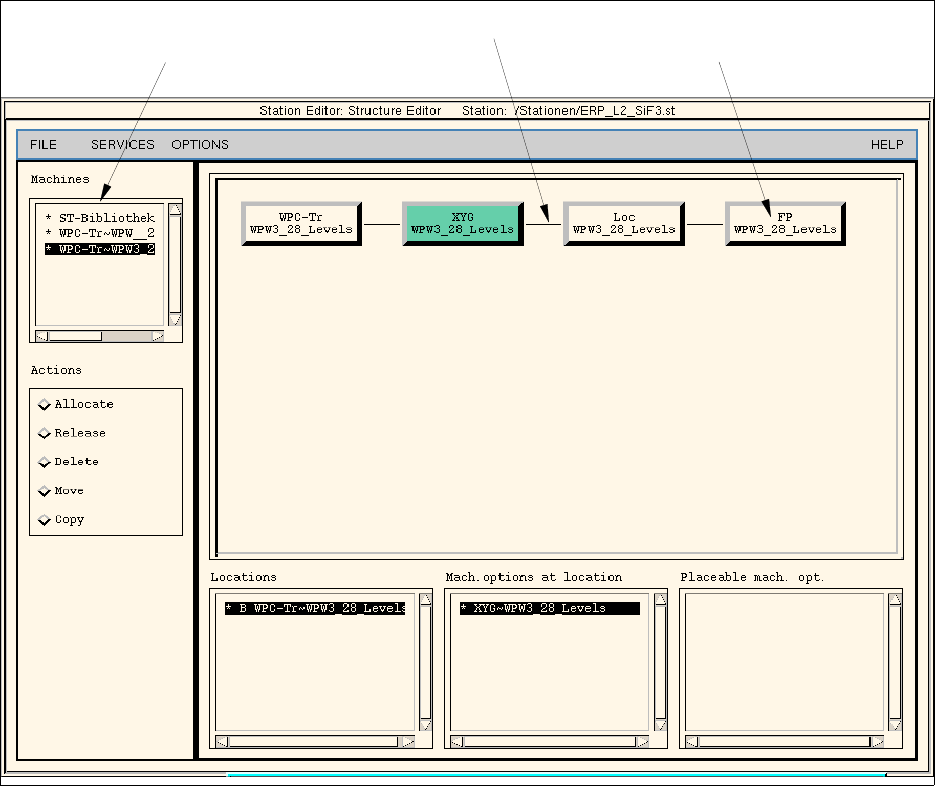
This selection field is located at the upper left of the main window of the Structure Editor (see Fig. 12.1.1).
The machine types are listed here. The first entry is the standard machine (station). The following
entries are the optional station extensions (e.g.Waffle-Pack Changer trolley).
Upon starting the Structure Editor the first entry is selected by default, and the structure of the
standard machine is displayed in the display area (see Fig. 12.1.1).
Example: If the station SIPLACE 80F has been selected upon start-up of the SE, the SIP_80F
will be the standard machine and the station extension Waffle-Pack Changer trolley
WPC-Tr will be displayed in the selection field Machines. If the entry WPC-Tr is clicked
on in the selection field, the display area changes to the structure of the Waffle-Pack
Changer trolley (see Fig. 12.1.2).
Fig. 12.1.2 Structure Editor (Peripheral Station "WPC Trolley")
selection
"Feeder Part"
selection field
"Machines"
display area
12 Production Tools / Station and Line Configuration User Manual Line Computer UNIX
12.1 Configuration Editor Software Version 501.xx 01/99 Issue
12 - 8
12.1.2.3 FILE Menu
- Invoking the Structure Editor
The user can load or create a new station.
● Select FILE --> Open... .
The FSB containing the file listing is opened.
● The further procedure is identical to that described in section 12.1.1.
- Saving the current configuration or set-up
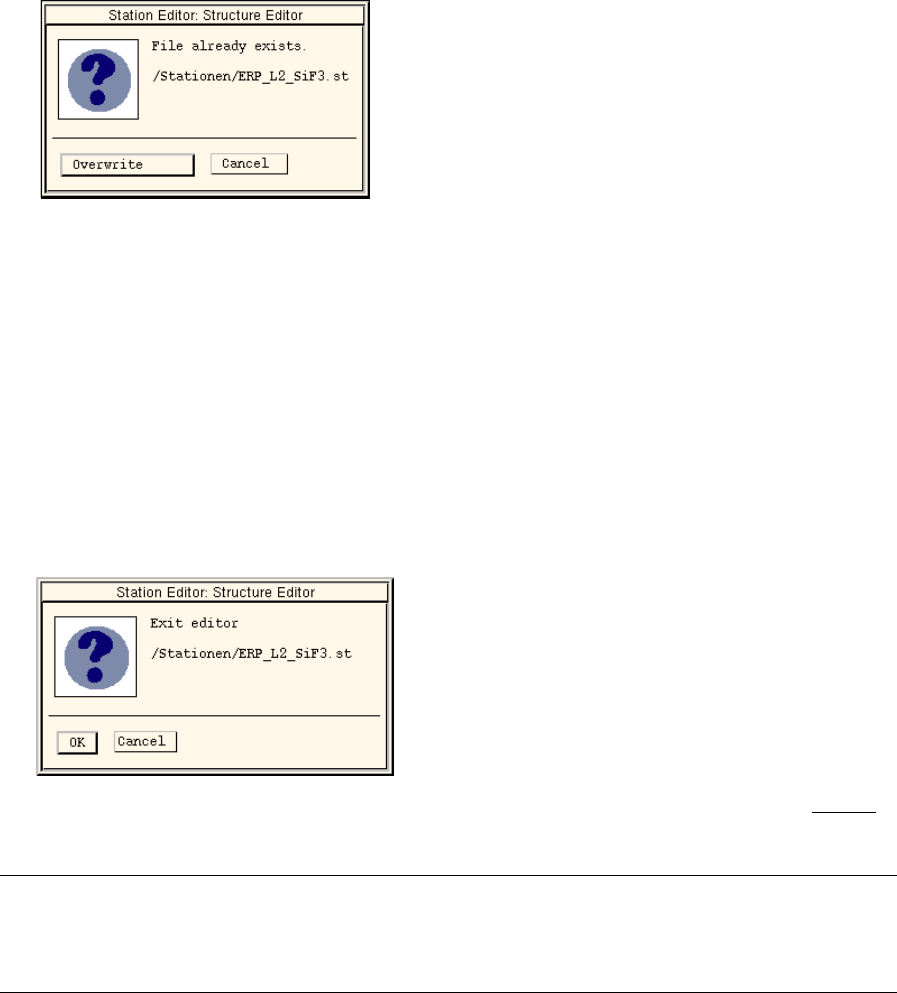
● Select menu option FILE --> Save.
The following dialog box is displayed:
● Click on Overwrite.
The current configuration or set-up is saved.
- Printing the station configuration or set-up data
The current data of the station can be output on a connected printer.
● Select menu option FILE --> Print.
The data relating to the station are output on the printer.
- Quitting the Configuration (Structure) Editor
● Select menu option FILE --> Quit.
A dialog box containing the following note is displayed:
● Confirm your exiting from the editor by choosing OK. The Configuration Editor is exited without
the data being saved.
NOTE
If the editor contains unsaved changes, the dialog box also contains a message informing you of this
(see example below).