00191413-01.pdf - 第46页
2 General Information on Using the P rogram User Manual Line Co mputer UNIX 2.2 Window System Software Version 501.xx 01/99 Issue 2 - 12 Main Window (appli cation wi ndow) An app lication can o pen seve ral windo ws, i.e…
User Manual Line Computer UNIX 2 General Information on Using the Program
Software Version 501.xx 01/99 Issue 2.2 Window System
2 - 11
2.2 Window System
In window-system environments, input and outputs are realized in windows. A
Window
is a rectangular area
on the screen the borders of which run parallel to the borders of the screen.
All tasks performed in the Line Computer Software are carried out in windows. It is possible to display and work
with several windows on the screen simultaneously.
The various windows on the screen represent the different applications. The user can work on them alternately
One application, in turn, can open several windows on the screen.
Several applications can produce outputs in their windows concurrently, irrespective of which window is currently
the active one, i.e. being edited by the user.
Windows may overlap or cover each other, which, however, does not affect the programs that are run in these
windows.
2.2.1 Window Types
Desktop (root window)
The
Desktop
is the backdrop for all other windows and fills the entire screen. All other windows and icons
are arranged on the desktop.
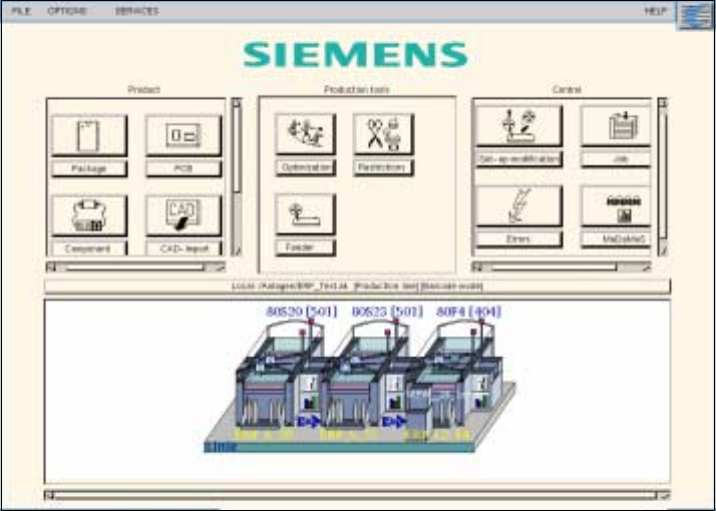
Fig. 2.2.1 "Desk" (Root Window)
2 General Information on Using the Program User Manual Line Computer UNIX
2.2 Window System Software Version 501.xx 01/99 Issue
2 - 12
Main Window (application window)
An application can open several windows, i.e. the
Main Window
and several
Subwindows.
If the user closes
the main window, all subwindows of the application are also closed and the application program is exited.
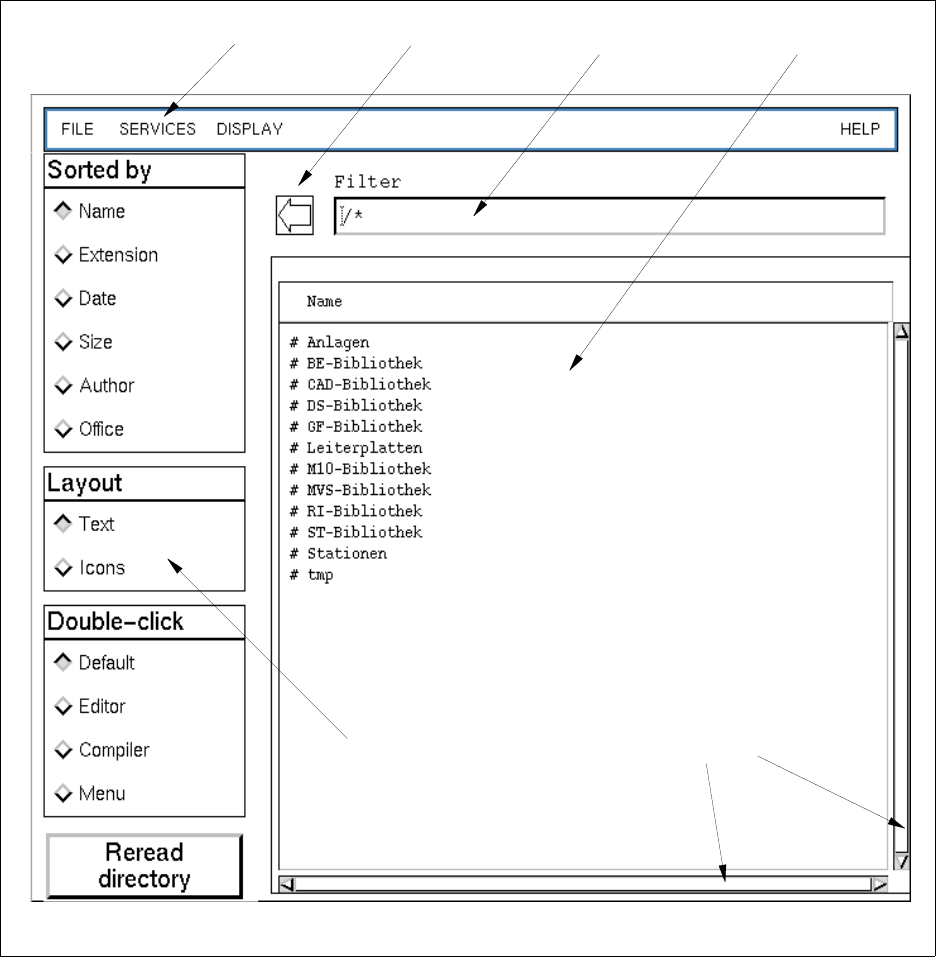
A main window can be subdivided as follows:
- Menu bar
- Display area with/without scroll bars
- Command area
- Editing area (not available in all main windows of the application programs)
- Arrow button (not available in all main windows of the application programs)
Fig. 2.2.2 Example " Main Window - Master Data"
menu bar arrow button editing field display area
command area
scroll bars
User Manual Line Computer UNIX 2 General Information on Using the Program
Software Version 501.xx 01/99 Issue 2.2 Window System
2 - 13
Dialog Box
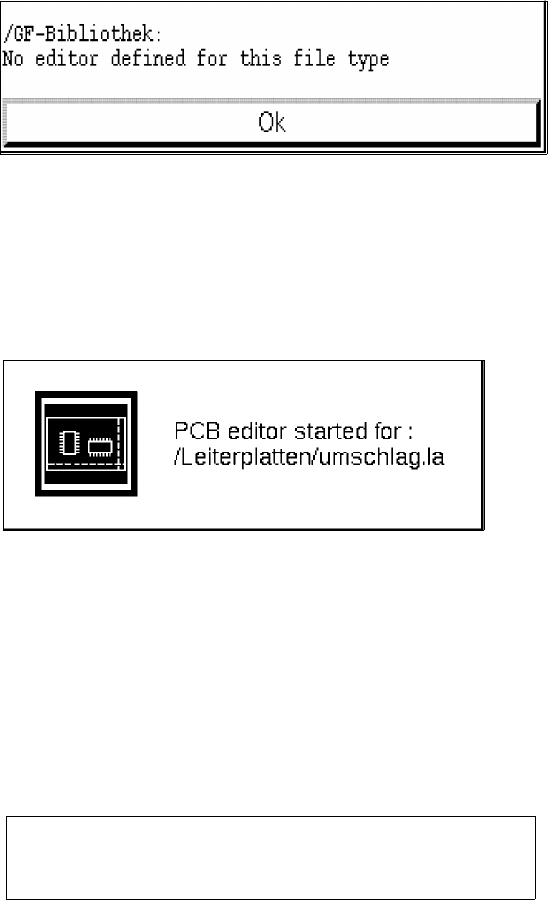
Sometimes it is necessary to select among different actions, to enter file names or to acknowledge a
message. In all of these cases a so-called
Dialog Box
appears on the screen. It is used to give user
information or to request a user response. It may, however, also contain warning messages or explanations
as to why a command cannot be executed. The contents of a dialog box always request a user response.
Application Start-Up Window
Whenever the Component, PCB, GF or Adhesive Pattern Editor or the MaDaMaS system is started, a
corresponding application start-up window is displayed. This window is closed as soon as the start-up
procedure is completed and the main window of the started application is opened on the screen.
Help Window of the Online Help
Help Window Whenever the online help is activated (see section 2.5.3) and the mouse pointer is dragged
to an object for which a help text (e.g. the "Delete" command) or graphical display is available, the
corresponding text or graphical representation is displayed in a window directly adjacent to the selected
object. When the mouse pointer is moved away from the object, the help window is automatically closed.
Help Window of the Help Index
Calling up the Help Index (see section 2.5.3) causes the help window containing a listing of the available
topics to be opened. The desired topic can be selected from the window with the mouse. The corresponding
help information about the selected topic is then displayed in the help window.
Delete all (!!!) subsequently selected PCBs
WITHOUT VERIFICATION CHECK !!!!