00191413-01.pdf - 第95页
User Manual Line Computer UNIX 3 Desktop (Root Window) Software Version 501.xx 01/99 Issue 3.2 Desktop User Interface 3 - 25 ● Enter the data of the new user in the "User " and "P assword" editing fi …
3 Desktop (Root Window) User Manual Line Computer UNIX
3.2 Desktop User Interface Software Version 501.xx 01/99 Issue
3 - 24
- User management
The menu items "User log-off", "User change", "Changing the password of the current user" and "Admini-
stration of user accounts" are combined under this menu option.
- User log-off
This menu function serves to log the currently logged on user off the LC system. Subsequently, all
functions of the LC program are blocked.
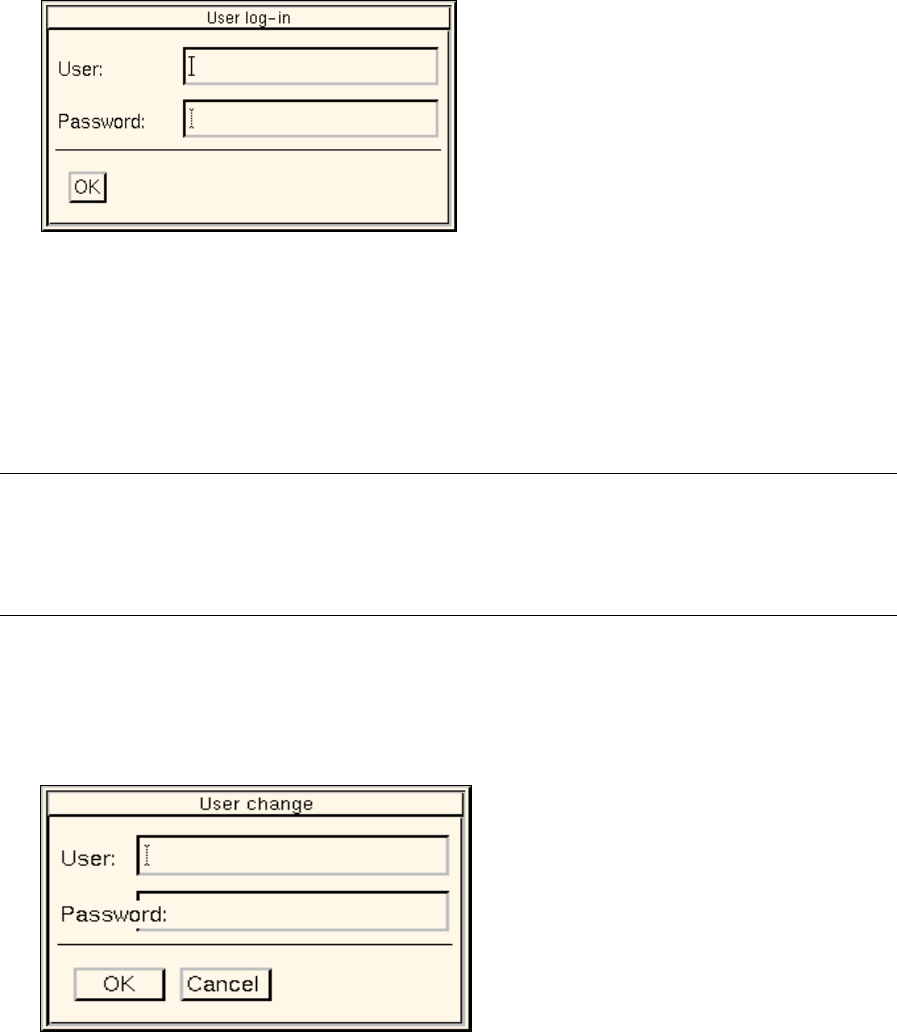
● Click on SERVICES --> User management --> User log-off.
The following log-in dialog box opens.
The user is logged off the LC system and all functions of the LC program are blocked until a
user logs on again by entering his/her data (see the following description).
● If work with the LC program is to be resumed, enter the applicable data in the "User" and "Pass-
word" editing fields.
● Click on OK.
The log-in dialog box closes.
NOTE
If faulty data were entered in an editing field, the field at issue will be displayed surrounded by a red
frame, and the entry will be automatically deleted.
The log-in dialog box cannot be closed until the data have been entered correctly.
- User change
This option enables the change from the current user to a new user to be carried out.
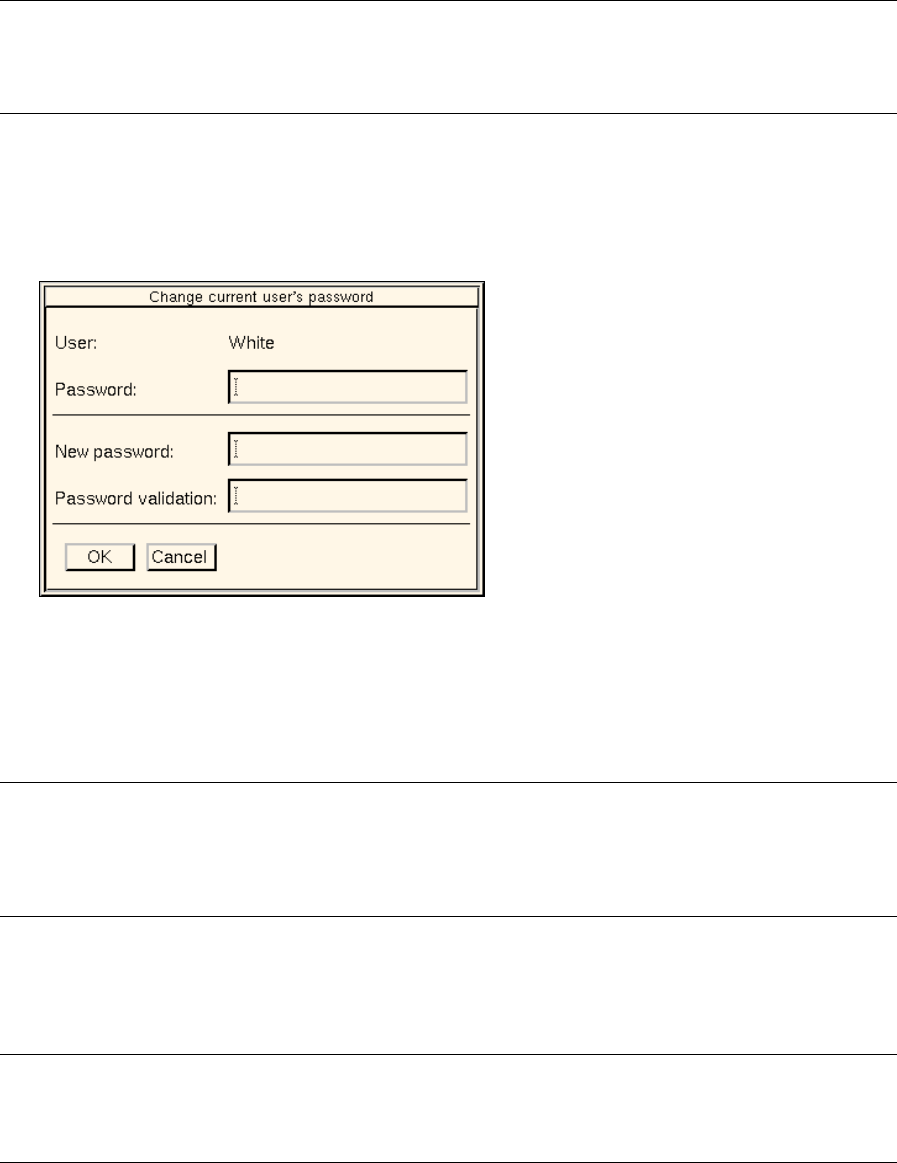
● Click on SERVICES --> User management --> User change.
The following dialog box opens.
User Manual Line Computer UNIX 3 Desktop (Root Window)
Software Version 501.xx 01/99 Issue 3.2 Desktop User Interface
3 - 25
● Enter the data of the new user in the "User" and "Password" editing fields.
● Click on OK.
If the data were entered correctly, the dialog box closes.
The presentation of the desktop and the menu options will change depending on the access
rights defined in the user account for the new user (see Fig. 3.1.3, example for the display of the
desktop with disabled applications).
NOTE
Any open applications will be terminated immediately after the closing of the dialog box.
An appropriate message will be displayed for every application that is terminated.
- Changing the password of the current user
This menu option can be used to change or delete the password of the current user.
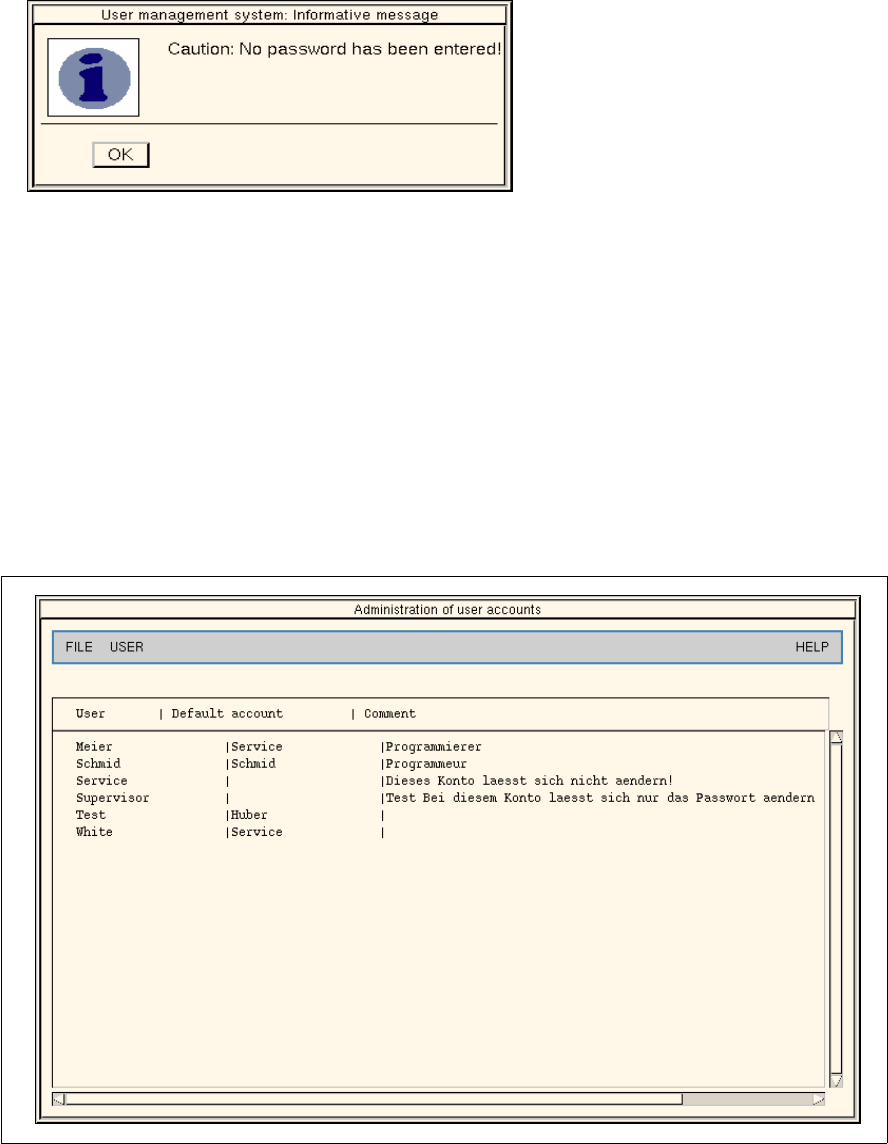
● Click on SERVICES --> User management --> Changing the password of the current user.
The following dialog box opens.
Procedure
● Enter the existing password in the "Password" editing field.
● Enter the new password in the "New password" and "Password validation" editing fields.
NOTE
If the RETURN key is pressed in one of the editing fields following the typing in of the new password,
the contents of the two editing fields will be compared immediately. In the case of a fault, both editing
fields will be surrounded by a red frame and their contents will be automatically deleted.
● Click on OK.
If the data were entered correctly, the dialog window closes and the new password is accepted
and transferred to the user account.
NOTE
If the data are not correct, the applicable editing field will be surrounded by a red frame.
The faulty entries are deleted automatically from the editing fields.
3 Desktop (Root Window) User Manual Line Computer UNIX
3.2 Desktop User Interface Software Version 501.xx 01/99 Issue
3 - 26
Deleting the password of the current user
● Enter the existing password in the "Password" editing field.
● Click on the "New password" editing field and press the RETURN key.
The following dialog box opens.
● Click on OK for confirmation.
The dialog box closes.
● Click on OK in the dialog window.
The dialog window closes as well. No password is now contained in the user account of the
current user.
- Administration of user accounts
This menu option enables user accounts to be edited. It is, however, prerequisite that the "Administra-
tion of user accounts" option is set to "Full access" for the current user (see page 3 - 31).
● Click on SERVICES --> User management --> Administration of user accounts.
The following dialog box opens.
Fig. 3.2.1 Administration of User Accounts
The menus "FILE", "USER" and "HELP" are contained on the menu bar. The menu functions of the
first two menus are briefly described in the following.