00191413-01.pdf - 第508页
16 MaDaMaS User Manu al Line Computer UNIX 16.2 MaDaMaS Evaluation User Interface Software Version 501.xx 01/99 Issue 16 - 12 16.2.4 OPTIONS Menu - Colors This opti on permits the co lor inte nsity (sa turation ) of the …
User Manual Line Computer UNIX 16 MaDaMaS
Software Version 501.xx 01/99 Issue 16.2 MaDaMaS Evaluation User Interface
16 - 11
NOTE
The screen printouts created by means of the "Print to a file" option are displayed as files in the Import/
Export data partner and can be copied using the Data Manager (see chapt. 4).
The files can be identified by their names (e.g. "pick-up reliability".gif or "pick-up reliability".tiff). An excep-
tion is the "Overall view" window as it is stored under the name "startpicture.gif" or "startpicture.tiff".
Starting the graphic printout:
● Click on FILE --> Printer --> Graphic printout.
The current evaluation is output to the printer.
16.2.3 EVALUATIONS Menu
The desired evaluation type can be selected by means of the menu options of these menus.
NOTE
Whenever an evaluation type is selected on the menu, also the underlying evaluation period (time base) must
be selected. The end of this period is always the current time, the start can be set using the three icons in the
upper portion of the command area (see section 16.2.5).
- "Overall view" evaluation type
● Select EVALUATIONS --> Overall view.
The current status of every station of the line since the last evaluation period set under "Time
basis" is displayed (see section 16.2.6).
- "Pick-up reliability" evaluation type (only possible for placement stations)
● Select EVALUATIONS --> Pick-up reliability.
For all stations of the line the total number of the components placed, identity errors and vacuum
errors occurred since the last evaluation period set under "Time basis" are displayed (see section
16.2.7).
- "Availability" evaluation type (available for all stations)
● Select EVALUATIONS --> Availability.
The availability data of all stations of the line is displayed for the period that has elapsed since the
last evaluation period that was set under "Time basis" (see section 16.2.8).
- "Performance" evaluation type (only possible for placement stations)
● Select EVALUATIONS --> Performance.
The performance of all placement stations of the line is displayed for the period that has elapsed
since the last evaluation period that was set under "Time basis" (see section 16.2.9).
16 MaDaMaS User Manual Line Computer UNIX
16.2 MaDaMaS Evaluation User Interface Software Version 501.xx 01/99 Issue
16 - 12
16.2.4 OPTIONS Menu
- Colors
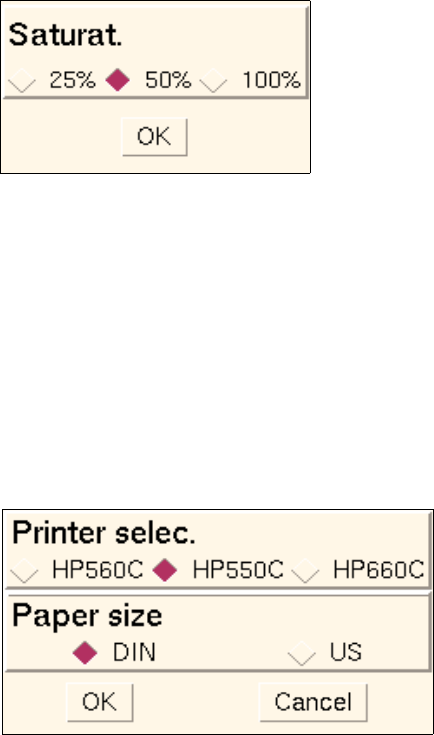
This option permits the color intensity (saturation) of the graphical displays to be selected in 3 steps.
● Select OPTIONS --> Color setting.
The following window is opened.
● Click on button in front of the desired value.
● Confirm your selection with OK.
The window is closed. The graphics displayed in the view area are shown in the selected color
intensity.
- Printer
This option permits a printer installed in the LC system to be selected on which the MaDaMaS data
are to be printed out. In addition, the required paper size can be set as well.
● Select OPTIONS --> Printer.
The following window is opened.
● Activate the respective buttons in front of the desired printer and the paper size.
● Confirm your selection with OK.
The window is closed.
User Manual Line Computer UNIX 16 MaDaMaS
Software Version 501.xx 01/99 Issue 16.2 MaDaMaS Evaluation User Interface
16 - 13
16.2.4.1 Setting Limit Values
- Limit values
- This menu option permits the window for setting the limit values to be opened.
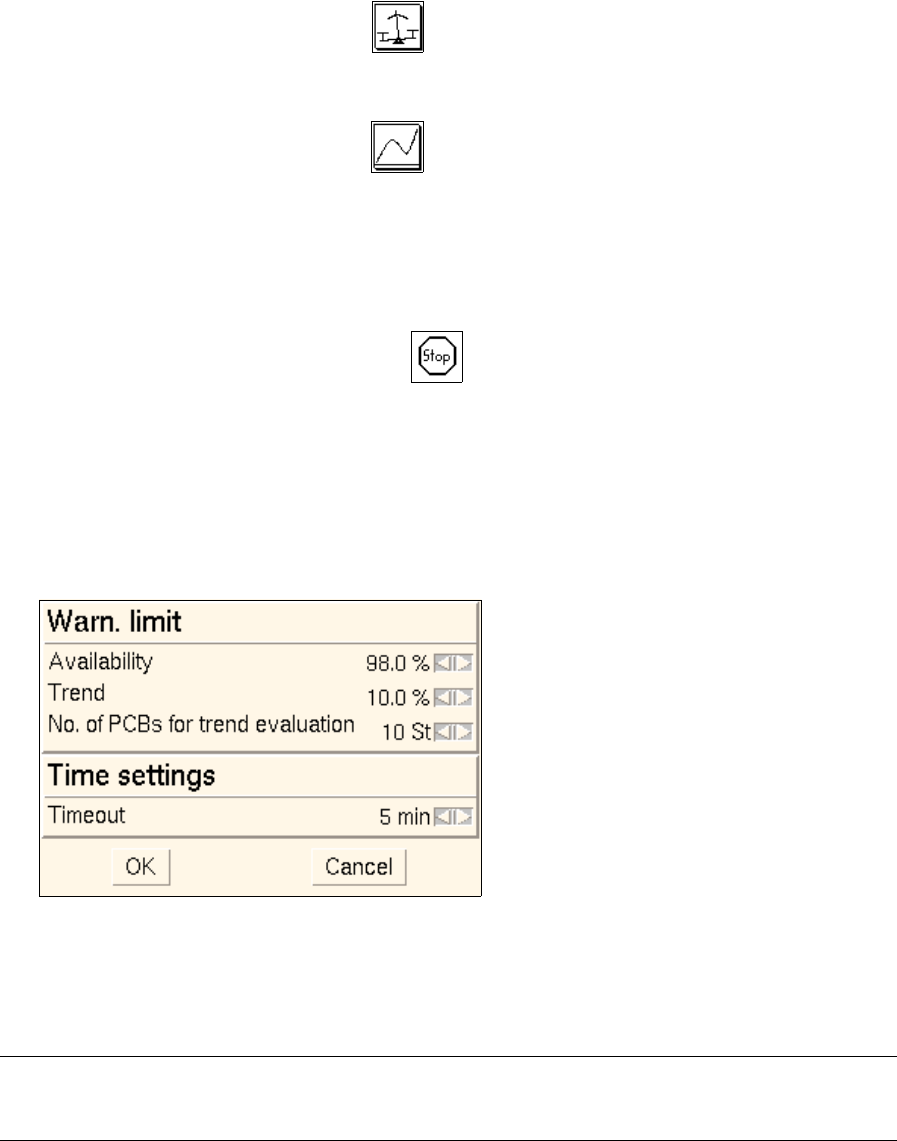
In this window the following limit values can be set for the evaluations "Availability", "Pick-up reliability"
and "Performance":
Warning limits
Availability Icon is highlighted in red if the Availability falls short of the
value preset here.
Trend Icon is highlighted in red if the total number of errors in the
Trend evaluation exceeds the value preset here.
No. of PCBs for trend evaluation Here, the number of PCBs, produced most recently, is set
which are to be taken into account for the trend evaluation.
Time settings
Timeout The icon is displayed if the time period that has elapsed
since the completion (or abortion) of the last PCB exceeds the
Timeout value preset here.
The station concerned is shut down.
● Select OPTIONS --> Limit values.
The following window is opened.
● Set the desired limit values by clicking on the arrow buttons.
● Confirm your setting by OK.
The window is closed.
NOTE
By means of the Load default settings menu option the predefined limit values can be restored.