00191413-01.pdf - 第141页
User Manual Line Computer UNIX 4 Data Management Software Version 501.xx 01/99 Issue 4.4 User Interface of Print and Update Server 4 - 31 - Formatting or erasing of a str eaming tap e NOTE Streami ng tapes n eed not be f…
4 Data Management User Manual Line Computer UNIX
4.4 User Interface of Print and Update Server Software Version 501.xx 01/99 Issue
4 - 30
- Formatting of diskettes
Diskettes can be formatted in various formats depending on which one of the Format buttons - one of
them is located next to each device name of the individual disk drives - is activated.
The allocation of the device name to the format in which a diskette is to be formatted is described in
section 4.4.2.1.
● Insert HD diskette into disk drive.
● Click on Format button next to the name of the respective disd drive.
Next to the device name the display "formatting in process" is displayed during the entire format-
ting procedure.
NOTE
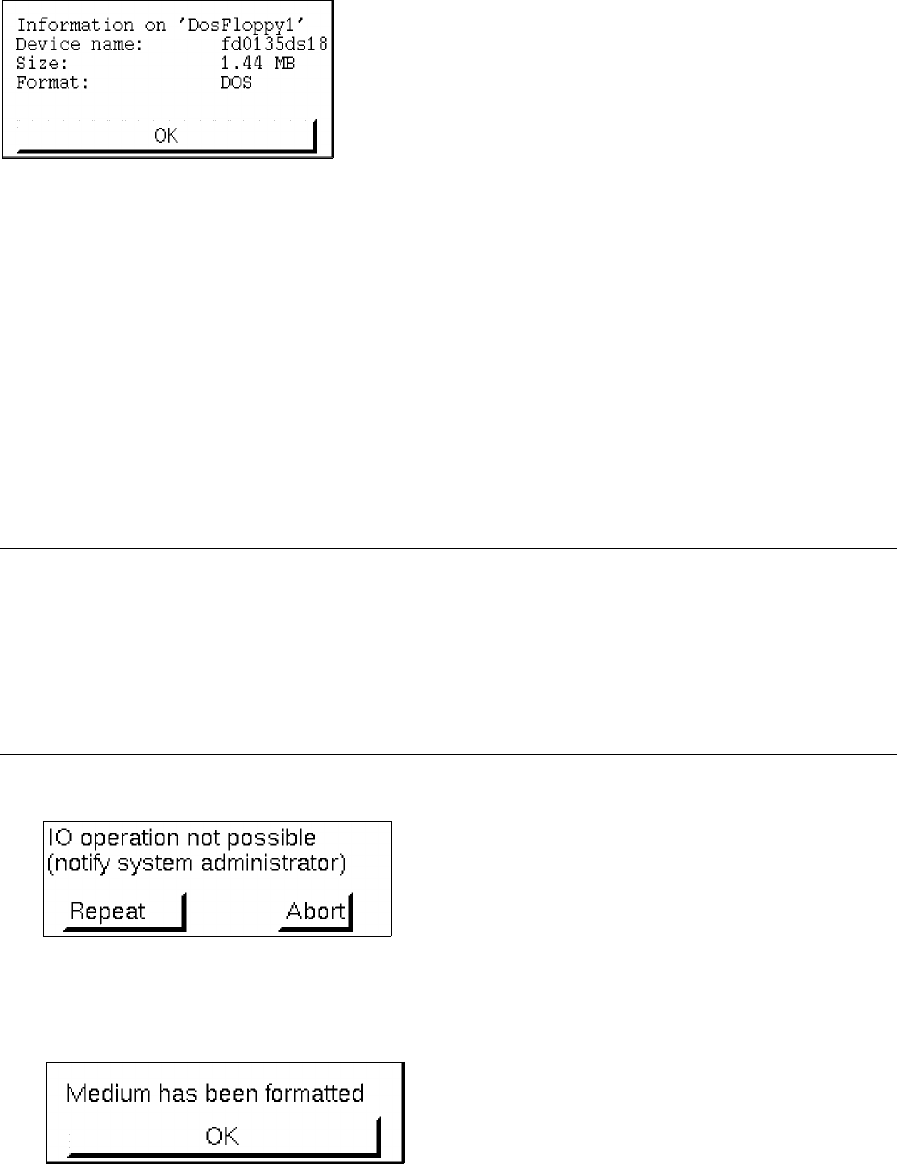
The existing data carrier format is checked during formatting. If formatting is not possible, a corre-
sponding error message is displayed (see example below). This may occur, for example, if into the
selected 3.5 inch floppy disk drive an HD diskette (1.44 MB) is inserted instead of a DD diskette (730
KB). An appropriate error message is also displayed if no data carrier is present in the selected disk
drive.
When the formatting process is terminated, the following dialog appears:
● Confirm the dialog box with OK.

User Manual Line Computer UNIX 4 Data Management
Software Version 501.xx 01/99 Issue 4.4 User Interface of Print and Update Server
4 - 31
- Formatting or erasing of a streaming tape
NOTE
Streaming tapes need not
be formatted before they are used. Therefore, instead of initiating a
formatting process the erasing process is activated for the entire content of the tape when the
command Format is activated.
● Insert the streamer cartridge holding the data to be erased into the streamer drive.
● Click on Format button next to the name of the streamer drive.
Next to the drive name the display "initializing in process" appears during the entire erasing
procedure.
When the erasing procedure is terminated, a dialog box containing a corresponding message is
displayed.
● Confirm dialog box with Ok.
- Terminating the Print and Update Server
● Click on Quit button.
The main window of the print and update server is closed.
NOTE
For as long as a formatting or erasing procedure is still active, the user interface of the print or update
server cannot be exited.
4 Data Management User Manual Line Computer UNIX
4.4 User Interface of Print and Update Server Software Version 501.xx 01/99 Issue
4 - 32