00191413-01.pdf - 第37页
User Manual Line Computer UNIX 2 General Information on Using the P rogram Software Version 501.xx 01/99 Issue 2.1 Basics 2 - 3 2.1 Basics 2.1.1 Starting the Line Computer ● Switc h on UPS at mains s witch (see chapt. 1,…

2 General Information on Using the Program User Manual Line Computer UNIX
Software Version 501.xx 01/99 Issue
2 - 2
User Manual Line Computer UNIX 2 General Information on Using the Program
Software Version 501.xx 01/99 Issue 2.1 Basics
2 - 3
2.1 Basics
2.1.1 Starting the Line Computer
● Switch on UPS at mains switch (see chapt. 1, Fig. 1.1.1). The Line Computer software is booted.
After approx. 1 minute, the following lines will be displayed on the screen:
Type Control-d to proceed with normal startup,
(or give root password for system maintenance):
● Simultaneously press keys "CTRL" and "D". The loading process is continued.
● When the message "Enter new time ([YYMMDD]hhmm[ss]):" is displayed on the screen, press
the RETURN key.
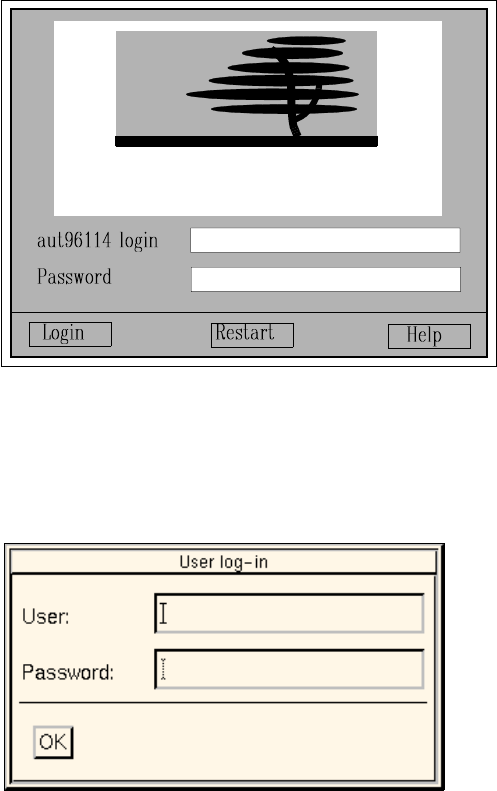
After approx. 1 minute, the following login dialog window is displayed on the screen:
● Enter
plr
in the "login" editing field and press the RETURN key.
● Enter
plr
in the "Password" editing field and press the RETURN key.
The screen darkens.
After approx. 3 minutes, the
Desktop
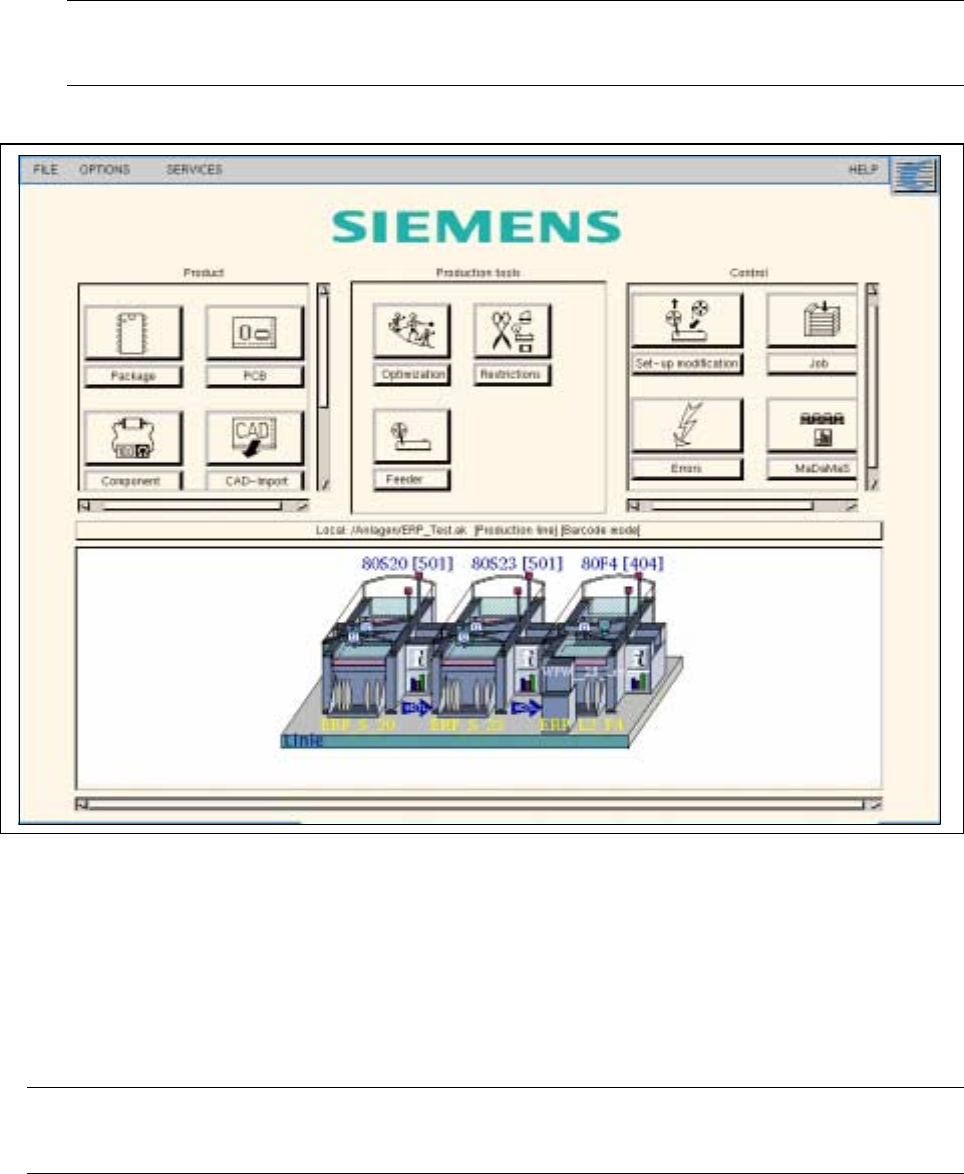
(see Fig. 2.1.1) with the login dialog box superimposed on it
is displayed on the screen.
SCO
2 General Information on Using the Program User Manual Line Computer UNIX
2.1 Basics Software Version 501.xx 01/99 Issue
2 - 4
● Enter the user name and the password specified in the user account (see chapt. 3, Fig. 3.2.2) in
the appropriate editing fields.
● Click on OK.
The login dialog box closes. The user has now logged onto the LC system and can start the indi-
vidual applications provided his privileges include the access to the respective applications
(function group).
NOTE
The access rights (see chapt. 3, page 3 - 31) of each user are defined in the user accounts.
Fig. 2.1.1 "Desktop" (Programming Mode)
The "Desktop" fills the entire screen and is the backdrop on which all windows, icons and menus are positioned.
It is organized like a desk on which the working documents are distributed which can be arranged as desired.
The job you are currently working on is arranged centrally on the screen and positioned at the top. All elements
are activated or selected by means of the mouse.
NOTE
A detailed description of the structure and function of the desktop is contained in chapt. 3 of this manual.