00191413-01.pdf - 第548页
17.3 Description of Components and PCBs User Manual Line Computer UNIX 17.3.1 PCB 1: sin g le circuit Software Version 501.xx 01/99 Issue 17 - 16 Enterin g the dime ns- ions of th e PCB Definin g fiducia ls contin ued fr…
User Manual Line Computer UNIX 17.3 Description of Components and PCBs
Software Version 501.xx 01/99 Issue 17.3.1 PCB 1: sin
g
le circuit
17 - 15
17.2.1.1 Package Form Description
The packa
g
e forms used are contained in the standard GF-librar
y
, the description is dispensed with.
17.2.1.2 Component Description
To open the Component Editor for a component, proceed as follows:
1. On the desktop click on the icon of the Component Editor .
The file selection window is opened.
2. Click on the
Selection
editin
g
field.
3. Enter the name of the component, here:
Comp1.be
, click on the
OK
button.
The Component Editor is opened.
To enter the component data, proceed as follows:
4. Click on the
Comment
editin
g
field.
5. Enter a comment uni
q
uel
y
describin
g
the component, here:
SOT23
.
6. Click on the
Package form
editin
g
field.
7. Enter the packa
g
e form number, here:
400
.
8. Activate the appropriate button in the
Processing
selection area, here:
Placing
and
Glueing
.
9. Activate the appropriate button in the CRDL selection area, here:
No check
.
10. On the
FILE
menu click on the
Save
option.
The component data are now saved.
11. On the
FILE
menu click on the
Quit
option.
The Component Editor is closed.
12. Perform the component description for the other components, here:
Comp2.be
and
Comp3.be
.
17.2.1.3 Adhesive Pattern (DM) Description
An adhesive pattern has alread
y
been defined in the standard GF-Bibliothek for the packa
g
e forms defined.
17.2.1.4 PCB Description
To open the PCB Editor for a PCB, proceed as follows:
13. On the desktop click on the icon of the PCB Editor .
The file selection window is opened.
14. Click on the
Selection
editin
g
field.
15. Enter the name of the PCB, here:
Example_1.la
and click on the
OK
button.
A dialo
g
box is opened.
16. Click on the
TYPE
editin
g
field.
17. Enter a t
y
pe desi
g
nation, here:
SMD a
nd click on the
OK
button.
The PCB Editor is opened. The PCB is represented as a rectan
g
le.
To specify the position of the PCB in the machine, proceed as follows:
18. Activate the Coordinate S
y
stem icon.
19. Click on the PCB
(
rectan
g
le
)
.
A dialo
g
box containin
g
the displa
y
of four coordinate s
y
stems is opened.
20. Click on a coordinate s
y
stem, here:
0°
.
21. Click on the
OK
button.
The dialo
g
box is closed.
17.3 Description of Components and PCBs User Manual Line Computer UNIX
17.3.1 PCB 1: sin
g
le circuit Software Version 501.xx 01/99 Issue
17 - 16
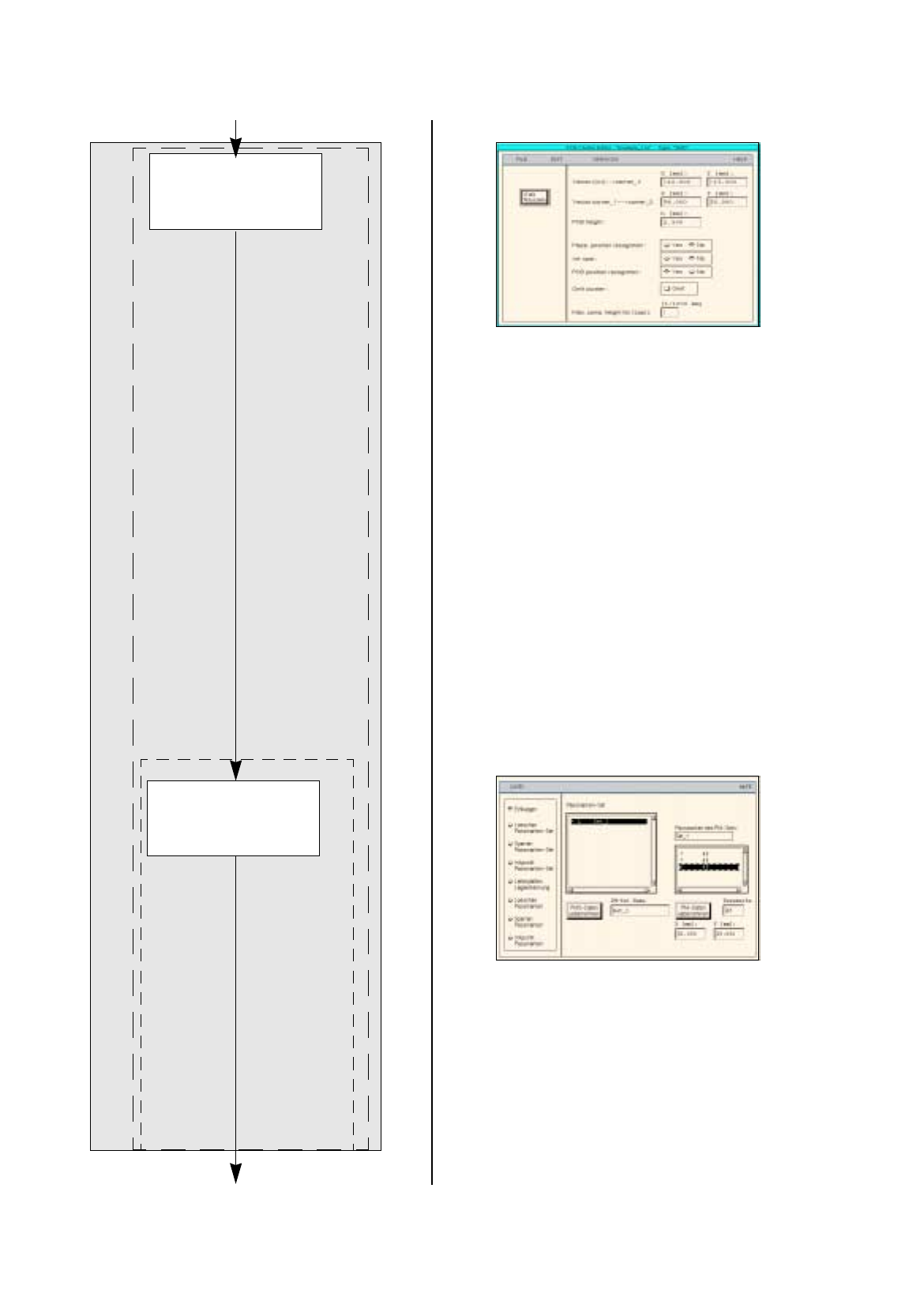
Entering the dimens-
ions of the PCB
Defining fiducials
continued from pa
g
e 17-14
PCB Description
Cluster Editor
Fiducial Editor
continued on pa
g
e 17-18
User Manual Line Computer UNIX 17.3 Description of Components and PCBs
Software Version 501.xx 01/99 Issue 17.3.1 PCB 1: sin
g
le circuit
17 - 17
To enter the dimensions of the PCB, proceed as follows:
22. Activate the Select icon .
23. Click on the PCB
(
rectan
g
le
)
.
The rectan
g
le is hi
g
hli
g
hted in
g
reen.
24. On the
SERVICES
menu click on the
Cluster Editor...
option.
The Cluster Editor is opened.
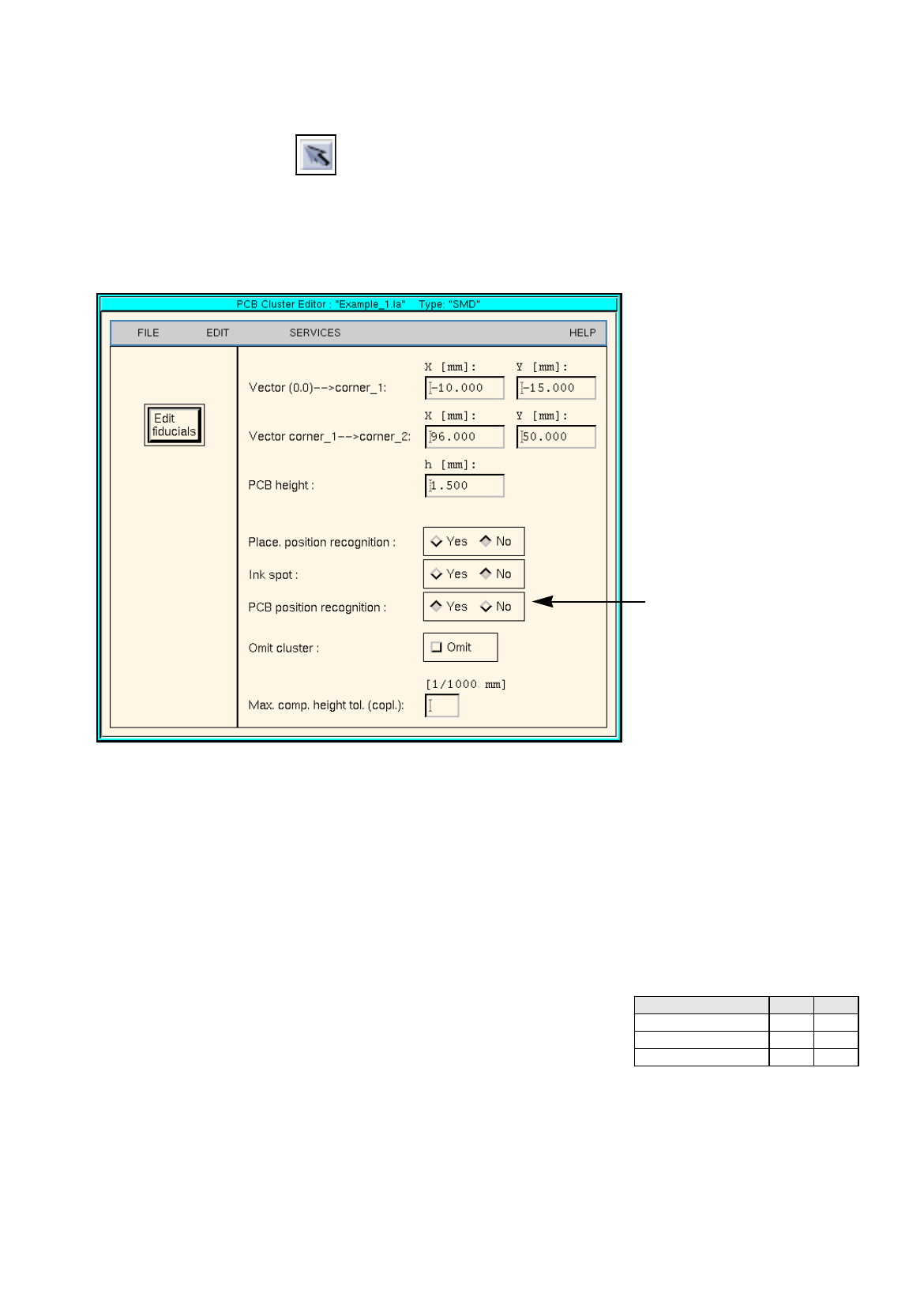
25. Enter the dimensions of the PCB. See Fi
g
. 17.3.1 on pa
g
e 17-12 and Fi
g
. 17.3.2 .
Fig. 17.3.2 Cluster Editor for PCB 1
To define the fiducials, proceed as follows:
26. In the Cluster Editor click on the
Edit fiducials
button.
The Fiducial Editor is opened.
27. Activate the
Insert
button.
28. Click on the
Fiducial set name
editin
g
field.
29. Enter the name for the new fiducial set, here:
Set_1
.
30. Click on the
Accept fiducial set
button.
Fiducial set Set_1
appears on the fiducial list.
31. Click on fiducial set Set_1
on the fiducial list.
32. Click on the
Fiducial
editin
g
field.
33. Enter the fiducial number, here:
48
.
34. Click on the editin
g
fields for the coordinates, enter coordinates
(
do not confirm b
y
pressin
g
the Enter ke
y
!
)
, here: see chart:
35. Click on the
Accept fiducial data
button.
The fiducial data are transferred to the list of the fiducials of the fiducial set.
36. Define the other fiducials accordin
g
l
y
, here:
fiducials
48
and
48
.
37. Activate the
PCB position recognition
button.
38. Click on fiducial set Set_1 on the fiducial list.
The fiducial set
Set_1
is marked b
y
a preceedin
g
L
for PCB position reco
g
nition.
Fiducial number X Y
48 -5 30
48 81 -10
48 81 30
Activate the PCB position
reco
g
nition