00191413-01.pdf - 第226页
6 Product / Package Form User Manu al Line Computer UNIX 6.1 Package Form Editor Software Version 501.xx 01/99 Issue 6 - 48 Changing a Grid Group ● Click on the grid group in the view area of the main window. The selec t…
User Manual Line Computer UNIX 6 Product / Package Form
Software Version 501.xx 01/99 Issue 6.1 Package Form Editor
6 - 47
Creating a Grid Group
●
Click on
Create
in the command area of the main window (see Fig. 6.1.1).
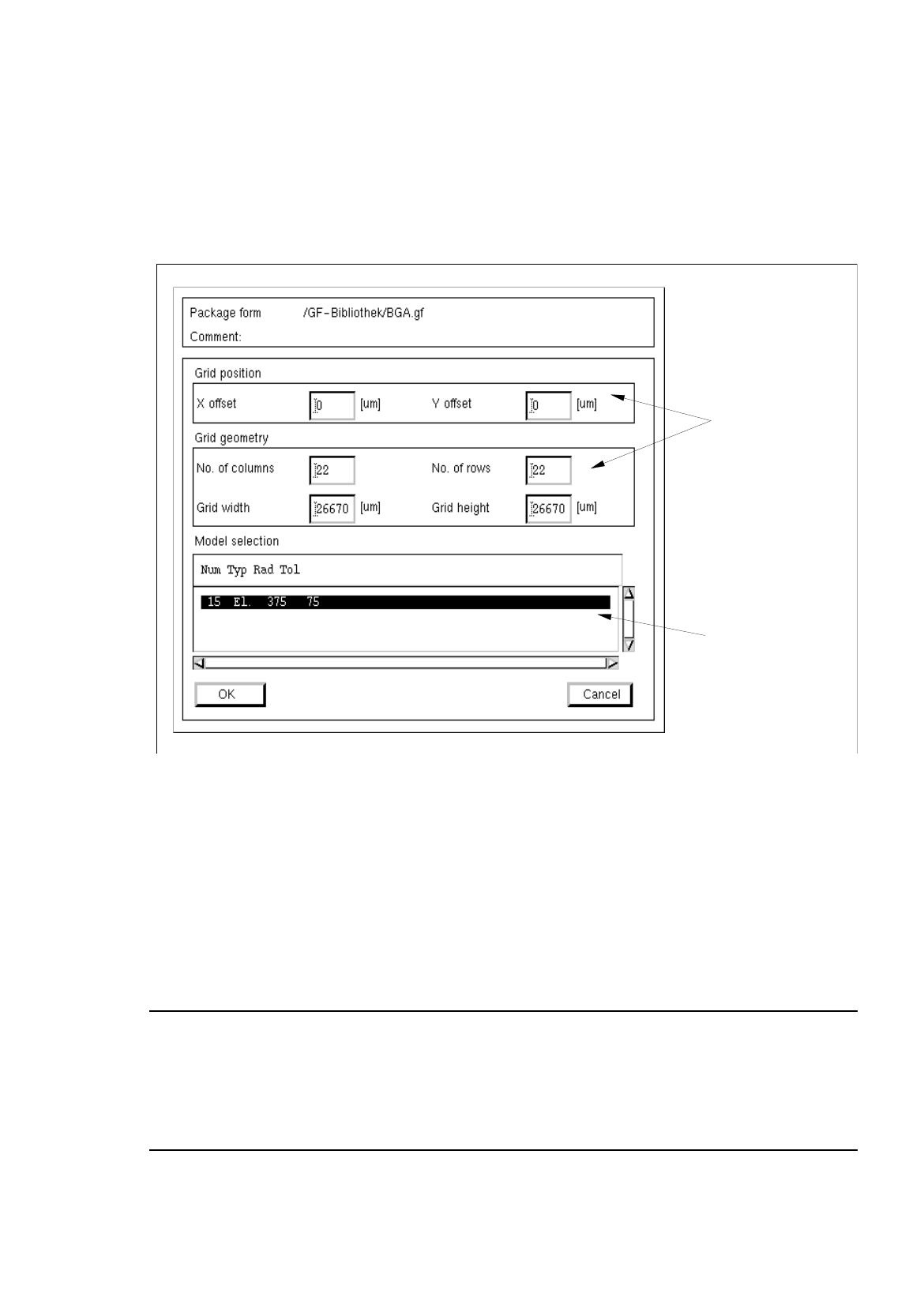
The window for editing the grid group data is opened (see Fig. 6.1.25), and a ball is displayed in
the view area of the main window. .
Fig. 6.1.25 Window "Grid Group Description" (with values for the grid geometry already entered)
Procedure for Editing the Grid Group Data:
●
Click on the individual editing fields and enter the values.
●
After the data have been entered, click on
OK
to confirm your entries.
If the entered values are correct, the window is closed and the window for the model description is
opened containing a display of the defined grid group (see Fig. 6.1.3).
NOTE
If invalid values were entered, a dialog box containing a corresponding error message is displayed
(see page 6 - 15). The fields containing the invalid values are surrounded by a red frame. The dialog
box must be acknowledged by clicking on
OK
first. Thereafter, the entries can be corrected and con-
firmed by clicking on "OK".
editin
g
fields
selection field
"Models"

6 Product / Package Form User Manual Line Computer UNIX
6.1 Package Form Editor Software Version 501.xx 01/99 Issue
6 - 48
Changing a Grid Group
●
Click on the grid group in the view area of the main window.
The selected grid group is surrounded by a frame.
●
Select the grid group once
more
by double-clicking.
The window for editing the grid group is opened (see Fig. 6.1.25).
●
Click on the editing field containing the value to be changed (position cursor in front of the value).
●
Delete the value using the DELETE key and enter new value.
NOTE
If the RETURN key is pressed after a value has been changed, the graphical display of the
package form is automatically updated in the view area.
●
After all desired changes have been made, click on
OK
.
If the entered values are correct, the window is closed.
The grid group is displayed in the view area with the modified dimensions.
Removing Balls From a Grid Group
To identify any possible absence of given "balls" within a grid, the balls concerned can be clicked on
in the "Grid group description" window.
Procedure:
●
Click on each of the balls you want to remove using the right mouse button. The selected balls
are thereafter displayed in reverse video. By clicking once more with the right
mouse button their
state can be reversed again.
Allocating a New Ball Model to the Current Grid Group
If several ball models were already defined, the model data are displayed in the "Models" selection field
(see Fig. 6.1.25) and can thus be allocated to the current grid group.
The entry for a ball model comprises the following data:
Num
= Number of the ball model
Typ
= Type of the ball model (El. connection or Centering fiducial)
Rad
= Radius of the ball model
Tol
= Radius tolerance of the ball model
User Manual Line Computer UNIX 6 Product / Package Form
Software Version 501.xx 01/99 Issue 6.1 Package Form Editor
6 - 49
Procedure:
●
Select the data of the desired ball model from the "Models" selection field.
●
Click on
OK
.
The window is closed. The grid group is displayed in the view area with the dimensions of the
selected ball model.
Defining a New Ball Model
●
From the view area select a ball of the newly created grid group by double-clicking.
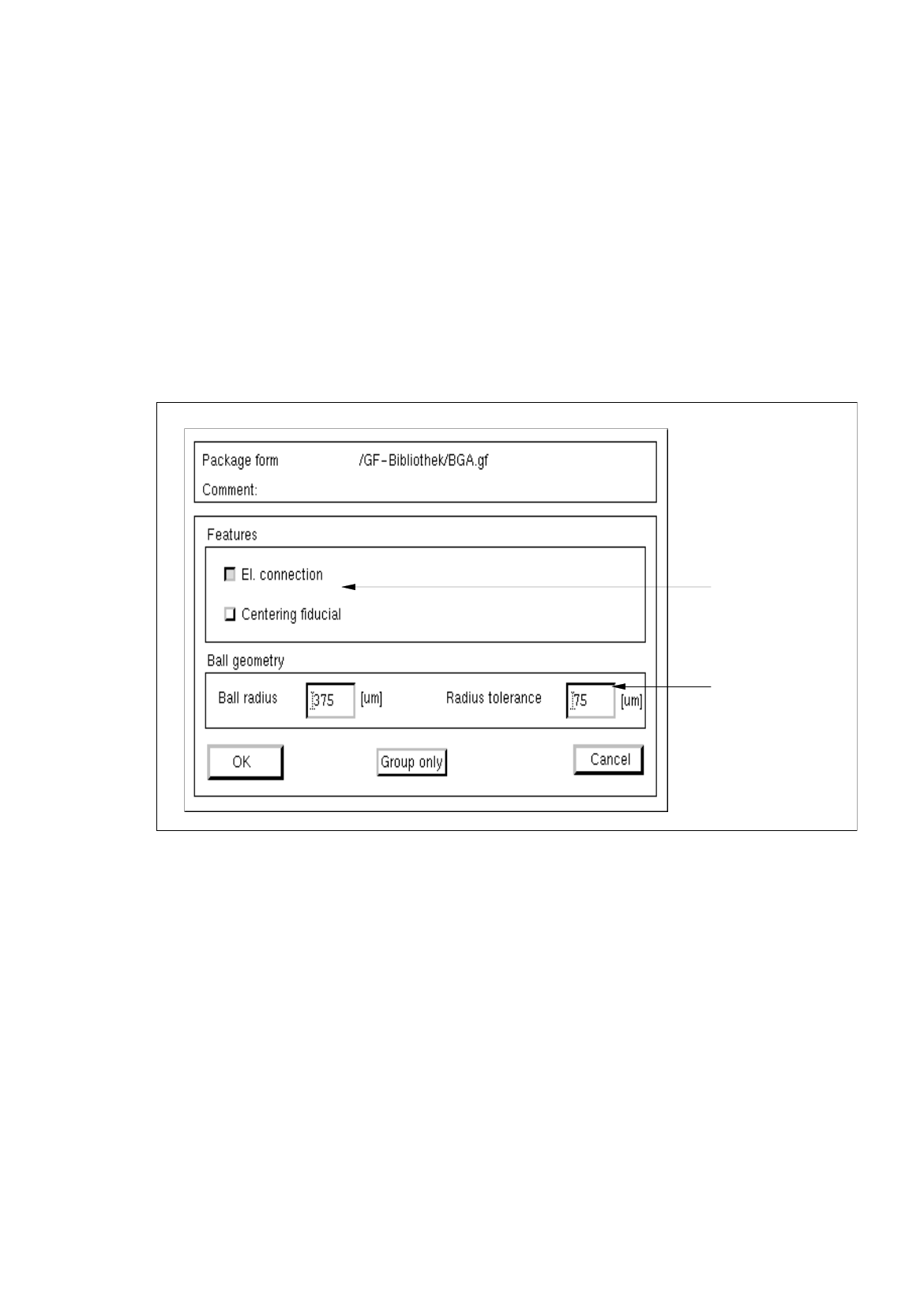
The window for editing the model data is opened (see Fig. 6.1.26).
Fig. 6.1.26 Window "Model Description" (with values for the ball geometry already entered)
Procedure for Editing the BGA Ball Model Data:
●
Click on the individual editing fields and enter the values.
●
After the data have been entered, click on
OK
to confirm your entries.
If the entered values are correct, the window for the model description is closed. The grid group
with the defined balls is displayed in the view area (see Fig. 6.1.3).
settin
g
area
editin
g
fields