00191413-01.pdf - 第84页
3 Desktop (Root W indow) User Manual Line Computer UNIX 3.2 Desktop User Interface Software Version 501.xx 01/99 Issue 3 - 14 - GF Handling This menu item com bines the menu o ptions "I nstal l GF-Bibli othek",…
User Manual Line Computer UNIX 3 Desktop (Root Window)
Software Version 501.xx 01/99 Issue 3.2 Desktop User Interface
3 - 13
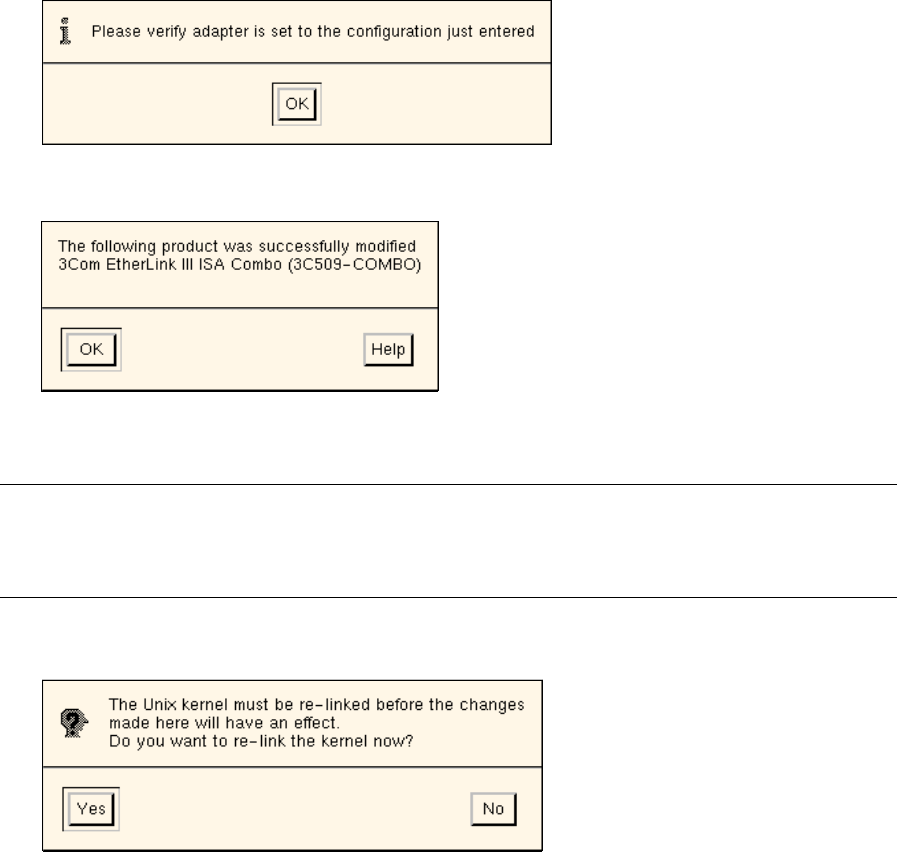
The window closes and the following info box opens.
● Close the info box by clicking on OK. The following dialog box is displayed.
● Close the dialog box by clicking on OK.
NOTE
The View hardware configuration menu option on the Hardware menu allows the current hardware
configuration of the selected LAN card to be displayed.
● To exit from the "Network Configuration Manager" click on HARDWARE --> Exit.
The following dialog box opens.
● Acknowledge the verification query by clicking on Yes.
The dialog box opens closes, and the UNIX window "Unix kernel relink" opens.
● Respond to each of the queries "Do you want this kernel to boot by default" and "Do you want the
kernel enviroment rebuilt", that will be displayed after a few minutes, with y and RETURN.
● Close the UNIX window "Unix kernel relink" by pressing RETURN.
● The main window of the "Network Configuration Manager" and the dialog box close.
Only the UNIX window "Change network configuration" remains displayed.
● Exit from the UNIX window by pressing RETURN.
● Shut down the computer system using the Shutdown main menu function and subsequently
reboot the system.
The line computer system will now be started with the new network configuration.
3 Desktop (Root Window) User Manual Line Computer UNIX
3.2 Desktop User Interface Software Version 501.xx 01/99 Issue
3 - 14
- GF Handling
This menu item combines the menu options "Install GF-Bibliothek", "Conversion of GF-Bibliothek",
“Replace GF number" and "Similarity check".
- Install GF-Bibliothek
This menu option enables you to install a new GF library into the "Master data" directory from
diskette. When so doing, all standard package forms (range 1 ... 1499) already contained in the
"Master data/GF-Bibliothek" library will be replaced.
● Click on OPTIONS --> Install GF-Bibliothek.
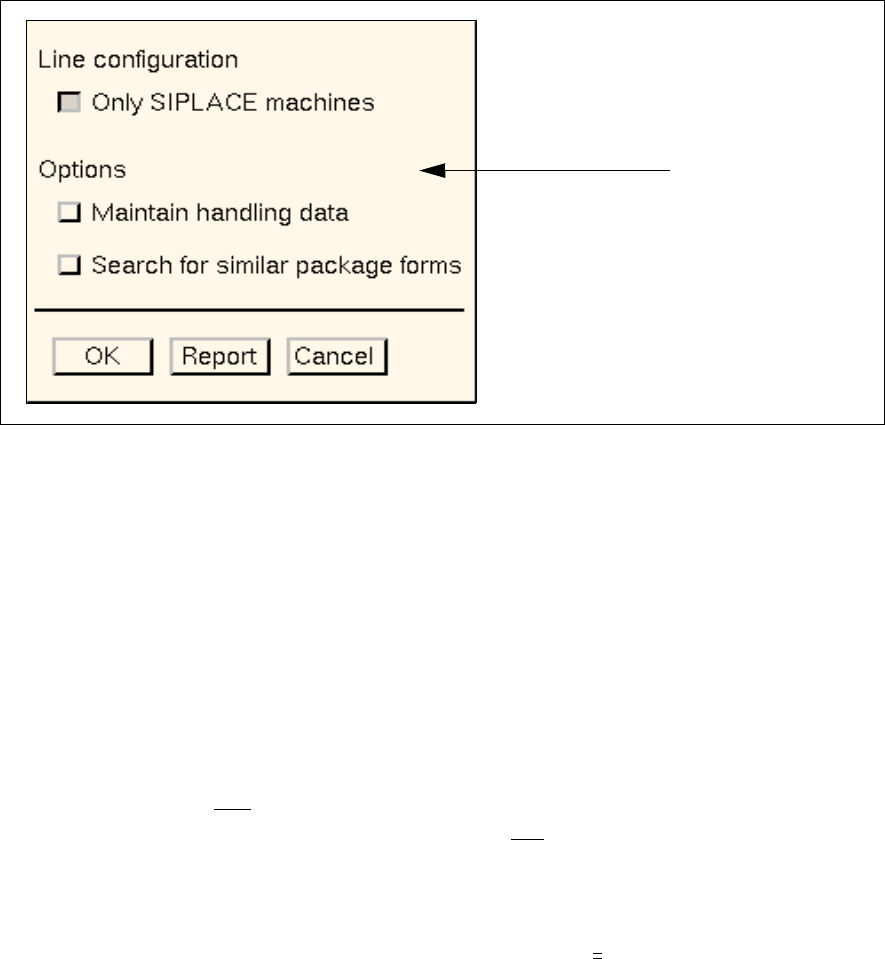
The following dialog box opens.
Settings to choose from prior to installing the new GF library
Line configuration
- Only SIPLACE machines
The Only SIPLACE machines button is activated by default. This setting is to be maintained if the
active line comprises exclusively SIPLACE machines.
If the line consists of one or more HS-180 machines, the Only SIPLACE machines button needs to
be deactivated.
Options
- Maintain handling data
If this button is activated, only
the vision data of the standard package forms will be overwritten.
If the button is deactivated (default setting), both the vision and
the handling data of the standard
package forms will be overwritten
- Search for similar package forms
If this button is activated, all customer-specific package forms (GF no.
>
1500) will automatically be com-
pared for similarity with the new standard package forms after the new GF library has been installed.
If the button is deactivated, (default setting), no similarity comparison will be carried out.
Settings area
User Manual Line Computer UNIX 3 Desktop (Root Window)
Software Version 501.xx 01/99 Issue 3.2 Desktop User Interface
3 - 15
NOTE
Package forms are considered to be similar if they are of the same package form type (PDC, FDC or
BGA) and, in addition, if the following criteria are met:
- PDC / FDC / BGA same length and width of the component, including the tolerance
- FDC / BGA same number of pins or "balls"
- FDC / BGA same number of lead or ball models
Procedure:
● Insert the diskette containing the new GF library into the floppy drive.
● If required, activate/deactivate the appropriate buttons in the settings area of the dialog window.
● Click on OK.
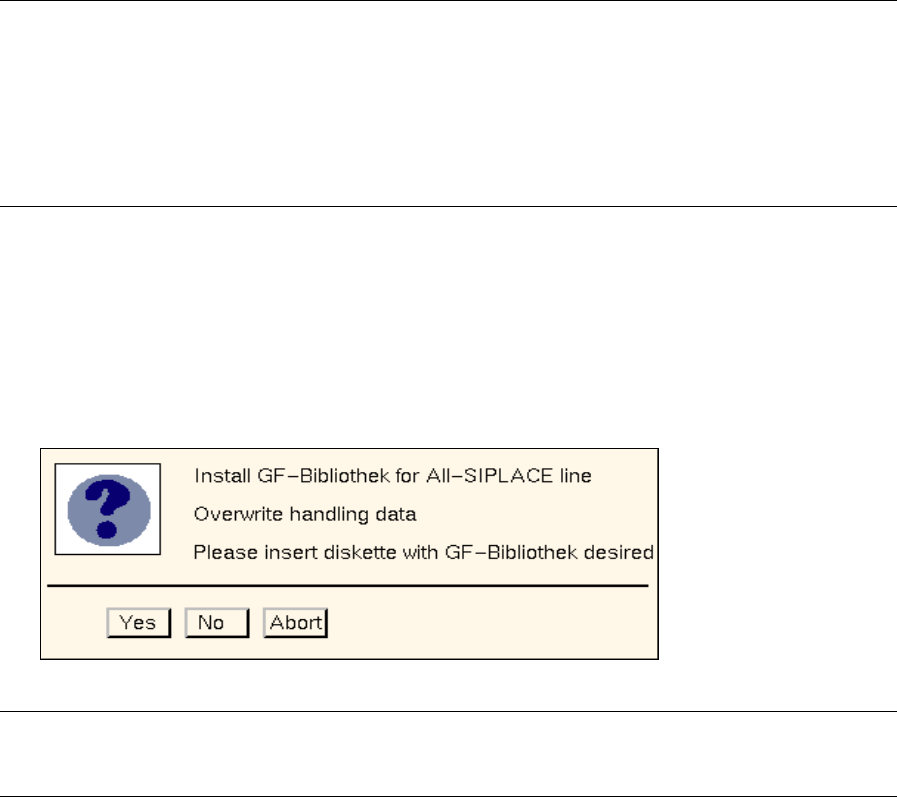
The following dialog box opens.
NOTE
The texts displayed in the dialog box vary according to the selected settings.
● Click on No or Abort if there are still settings to be changed.
● Click on Yes if the installation process is to be started based on the settings displayed. A
message is displayed in the dialog box informing you that the diskette is being read.
● Click on Abort when a message is displayed in the dialog box informing you that the GF library
has been installed.
The dialog box closes.
Use the Report button in the dialog box to obtain a display of the installation results and of any similarity
comparison that may have been performed.
● Click on Report in the dialog box.
The File Display main window opens. The contents of the "GF_LibInstall.log" log file are dis-
played in the view area.