00191413-01.pdf - 第53页
User Manual Line Computer UNIX 2 General Information on Using the P rogram Software Version 501.xx 01/99 Issue 2.3 Directories / Files 2 - 19 2.3 Directories / Fil es Related fi les are grouped and sto red in dire ctori …

2 General Information on Using the Program User Manual Line Computer UNIX
2.2 Window System Software Version 501.xx 01/99 Issue
2 - 18
Closing a Window
If your screen has become cluttered with too many open windows, there is the possibility to close windows
that are no longer needed.
● In the desired window select menu option FILE --> Quit.
The window is closed.
If this is performed in the main window, the window including any existing subwindows are closed.
It appears now as an icon on the desktop.
Terminating Line Computer Program / Restarting (only as special procedure)
● With the mouse cursor point at the right edge of the screen.
The mouse cursor has an x shape.
● Press and hold left mouse button.
The main menu appears.
● Move the mouse cursor over the menu option LC-End and release the mouse button.
Shortly afterwards the desktop disappears and the screen darkens.
● Wait for approx. 2 minutes before restarting the LC-Program.
● After the waiting time has elapsed, move mouse cursor to any position on the screen.
The mouse cursor has an x shape.
● Press and hold mouse button until the
Main Menu reappears.
● Select LC-Start.
After approx. 3 minutes the desktop with the 3 main groups is redisplayed on the screen.
CAUTION !
To prevent any communication problems between line computer and station computer(s) from occurring, the
following steps should be performed:
é Turn off all stations after having terminated the line computer session by "LR-End" (or "Shutdown").
é When restarting the line computer by means of "LR-Start" (or booting the LC), do not turn on the
stations before the root window ("Desktop") is displayed on the screen.
é Activate icon (Schedule) from the "Job Control" user interface (see chapt. 14) and click on
the most recently processed job (now in the "Ready" state) to re-schedule it.
User Manual Line Computer UNIX 2 General Information on Using the Program
Software Version 501.xx 01/99 Issue 2.3 Directories / Files
2 - 19
2.3 Directories / Files
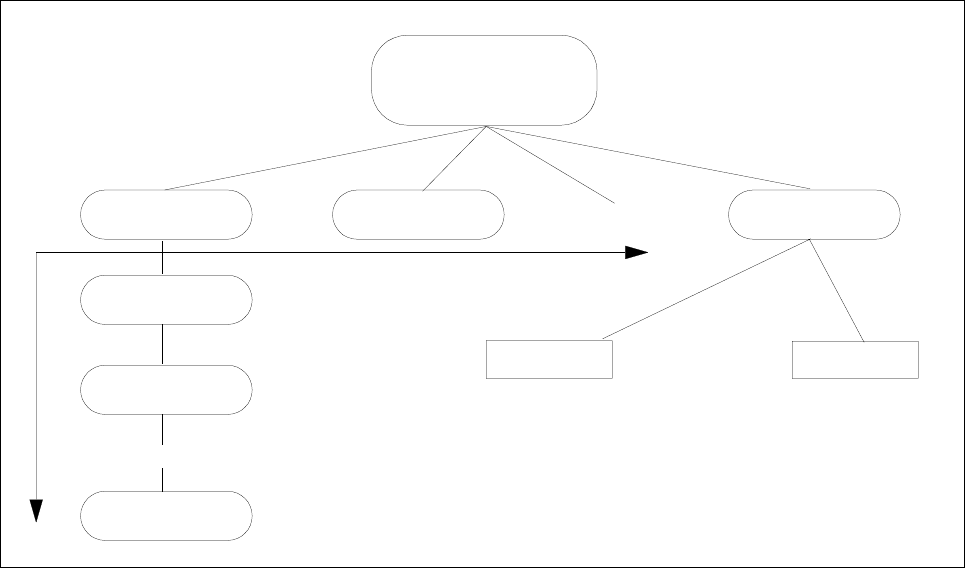
Related files are grouped and stored in
directories
. These directories can also contain other directories, so-
called
subdirectories
, which, in turn, contain files and other subdirectories.
Fig. 2.3.1 Directory Structure
Each file is identified by its
path
which specifies its exact position within the directory structure in the following
form:
Example: /DirA/DirA1/DirA2/File.xx
The individual directories and files are separated by a stroke "/".
Directory A
Directory An
Directory A2
Directory A1
File x
File a
Directory x
Directory B
... as many as you like
... as many as you like
... as many as you like
Main Directory
2 General Information on Using the Program User Manual Line Computer UNIX
2.3 Directories / Files Software Version 501.xx 01/99 Issue
2 - 20
2.3.1 Directory Name / File Name
Each directory and each file must be allocated a name.
Each directory must be assigned a unique name.
Within a directory or subdirectory the names assigned to the individual files must be unique.
Directory names and filenames are allowed to comprise a maximum of 20 characters; in the case of filenames
these include the characters of the extension (e.g. 17 characters for the name + 3 characters for the extension).
The following characters are not permitted when assigning names:
- Question marks (?)
- Asterisks (*)
- Strokes (/ \)
- Blanks ( )
- Brackets ([ ])
- Quotation marks ("" ’)
- Umlaut vowels (ä Ä, ö Ö, ü Ü)