00191413-01.pdf - 第463页
User Manual Line Computer UNIX 14 Control / Control Modules Software Version 501.xx 01/99 Issue 14.2 Line Control 14 - 27 14.2.2 Starting the "Line Control" Application Program ● Click on SERVICES -> Line Co…

14 Control / Control Modules User Manual Line Computer UNIX
14.2 Line Control Software Version 501.xx 01/99 Issue
14 - 26
Production Strategies
• Barcode Strategy = without barcode
If no barcode is provided only one lot type will be assembled. Several lots may be known to the
station controller. The lot heading the list of the scheduled lots is processed.
Changing the barcode strategy is only possible after the line has been cleared of all PCBs.
• Barcode Strategy "with barcode"
If this barcode strategy is set, the station sends the barcode of each PCB to the line computer.
The latter searches for the matching PCB type and subsequently for jobs, containing the PCB type con-
cerned, that are either in the state "scheduled", or undergoing the producibility test or which are in the
"ready" state. If such a job is in the "ready" state, it will be compiled and subsequently scheduled for pro-
cessing. If no matching job is found, the PCB is passed through the line without being processed.
NOTE
In order for the above procedure to function properly, it is required that at least one job be scheduled.
If no job is scheduled the PCB is passed through the line without being processed.
User Manual Line Computer UNIX 14 Control / Control Modules
Software Version 501.xx 01/99 Issue 14.2 Line Control
14 - 27
14.2.2 Starting the "Line Control" Application Program
● Click on SERVICES -> Line Control on the desktop menu bar.
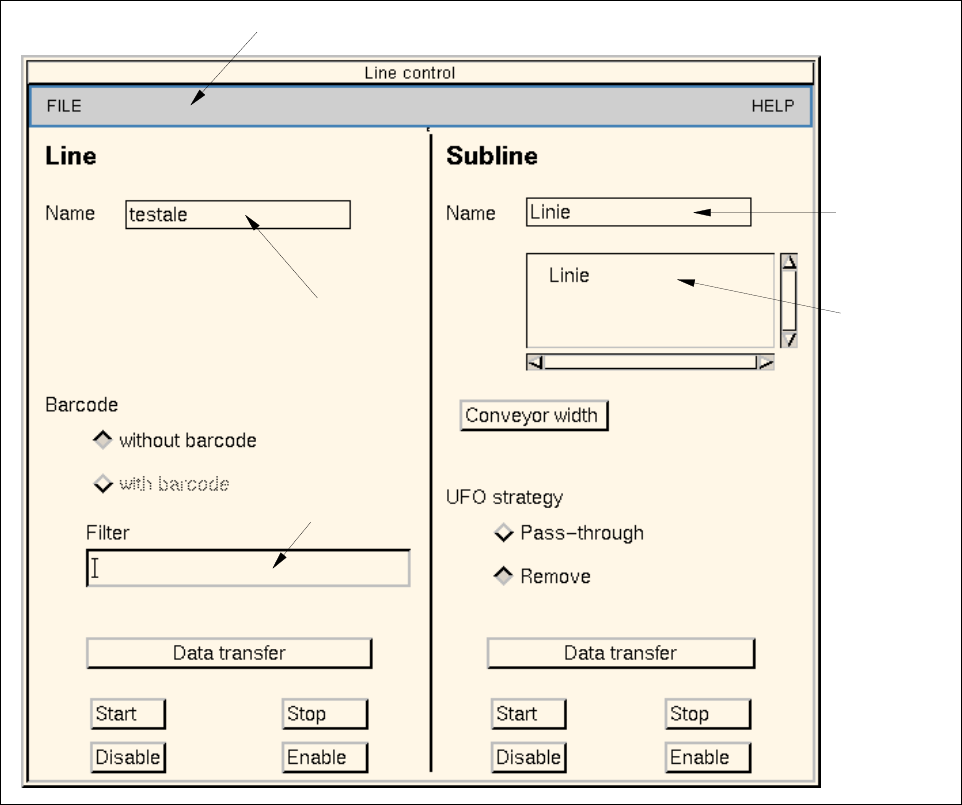
The main window of Line Control is opened (see Fig. 14.2.1).
14.2.3 Main Display Window of Line Control
In the following, the different portions of the main window of the Line Control and their functions are explained.
Fig. 14.2.1 Main Window "Line Control"
This window provides the operator with information on
- the active Line and Subline,
- the conveyor width,
- the Barcode and UFO strategies.
editing field
menu bar
current
subline
selection field
sublines
current line

14 Control / Control Modules User Manual Line Computer UNIX
14.2 Line Control Software Version 501.xx 01/99 Issue
14 - 28
The main window is subdivided as follows:
- Menu bar
- Line (left portion of window)
- Subline (right portion of window)
Menu bar
The menu bar contains the menus "FILE" and "HELP".
The "FILE" menu is described in section 14.2.3.1
NOTE
Since the functions and operation of the menu "HELP" is similar to those in other application programs of
the line computer, it is described in detail in chapt. 2.
Line
In this portion of the window, the barcode filter can be edited and the barcode strategy selected. Moreover, the
operator can start/stop the line as well as disable/enable all input conveyors of the sublines forming part of the
overall line.
Subline
In this portion of the window, the current subline can be selected for which the conveyor width can be edited
and the UFO strategy set. Moreover, the operator can start/stop the subline and disable/enable the input
conveyor.
14.2.3.1 FILE Menu
- Rejecting modified data
Changes that have been made to settings and data can be reversed and the previous version can be
retained; this is, however, only possible before "Data transfer" has been activated.
● Click on FILE --> Reject.
The settings and data are restored to their previous state.
- Quitting Line Control
● Select menu item FILE --> Quit.
NOTE
If changes have been made and the data have not been transferred into the computer’s memory yet,
a dialog box is displayed informing the user that there are still operations for the line "xx" that require
confirmation and that the action initiated last will not be processed.