00191413-01.pdf - 第93页
User Manual Line Computer UNIX 3 Desktop (Root Window) Software Version 501.xx 01/99 Issue 3.2 Desktop User Interface 3 - 23 - Data Sto rage This opti on causes the window for sw itchi ng the file ac cess mo de to centra…
3 Desktop (Root Window) User Manual Line Computer UNIX
3.2 Desktop User Interface Software Version 501.xx 01/99 Issue
3 - 22
3.2.1.3 SERVICES Menu
- Screen Saver
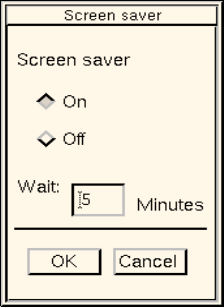
This option is used to set the screen saver.
● Click on SERVICES --> Screen saver.
The following dialog box opens.
● Click on the On button.
● In the editing field enter the desired delay time after which the screen saver is to be activated.
● Click on OK.
The dialog box closes. The screen saver goes into effect when there is no mouse or keyboard
activity for the specified length of time. The desktop will reappear as soon as the mouse or key-
board is used.
- Equipment
Serves to open the user interface of the Print and Update Server. It basically serves to manage the dif-
ferent devices. The devices available in the LC system such as printers, diskette and tape drives can
be logged on (activated) or logged off (deactivated).
In addition, it is possible to intitiate the formatting of data carriers from the user interface.
● Click on SERVICES --> Equipment.
The user interface of the Print and Update Server is opened (see chapt. 4).
- Station configuration
Serves to open the user interface of the Configuration Editor. The configuration of a selected station
can be defined with the aid of the editor.
● Click on SERVICES --> Station configuration.
The FSB containing the directory "Master data: Stationen" is opened.
● Open the directory "Master data: Stationen" by double-clicking.
The list of the configured stations is displayed in the FSB.
● Select the desired station by double-clicking.
The user interface of the Configuration Editor is opened (see chapt. 12, section 12.1).
User Manual Line Computer UNIX 3 Desktop (Root Window)
Software Version 501.xx 01/99 Issue 3.2 Desktop User Interface
3 - 23
- Data Storage
This option causes the window for switching the file access mode to central or local data storage to be
opened.
● Click on SERVICES --> Data storage.
The window for switching between the two file access modes is opened (see chapt. 4).
- Line Configuration
This option is used to open the window for the line configuration. Using the appropriate buttons in
this window, the Line Editor for the configuration of a line or subline can be opened, or the FSB for
the selection of a different production line.
● Click on SERVICES --> Line configuration.
The "Line configuration" selection window opens.
● Click, for example, on the Line configuration button.
The FSB containing the "Master data: Anlagen" directory opens.
Select the desired line by double-clicking.
The user interface of the Line Editor for the configuration of the line opens (see chapt. 12,
section 12.2).
- Line control
Serves to open the user interface of the line control.It enables the user to control the entire line. He
can start and stop the line, disable or enable the input conveyor, enter the conveyor width, reset the
entire line to the initial state (Reset), specify barcode and production strategies.
● Click on SERVICES --> Line control.
The user interface of the line control is opened (see chapt. 14).
3 Desktop (Root Window) User Manual Line Computer UNIX
3.2 Desktop User Interface Software Version 501.xx 01/99 Issue
3 - 24
- User management
The menu items "User log-off", "User change", "Changing the password of the current user" and "Admini-
stration of user accounts" are combined under this menu option.
- User log-off
This menu function serves to log the currently logged on user off the LC system. Subsequently, all
functions of the LC program are blocked.
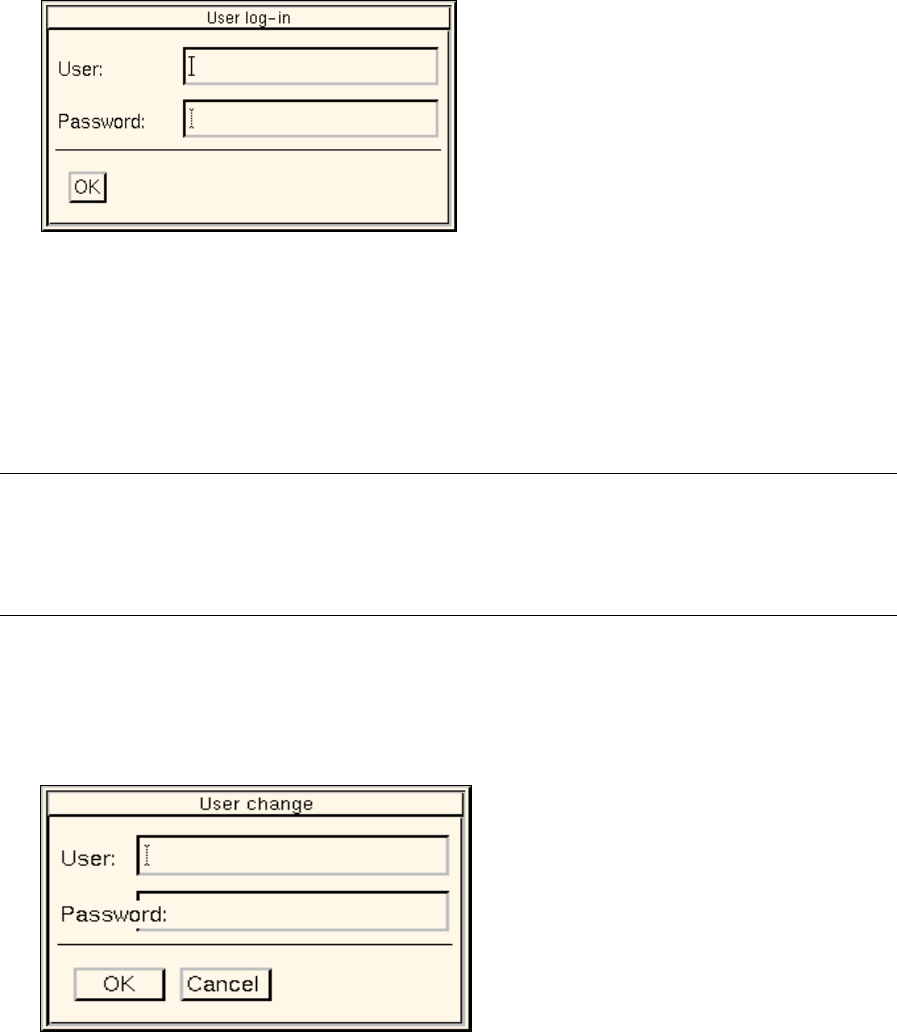
● Click on SERVICES --> User management --> User log-off.
The following log-in dialog box opens.
The user is logged off the LC system and all functions of the LC program are blocked until a
user logs on again by entering his/her data (see the following description).
● If work with the LC program is to be resumed, enter the applicable data in the "User" and "Pass-
word" editing fields.
● Click on OK.
The log-in dialog box closes.
NOTE
If faulty data were entered in an editing field, the field at issue will be displayed surrounded by a red
frame, and the entry will be automatically deleted.
The log-in dialog box cannot be closed until the data have been entered correctly.
- User change
This option enables the change from the current user to a new user to be carried out.
● Click on SERVICES --> User management --> User change.
The following dialog box opens.