00191413-01.pdf - 第446页
14 Control / Cont rol Modules User Manual Line Computer UNIX 0.2 Job Control S oftware Version 501.xx 01/99 Issue 14 - 10 - Error mes sages... All er ror mess ages and warn ings that occu rred du ring a produci bilit y c…
User Manual Line Computer UNIX 14 Control / Control Modules
Software Version 501.xx 01/99 Issue 0.2 Job Control
14 - 9
Or:
● Activate the (Merge all) icon.
The dialog window closes and all jobs are added to the current job list or lot file.
●
NOTE
If jobs have been selected that already exist in the job list or lot file, the message "Error during
merging the lot file! Job name used more than once" appears.
If individual
jobs from a lot file are inserted into the current job list, these jobs are no longer contained
in the lot file.
If all
jobs from a lot file are inserted into the current job list or lot file, the lot file is automatically
deleted.
- Barcode type allocation list...
(Description see section 14.1.4.3)
- Basic optimization data...
(Description see section 14.1.4.4)
- Optimization dialog...
This menu option enables the optimization dialog (user interface of Set-Up Optimization to be opened.
● Click on SERVICES --> Optimization Dialog...
The main window of the Optimization Dialog is opened (see chapt. 11).
- Line Control...
The Line Control main window can be opened using this menu item.
● Click on SERVICES --> Line Control...
The main window of Line Control is opened (see section 14.2. Fig. 14.2.1).
- Results...
The "Results..." menu option can only be selected if a job was previously selected from the job list.
The results of the producibility check can be displayed for the selected job.
● Deactivate all buttons in the command area.
● Select the desired job from the job list.
● Select SERVICES --> Results...
The window containing the results of the producibility check is opened (see chapt. 11, Fig. 11.4.5).
The window displays the cycle time, the number of placement positions, the number of cycles and
the performance of the individual placement heads, the individual stations and the entire line.
14 Control / Control Modules User Manual Line Computer UNIX
0.2 Job Control Software Version 501.xx 01/99 Issue
14 - 10
- Error messages...
All error messages and warnings that occurred during a producibility check are stored in the "all.error"
file. The contents of the "all.error" file can be displayed by following the procedures described below.
● Deactivate all icons in the command area.
● Select faulty job by double-clicking.
(A faulty job is identified by an "F" preceding its name).
The main window of File Display is opened (see chapt. 4). It contains all error messages and
warnings that occurred during the producibility check.
Or:
● Select faulty job by clicking on it once.
● Click on SERVICES --> Error messages...
The main window of File Display containing the contents of "all.error" file is opened.
User Manual Line Computer UNIX 14 Control / Control Modules
Software Version 501.xx 01/99 Issue 0.2 Job Control
14 - 11
14.1.4.3 Editing Barcode Type Allocation List
When using PCB barcodes, the appropriate barcodes must be allocated to the PCBs. This is accomplished by
means of the "Barcode type allocation list..." menu option.
● Click on SERVICES --> Barcode type allocation list... (with the job list loaded).
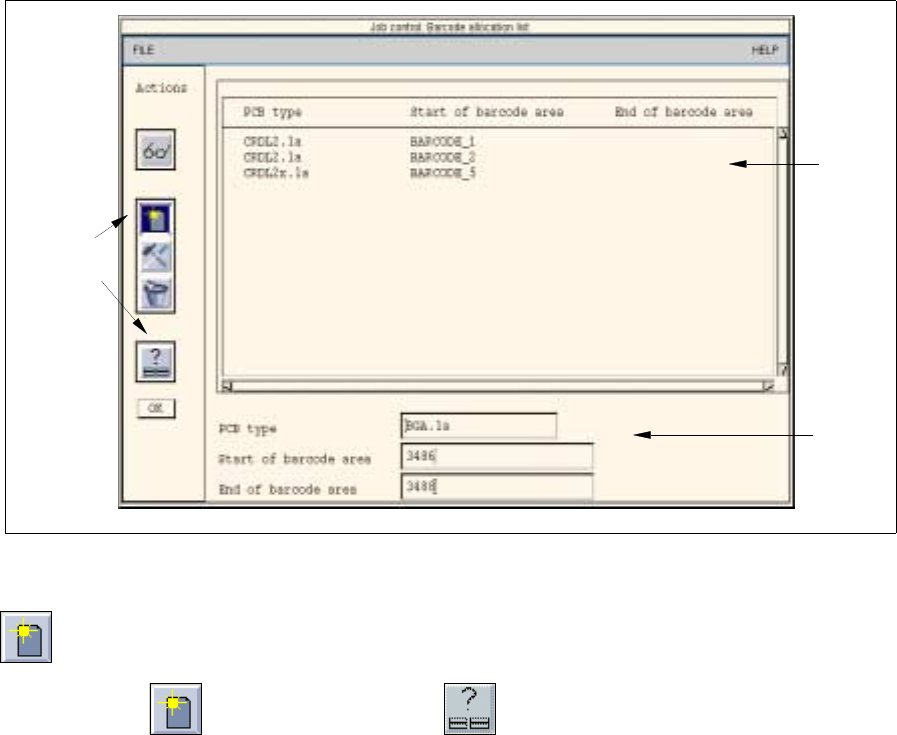
The window containing the barcode type allocation list opens (see Fig. 14.1.3).
Here, given barcode ranges (Start barcode --> End barcode) can be allocated to the PCB types,
or existing allocations can be edited.
Fig. 14.1.3 "Barcode Type Allocation List" Window
- Editing of barcode allocations
● Click on the icon and subsequently the icon.
The FSB containing the file selection of all already-defined PCB types opens.
● Select the PCB type to which a barcode is to be allocated by double-clicking.
The FSB closes and the name of the selected PCB type is displayed in the "PCB type" editing
field.
● Click on the "Start of barcode range" editing field and enter the start barcode (e.g. 35588).
● Click on the "End of barcode range" editing field and enter the end barcode (e.g. 35598).
● Click on OK in the command area.
The new allocation is inserted into the list.
Or:
● Select an entry from the allocation list as preset value using the right mouse button.
The data are transferred to the editing fields.
● Edit the data as required and add them to the list by selecting OK.
Selection
area
Command
area
Editing
area