00191413-01.pdf - 第174页
5 Product / Component User Manual Line Computer UNIX 5.1 Component Editor Software Version 501.xx 01/99 Issue 5 - 8 5.1.2.4 Component Editor Command Area The desired actio ns can be activat ed by mean s of th e command b…

User Manual Line Computer UNIX 5 Product / Component
Software Version 501.xx 01/99 Issue 5.1 Component Editor
5 - 7
5.1.2.3 Component Editor Editing Fields
Editing fields
- Comment Any comment you may wish to enter can be entered in
this field, e.g. type of the component. (No inverted
commas or quotation marks will be accepted).
- Package form The GF no. assigned to the particular component type
(package) is entered in this editing field (e.g. 750 for QFP44).
NOTE: The GF-number must be entered without
any suffix!
- Setpoint value The setpoint value of the component is entered using the
scientific notation, e.g.:
1E12 for 10 T (tera) = 10 000 000 000 000
1E9 for 10 G (giga) = 10 000 000 000
1E6 for 10 M (mega) = 10 000 000
10E3 for 10 K (kilo) = 10 000
10E-3 for 10 m (milli) = 0.010
10E-6 for 10 µ (micro) = 0.000010
10E-9 for 10 n (nano) = 0.000000010
10E-12 for 10 p (pico) = 0.000000000010
- Tolerance In this field the permissible deviation of the tested value
from the setpoint value is entered in % (e.g. 10 for 100kΩ
resistance).
- Voltage This field can only be edited when in the selection field
"CRDL" the component type "Tantalum capacitor" has
been selected for the current component. The operating
voltage (volts) of the tantalum capacitor is entered here.
5 Product / Component User Manual Line Computer UNIX
5.1 Component Editor Software Version 501.xx 01/99 Issue
5 - 8
5.1.2.4 Component Editor Command Area
The desired actions can be activated by means of the command buttons. The procedures for executing the
commands are described in the following:
COMMANDS
● Create
This command can be used to define a barcode for the component.
NOTE
For each component a total of 6 barcodes can be defined. Once the maximum permissible number
of barcodes for the current component has been reached, the "Create" button can no longer be
activated.
● Click on Create.
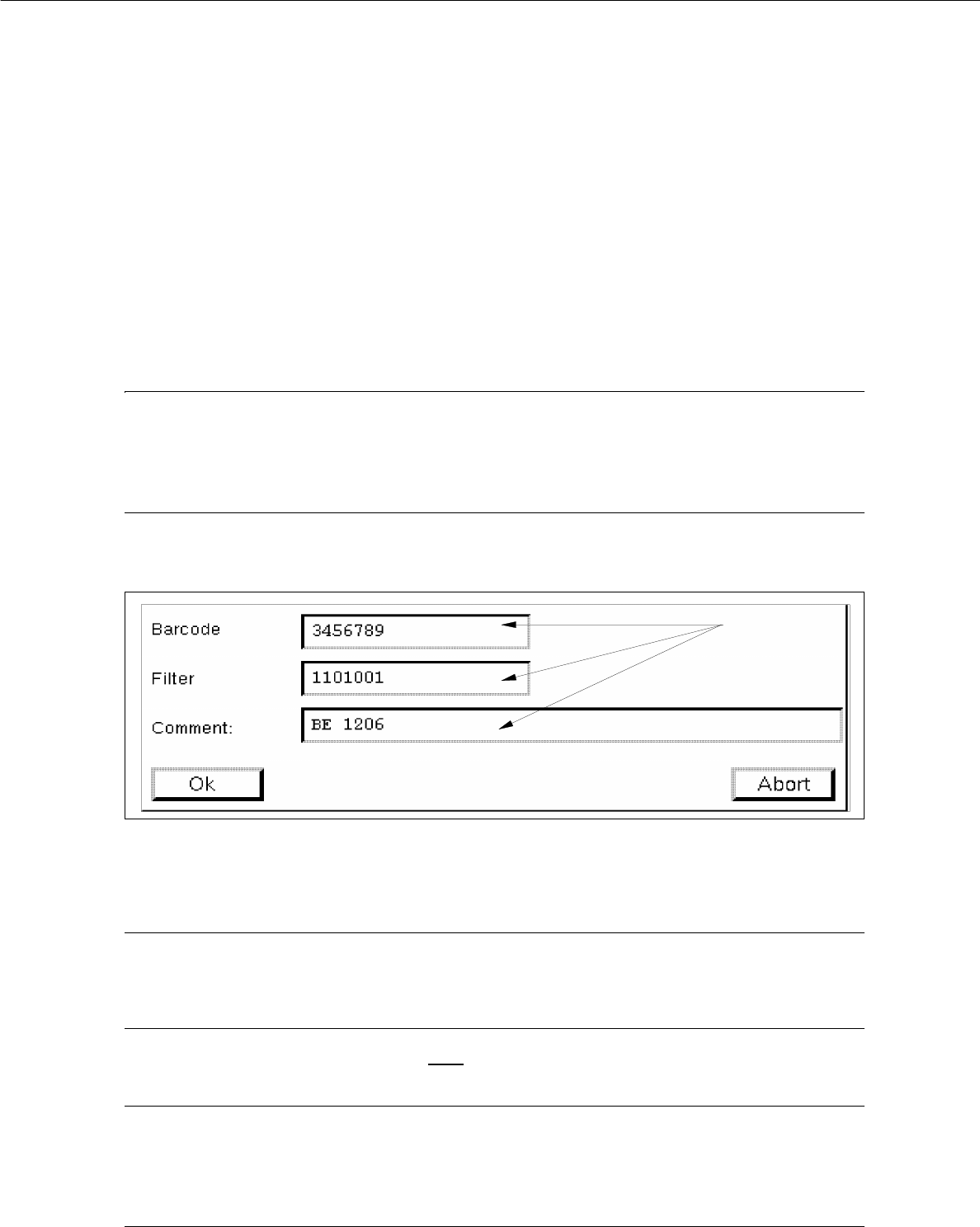
The window for the description of the new barcode is opened (see Fig. 5.1.2).
Fig. 5.1.2 Entry Window "Barcode"
● Click on editing field "Barcode", enter the desired sequence of characters and terminate the entry
by pressing RETURN.
NOTE
The barcode may comprise up to 40 characters. Valid characters are letters, numbers, points,
underscores and hyphens.
● Click on editing field "Filter", validate each character of the defined barcode (by entering 1 or 0)
and terminate your entry by pressing RETURN.
NOTE
Digit "1" stands for "valid" and digit "0" for "invalid".
The length of the filter (number of digits) must correspond to the length of the barcode (number of
characters).
editing fields

User Manual Line Computer UNIX 5 Product / Component
Software Version 501.xx 01/99 Issue 5.1 Component Editor
5 - 9
● Click on editing field "Comment", if required, and enter any comment desired.
● Confirm your entries by choosing OK.
The entry screen is closed, the barcode and filter entries are displayed in the display area.
NOTE
If invalid characters were used for the barcode entry (e.g. a comma), or if other digits than 1 or 0 were
used for entering the filter, or of the length of the barcode does not coincide with the length of the fil-
ter, the faulty field is displayed surrounded by a red frame as soon as the entry is confirmed by pres-
sing the RETURN key. If the RETURN key is not
pressed after each entry, faulty fields will not be
shown in a red frame until the entries are confirmed by choosing "OK". The entries must be corrected
as otherwise the entry screen will not be closed and the barcode cannot be accepted.
- Delete
It is possible to delete a created barcode.
● Select barcode entry from the display area.
● Click on Delete.
The barcode entry is no longer displayed in the display area.
- Change
An existing barcode, the associated filter or comment can be edited.
● Select the barcode entry from the display area.
● Click on Change.
The window for editing the barcode is opened (see Fig. 5.1.2).
● Click on the editing field containing the desired entry and make the change.
● Confirm the changes by choosing OK.
The entry window is closed, the edited data are displayed in the display area.