00191413-01.pdf - 第128页
4 Data Management User Manu al Line Computer UNIX 4.3 User Interface of t he Data Manager Software Version 501.xx 01/99 Issue 4 - 18 Or else, if Mous e function -- > Move ha s been set in the main window: ● Click on f…
User Manual Line Computer UNIX 4 Data Management
Software Version 501.xx 01/99 Issue 4.3 User Interface of the Data Manager
4 - 17
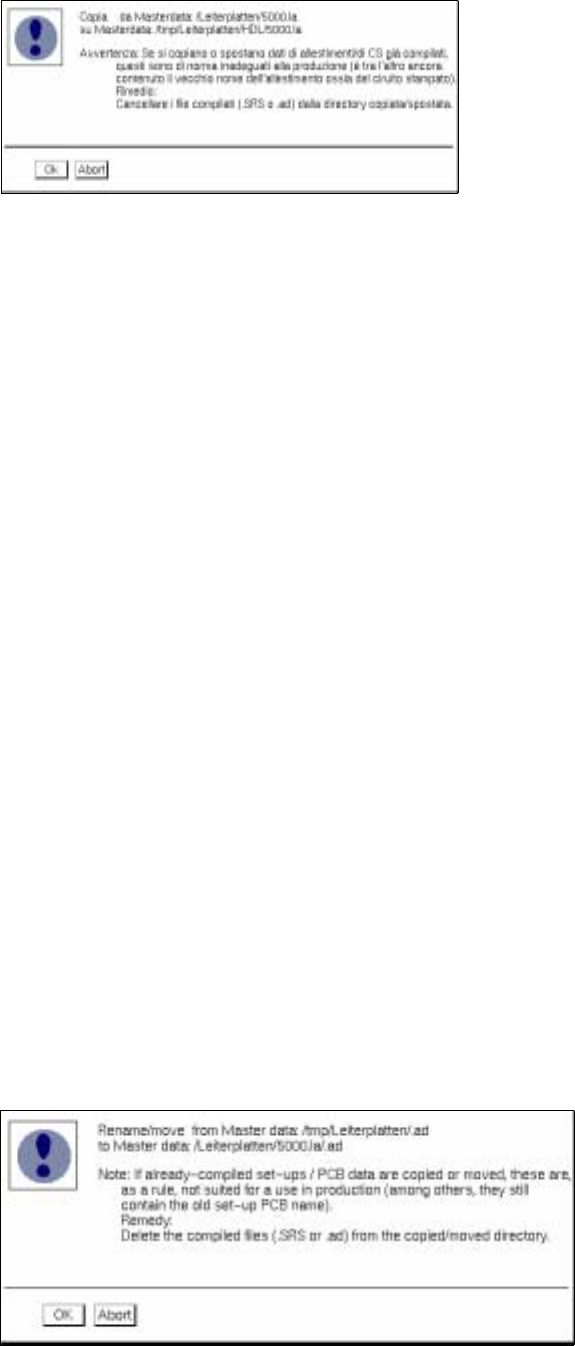
● Confirm dialog box "Copy from..." with OK when the copying procedure is to be carried out.
Or else, if Mouse function --> Copy has been set in the main window:
● Click on file/directory (source) one time.
The icon or the name of the source are now displayed in reverse video.
● Click on file/directory (source) again.
Where icons are displayed the icon changes color and where the text mode has been selected, the
name of the selected source is preceded by "!". The mouse cursor has the shape of a double cross.
● Click on target.
● Confirm dialog box "Copy from ..." with OK.
- Printing of files and directories
The contents of a directory or the complete tree structure of a directory can be printed out.
● Select file/directory by clicking one time.
● Select menu option FILE --> Print.
● On the submenu select Tree or Directory.
Where icons are displayed the icon changes color and where the text mode has been selected, the
name of the selected source is preceded by "!". The mouse cursor has the shape of a double cross.
● Click on target (e.g. printer plotter) in the main window of the Data Manager.
- Moving / Renaming files and directories within a data partner or from one data partner to another
Files or directories can be moved or renamed. Source and target of the operation can be located in
different data partners.
Moving:
● Select file/directory (source) by clicking one time.
● Select menu option FILE --> Move.
● Click on target.
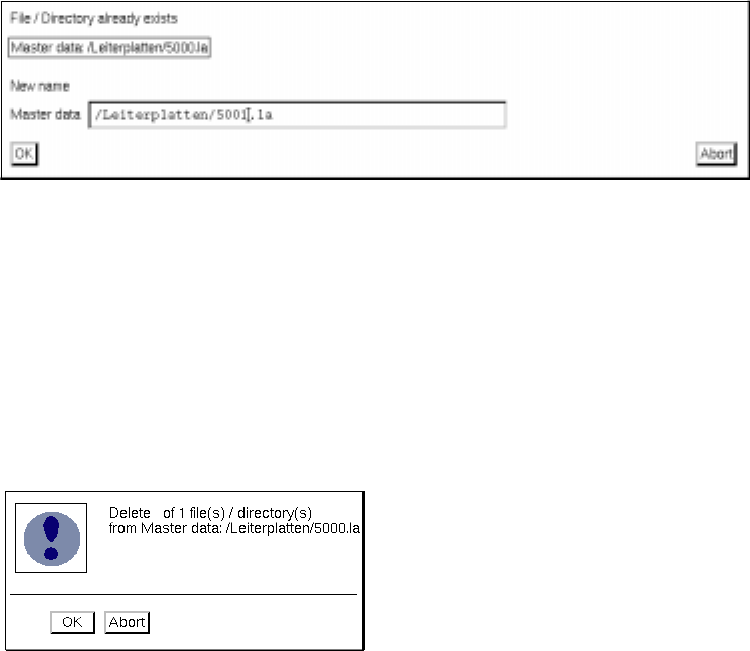
● Confirm dialog box "Rename/move from ..." with OK.
4 Data Management User Manual Line Computer UNIX
4.3 User Interface of the Data Manager Software Version 501.xx 01/99 Issue
4 - 18
Or else, if Mouse function --> Move has been set in the main window:
● Click on file/directory (source) one time.
The icon or name of the source are now displayed in reverse video.
● Click on file/directory (source) again.
Where icons are displayed the icon changes color and where the text mode has been selected, the
name of the selected source is preceded by " ! ". The mouse cursor has the shape of a double cross.
● Click on target.
● Confirm dialog box "Rename/move from ..." with OK.
Renaming:
● Select file/directory by single-clicking.
● Select FILE --> Move menu option.
● Click into any free space in the display area.
● Confirm dialog box "Rename/move from..." with OK.
The following dialog box for entering the new name is displayed.
● Delete the old name using the Delete key and enter the new name.
● Confirm your entry with OK.
The dialog box is closed and the file or directory is displayed in the display area under its new
name.
- Deleting files and directories
Selected files or directories can be deleted.
● Select FILE or Directory by clicking one time.
● Select menu option FILE --> Delete.
● Confirm dialog box "Delete from ..." with OK.
Or:
● Select file/directory by clicking one time.
The icon or name of the source is now displayed in reverse video.
● Click on file/directory again. The mouse cursor has the shape of a double cross.
● Click on Waste basket in the main window.
● Confirm dialog box "Delete from ..." with OK.

User Manual Line Computer UNIX 4 Data Management
Software Version 501.xx 01/99 Issue 4.3 User Interface of the Data Manager
4 - 19
- Compiling file
A selected file can be passed to a compiler for processing.
● Select file
● Select FILE --> Compile.
Or else, if Double click --> Compiler has been set in the command area of the current window:
● Select file by double-clicking.
Shortly thereafter, a dialog box is displayed containing the message that the file has been compiled.
● Confirm dialog box with OK.
NOTE
If no compiler has been defined for the selected file type or if the file could not be compiled, a
dialog box appears containing the respective error message which must confirmed with OK.
If, for example, a job file could not be compiled by the optimization processor due to errors, an error
message is issued and an error file named ".error" is generated in the path of the job file, displaying
the causes of errors. This error file can be viewed with the aid of the file display user interface (see
section 4.5) and be output to the printer.
- Editing a file
For a selected file it is possible to start the user interface which is appropriate for the specific file type,
e.g. for a GF-file from the GF-library the user interface of the Package Form Editor.
In the following, a few examples of file types are listed together with their directory paths, for which a
user interface (editor, display window) can be opened.
Master data/GF-Bibliothek/<File>.gf --> Package Form Editor
Master data/BE-Bibliothek/<File>.be --> Component Editor
Master data/Leiterplatten/<File>.la --> PCB Editor
Master data/RI-Bibliothek/.ri --> Feeder Editor
Job data/Losplanung/<File>.lose --> Job Control
Job data/<File>.log --> File Display (data type "Log Files")
ImportExport/<File>.log --> File Display (data type "Log Files")
xx/xx/xx/<File>.error --> File Display (data type "Error Files")
Master data/Anlagen/xx.ak/xx.va/<File>.mf --> File Display (data type "Line Configuration Lists")
Master data/CAD-Bibliothek/<File>.cad --> CAD-Import
Master data/CAD-Bibliothek/Filter/<File>.fla--> CAD-Import
● Select file including the associated suffix.
● Select FILE --> Edit.
Or else, if Double click --> Editor has been set in the command area of the current window:
● Select file by double-clicking. The corresponding user interface for the selected file is opened.
NOTE
If no editor has been defined for the selected file, a dialog box appears containing the respective error
message which must confirmed with OK.