00191413-01.pdf - 第49页
User Manual Line Computer UNIX 2 General Information on Using the P rogram Software Version 501.xx 01/99 Issue 2.2 Window Sys tem 2 - 15 Desktop Menu Bar The functi ons of the menus co ntaine d on the men u bar ar e desc…
2 General Information on Using the Program User Manual Line Computer UNIX
2.2 Window System Software Version 501.xx 01/99 Issue
2 - 14
2.2.2 Layout of a Window
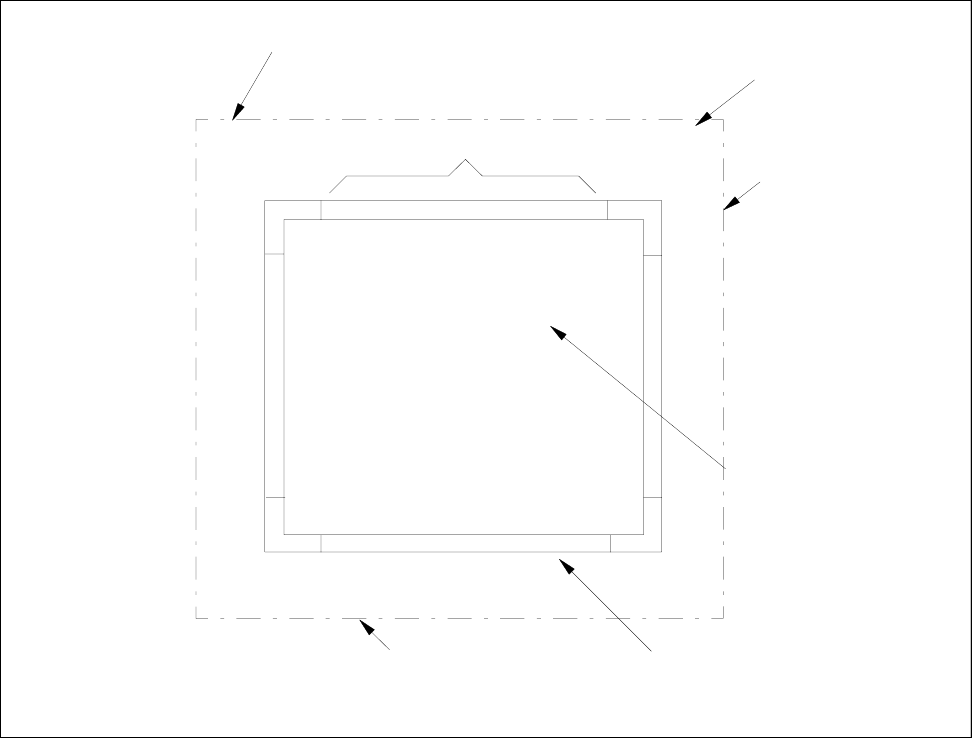
Fig. 2.2.3 Layout of a Window
Window Frame
The frame surrounding the window of an application consists of different components.
These components and their functions are briefly described in the following.
Title Bar
The title bar displays the application program’s name.
By clicking on this bar and holding down the mouse button the window can be moved.
desktop menu bar
main menu
border of the screen desktop (screen)
title bar
SMD symbol
window

User Manual Line Computer UNIX 2 General Information on Using the Program
Software Version 501.xx 01/99 Issue 2.2 Window System
2 - 15
Desktop Menu Bar
The functions of the menus contained on the menu bar are described in chapt. 3 of this manual.
A menu is opened if
● the menu name is clicked on with the left mouse button.
The menu is now opened.
Selecting an option:
● Click on menu option with the left mouse button.
The menu closes and the selected function is executed.
Main Menu (to be used in the case of problems in the LC program, following any changes to the system
settings and to „shut down" the computer)
The
Main Menu
("Root Menu") is displayed if
● the right (or untere) screen border is clicked on with the left mouse button thereby keeping the
mouse button depressed. (The menu remains displayed until the mouse button is released
again).
Selecting an option:
● Hold down mouse button and position mouse cursor on desired menu option, then release mouse
button.
The menu is closed and the selected function is executed.
Menu options Meaning
LC-Start line computer program starting after "LR-End" (see page 2 - 18)
LC-End closing desktop and terminating Line Computer program
Mount CD To integrate the CD ROM drive into the file system in order to allow CDs to be
accessed from outside the LC program (after “LC End”)
(e.g. to install Windows NT on the station computer).
Unmount CD To remove the CD ROM drive from the file system.
NOTE
On opening the Data Manager (see chapt. 4, section 4.3) the CD ROM drive will be automatically
“mounted” and may be “unmounted” again by using "Unmount CD".
Logout terminating line computer working session
Shutdown terminating line computer session and "running down" computer
(see section 2.1.3)

2 General Information on Using the Program User Manual Line Computer UNIX
2.2 Window System Software Version 501.xx 01/99 Issue
2 - 16
2.2.3 Window Operations
Opening a Window
To be able to work in a window, it must first be opened.
● Double-click on the icon, or in the case of a text display, the respective name of the window you
wish to open. The window is opened in the foreground and is active.
NOTE
On the desktop (root window) you need to click on the icon of the application program only one time.
Moving a Window
When a new window is opened it may partially conceal other windows. To be able to nevertheless see all
information of the windows underneath, the windows can be moved around the screen to different positions.
● Click on title bar by pressing and holding left mouse button.
● Slide the mouse on your desktop thus dragging the window to the new position. When so doing,
the mouse cursor has an x shape. When the window is moved only the outline of the window is
displayed.
● Release the mouse button. The window now appears at the new position.
Activating a Window
To be able to work in a window, it must be
active
. Also those windows can be activated that are positioned
in the background underneath other windows and which are partially concealed.
● Click anywhere inside window you wish to activate. The mouse cursor changes to an arrowhead
when so doing. The selected window jumps to the foreground and is active, whereas the pre-
viously active window is
inactive
.
● The window frame of the active window in the foreground has a different color than those of the
inactive windows which have a light-gray frame.
Rearranging Window Stack
To move a window to the lowermost position within a stack of windows, the following keys of the keyboard
must be used:
● Press and hold Alt key and simultaneously press Tab key one time to move the topmost window
to the lowermost position in each case.
Repeat the step "press Tab key one time" with the Alt key pressed, until the desired window is in
lowermost position within the stack.
To move a window which is in a lower position to the top again, the following keys of the keyboard must be
used:
● Press and hold Alt and Shift keys, simultaneously pressing Tab key one time to move the lower-
most window to the topmost position in each case.
Repeat the step "press Tab key one time" with the Alt and Shift keys pressed, until the desired
window is in topmost position within the stack.