00191413-01.pdf - 第259页
User Manual Line Computer UNIX 8 Product / PCB Software Version 501.xx 01/99 Issue 8.1 PCB Editor 8 - 21 8.1.3.6 Display of PP-Data in the Structure Editor (Graphic Mode) In the gr aphic mod e of the Structure Edito r, i…
8 Product / PCB User Manual Line Computer UNIX
8.1 PCB Editor Software Version 501.xx 01/99 Issue
8 - 20
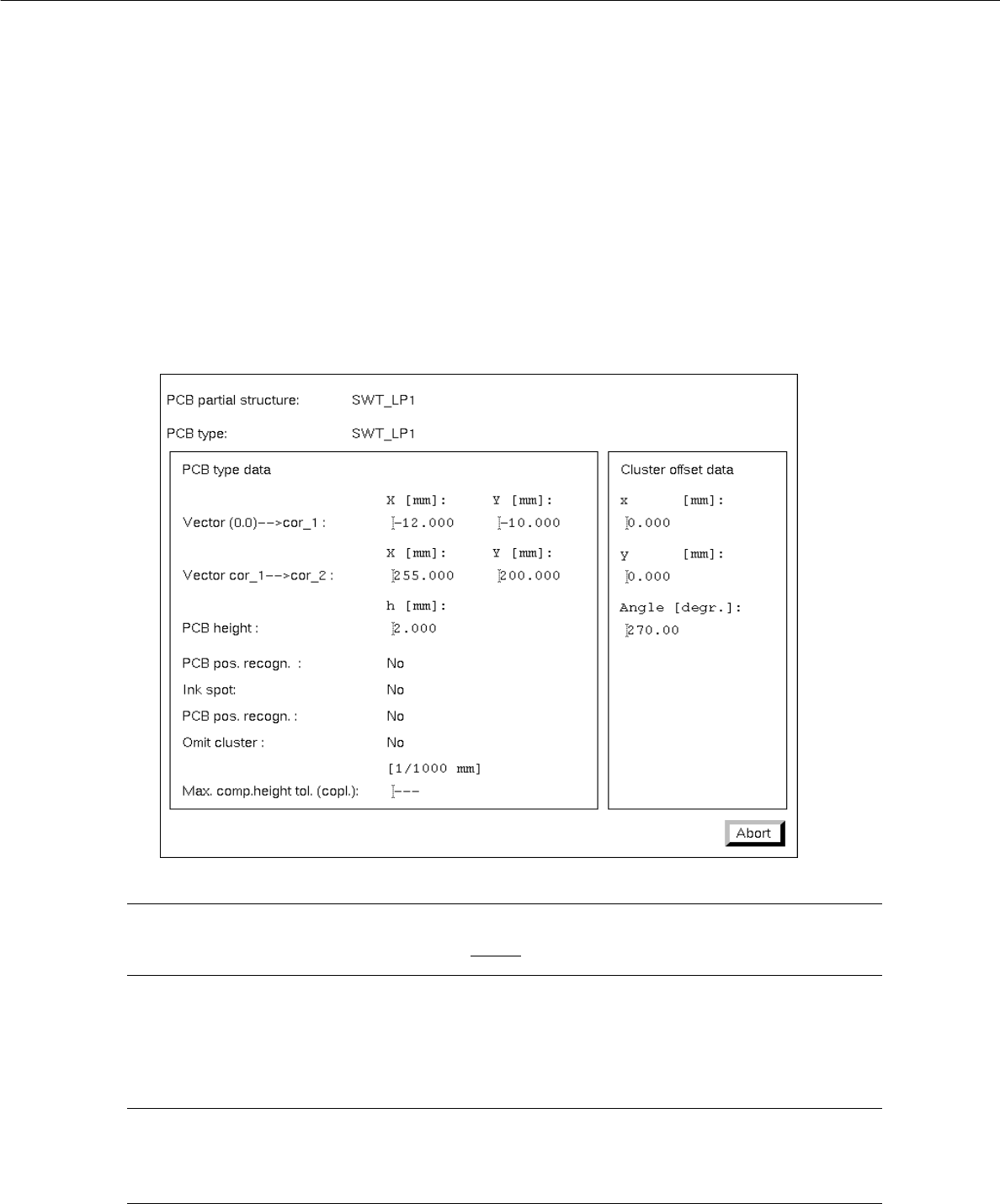
8.1.3.5 Display of the Cluster Data in the Structure Editor (Graphic Mode)
In the Graphic Mode of the Structure Editor the cluster data of the PCB and those of every substructure can
be displayed in separate windows.
● Select the outline of the PCB structure by double-clicking on it.
The outline is highlighted by a selection frame in bold type.
The "PCB info" window containing the cluster data of the selected structure is opened.
NOTE
The data contained in the "PCB info" window cannot be changed.
● Click on the Abort button.
The "PCB info" window is closed.
NOTE
In addition, the "PCB info" window can be opened for a substructure from the "PP information"
window (see page 8 - 21).
User Manual Line Computer UNIX 8 Product / PCB
Software Version 501.xx 01/99 Issue 8.1 PCB Editor
8 - 21
8.1.3.6 Display of PP-Data in the Structure Editor (Graphic Mode)
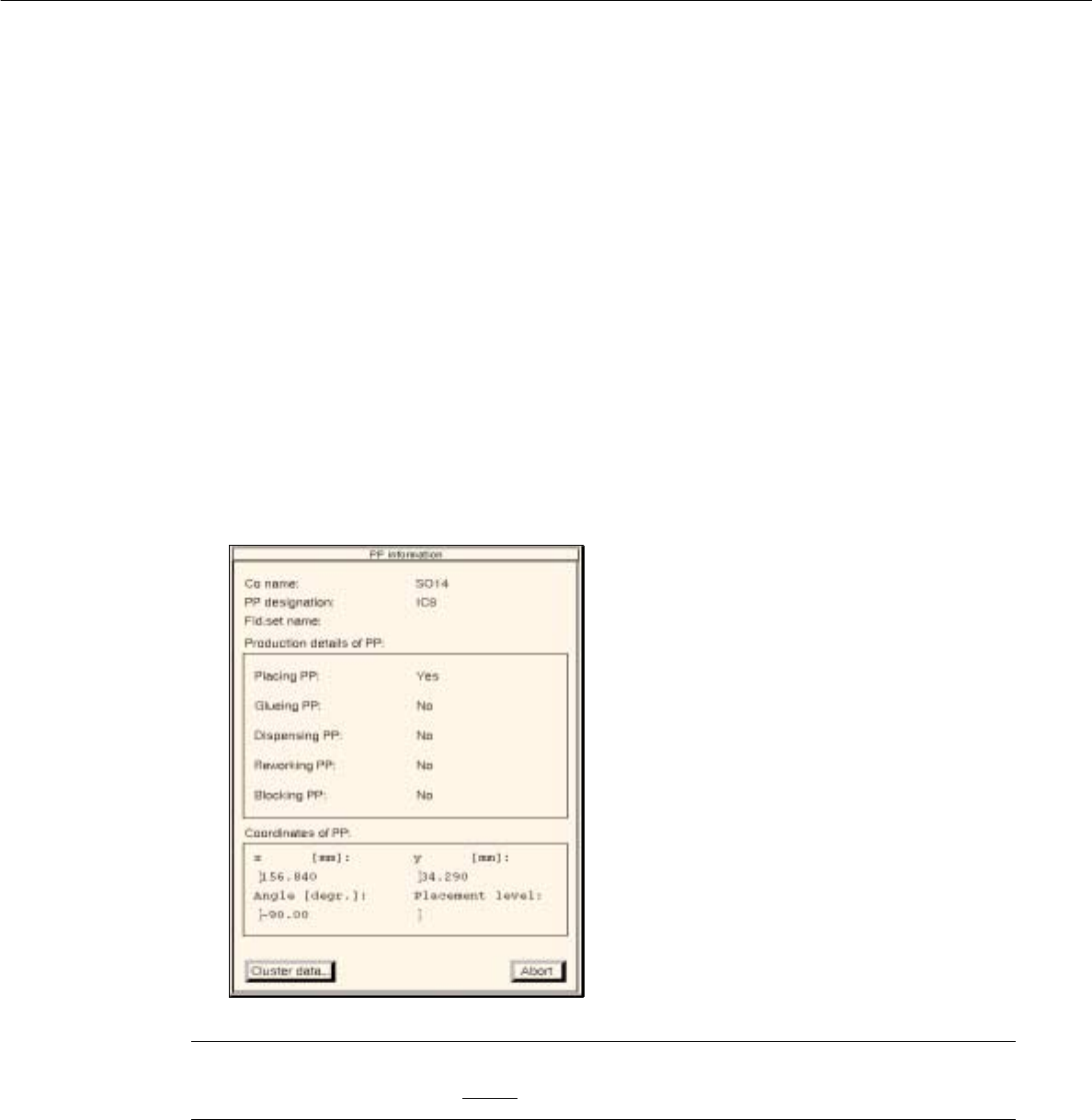
In the graphic mode of the Structure Editor, it is possible to display the data of a selected placement position
either directly underneath the graphical display of the PCB, or in a separate window.
If only the most essential data of the placement position is required,
● single-click on the desired placement position to select it.
The placement position is surrounded by a bold-type frame.
The data of the selected placement position is displayed underneath the graphical display of the
PCB (see Fig. 8.1.6).
If all data of the placement position is required,
● select the desired placement position by double-clicking on it.
The placement position is surrounded by a frame in bold type.
The "PP information" window containing the data of the selected placement position is opened.
NOTE
The data in the "PP information" cannot be changed.
- Cluster data...
This button permits the "PCB info" window to be opened that contains the cluster data of the sub-
structure in which the selected placement position is located.
● Click on the Cluster data... button.
The "PCB info" window is opened.
● Click on the Abort button in the "PCB info" window.
The "PCB info" window is closed.
● Click on the Abort button in the "PP information" window.
The "PP information" window is closed.
8 Product / PCB User Manual Line Computer UNIX
8.1 PCB Editor Software Version 501.xx 01/99 Issue
8 - 22
8.1.3.7 Colors and Their Meanings in the Structure Editor (Graphic Mode)
In the Graphic Mode of the Structure Editor several colors are used for the graphical elements displayed.
Depending on the status of the graphical elements (e.g. "blocked") the colors the colors have a different
meaning.
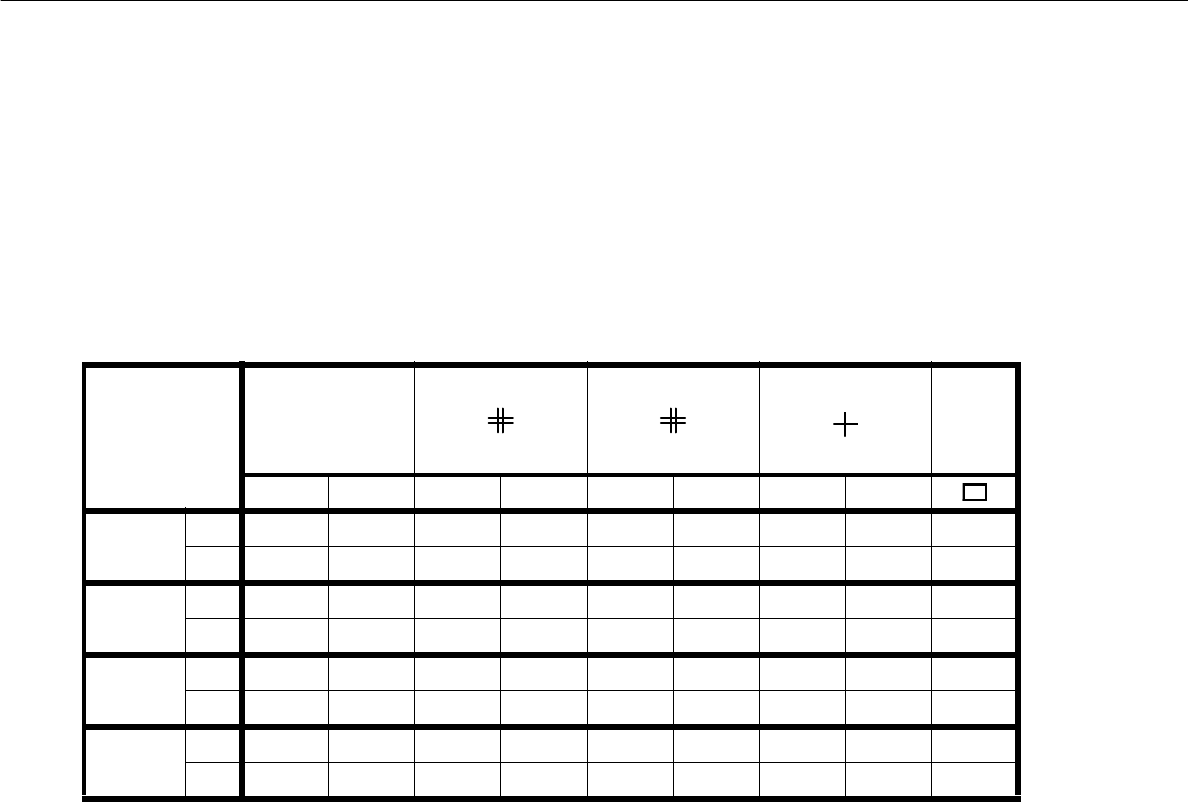
In the chart below the assignment of the colors to the status of the graphical elements displayed is shown.
Meaning of the colors:
- black indicates that this object is valid, i.e. effective, with respect to the respective substructure.
- gray indicates that this object is ineffective, i.e. owing to its own individual attribute, e.g.
blocked fiducial or ink spot.
- red indicates that this object is only ineffective on account of production details, e.g. a fiducial
is not blocked, yet PCB position recognition is turned off.
- green identifies the valid placement positions
Meaning of the colors with respect to the placement positions:
- green cross: Identifies valid placement positions.
- gray cross: Identifies placement positions that are assigned the attribute "s", i.e. they are blocked
(see section 8.1.6.3).
- red cross: Identifies placement positions that are only ineffective on account of production details.
This means that the cluster (partial structure) in which they are located is assigned the
attribute "omit" (see section 8.1.4.4).
Cluster data Ink spot
l
PCB fiducial PP fiducial PP pos.
Outline
blocked normal blocked normal blocked normal blocked normal
Ink spot
recocnition
yes gray black -------
nograyred-------
PCB pos.
recognition
yes - - gray black -----
no--grayred-----
PP pos.
recognition
yes----grayblack - - -
no----grayred---
Omitting
cluster
no------graygreenblack
yes------grayredred
Tab. 8.1 - 1 Colors and symbols and their meanings