00191413-01.pdf - 第343页
User Manual Line Computer UNIX 11 Production Tools / Optimization Software Version 501.xx 01/99 Issue 11.4 Optimization Dialog 11 - 23 11.4.3 SERVICES Menu The SERVI CES me nu contai ns the fol lowing options: - Chang in…

11 Production Tools / Optimization User Manual Line Computer UNIX
11.4 Optimization Dialog Software Version 501.xx 01/99 Issue
11 - 22
Command area „Actions“
In the "Actions“ command area, the icons are displayed by means of which the following actions can be
performed:
- starting the Optimization,
- aborting the Optimization and
- displaying the Optimization results.
For a detailed description of the icons refer to section 11.4.4.
Command area „Editing“
In the "Editing" command area, the icons are displayed by means of which the following actions can be
performed:
- selecting,
- creating,
- editing and
- displaying directories.
For a detailed description of the icons refer to section 11.4.5.
Info box
In the info box, a yellow bar is displayed to indicate graphically the progress of the optimization process for a
given lot file. A display is provided informing you for which lot file the optimization is being performed. In the
right portion of the Info box, the production time and setup changeover time for the setups calculated during
the optimization run are displayed. As the optimization process progresses, these times become more favorable
until the optimum setup with the shortest production time and changeover time is found. The optimization
process covers the following phases:
- Start: optimization is started.
- Read-in data: the data are checked for consistency.
- Clustering: several jobs are combined into setup clusters.
- Station balancing: a time-optimized setup is calculated.
- Track allocation: the setups for the individual stations are calculated.
- Creation of setups: the setups are created.
- Quit: the setups are saved.
User Manual Line Computer UNIX 11 Production Tools / Optimization
Software Version 501.xx 01/99 Issue 11.4 Optimization Dialog
11 - 23
11.4.3 SERVICES Menu
The SERVICES menu contains the following options:
- Changing standard parameters (see section 11.4.3.1)
- Changing job parameters (see section 11.4.3.3)
- Discarding job parameters (see section 11.4.3.4)
- Viewing error file (see section 11.4.3.5)
- Starting Feeder Editor (see section 11.4.3.6)
- Starting Restriction Editor (see section 11.4.3.7)
- Checking for producibility (see section 11.4.3.8)
- Display set-up (see section 11.4.3.9)
- Display result file (see section 11.4.3.10)
11.4.3.1 Changing Standard Parameters
At the start of the optimization run, Set-Up Optimization reads in a parameter file, the standard parameters.
This file contains a number of parameters which control the optimization process and have an effect on setup
clustering. The settings may be the factory-preset default values which, however, can be changed by the
customer as required.
The setting of the parameters is explained in section 11.4.3.2 by means of three examples of production
situations.
Procedure
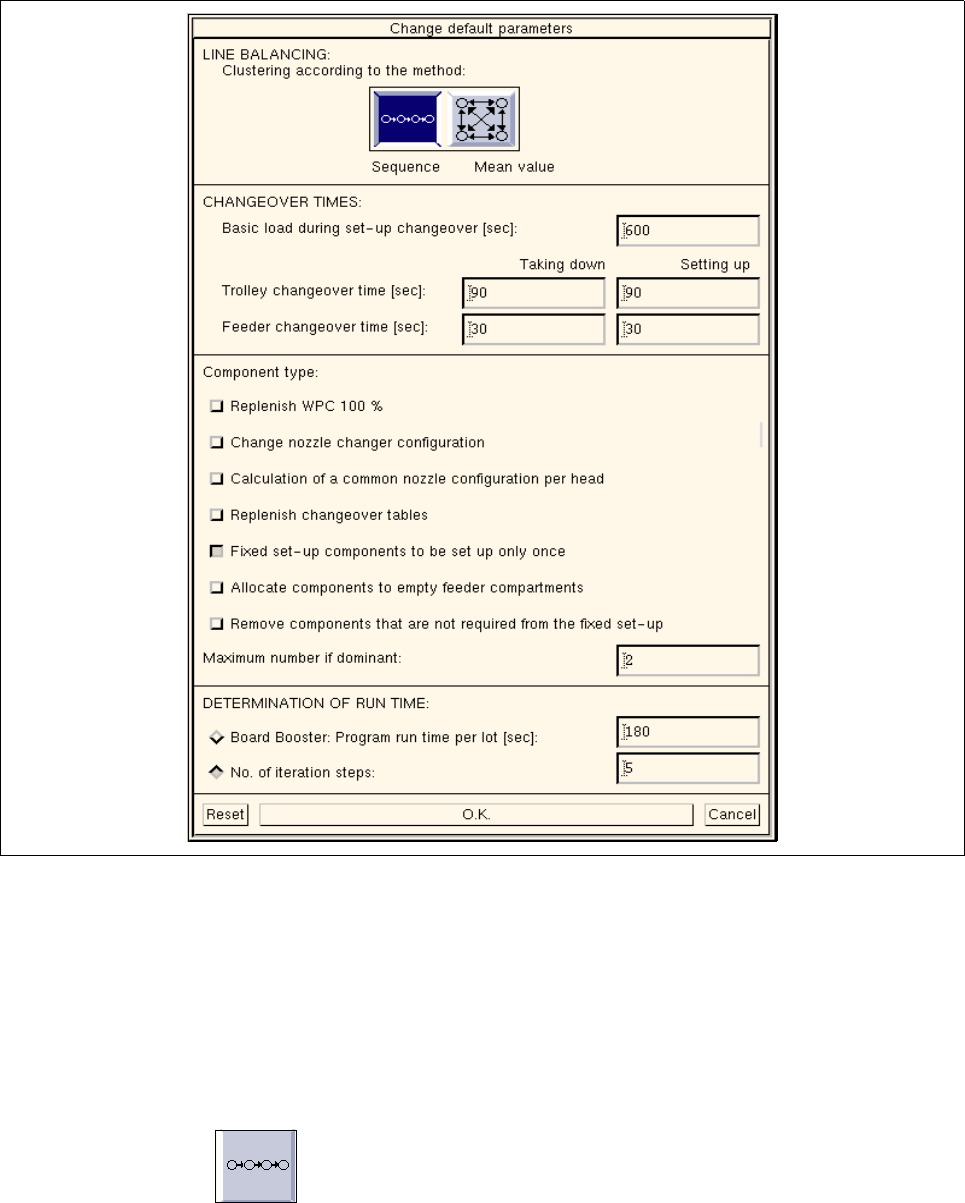
● On the SERVICES menu click on the Change standard parameters option.
The „Change standard parameters for xx.lose“ window opens.
11 Production Tools / Optimization User Manual Line Computer UNIX
11.4 Optimization Dialog Software Version 501.xx 01/99 Issue
11 - 24
Fig. 11.4.2 Changing Standard Parameters
Meaning of the Parameters
- SETUP CLUSTERING
- Clustering According to the Sequence or Mean Value Method: Setup clustering can be carried out
by any one of two different methods which can be selected by activating the appropriate icon.
- Sequence:
Starting situation: A number of jobs exist that are to be produced only once and in any sequence
desired.
Optimization: Optimization forms setup clusters and suggests a production sequence. If this
sequence is observed, the jobs can be produced keeping set-up changeover time to a minimum.