00191413-01.pdf - 第61页
User Manual Line Computer UNIX 2 General Information on Using the P rogram Software Version 501.xx 01/99 Issue 2.5 Menu Bar in the Application Window 2 - 27 - Print The data i n the op en file of the cu rrent appli catio…
2 General Information on Using the Program User Manual Line Computer UNIX
2.5 Menu Bar in the Application Window Software Version 501.xx 01/99 Issue
2 - 26
● Select the desired file by double-clicking (or by single-clicking and OK or RETURN).
The FSB is closed and a new window of the current application program is opened.
On the title bar of the window the name of the selected file is displayed.
- Save
Saves the open file in the current application program under its existing name.
● Click on FILE --> Save.
The file is saved to the master data storage in the predefined path.
- Save as ...
Lets you save the open file in the current application program with a new name.
● Click on FILE --> Save as ...
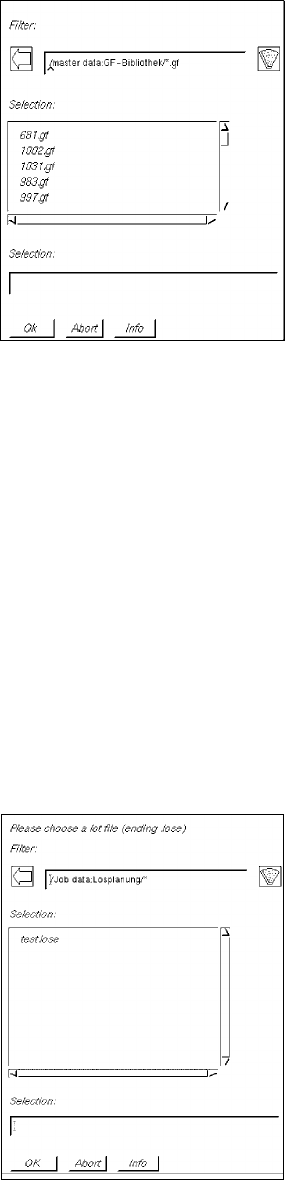
The respective FSB for entering the new name (or number) is opened (see example below).
● Enter new name (e.g. "rue1.lose") in the selection field of the FSB.
● Click on OK.
The FSB is closed and the current file is saved under the name entered.
User Manual Line Computer UNIX 2 General Information on Using the Program
Software Version 501.xx 01/99 Issue 2.5 Menu Bar in the Application Window
2 - 27
- Print
The data in the open file of the current application program can be output to a connected printer.
● Select FILE --> Print.
The current data (e.g. package form data) are output to the active printer (see also section 2.5.2).
- Iconify
Reduces the current application program (main window, including sub-window) to an icon.
● Select FILE --> Iconify.
The application program is now reduced to an icon displayed on the desktop (highlighted in
color), it is, however, still active. When the icon is clicked on, all windows of the application pro-
gram that were open prior to the iconifying operation are redisplayed.
- Quit
Exits the current application program.
● Select FILE --> Quit.
The application window is closed.
NOTE
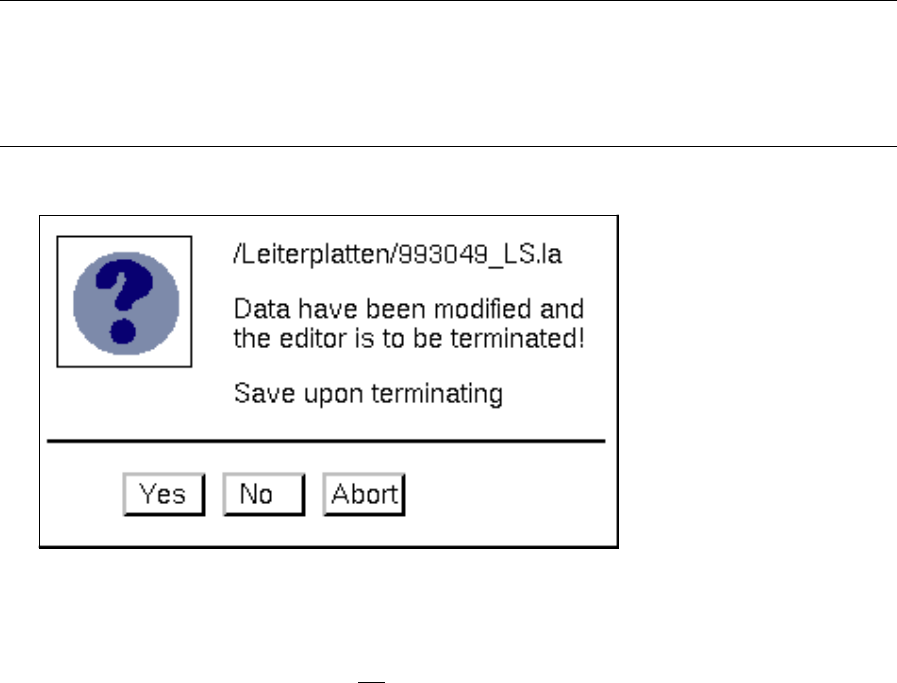
If data were modified that have not been saved yet, a dialog box containing a warning message is dis-
played which must be acknowledged (see following examples for the PCB Editor and Package Form
Editor).
● Click on Yes to save the data prior to exiting.
The application program is closed and the modified data are saved automatically.
● Click on No if the modified data are not to be saved.
The application program is closed without saving the modified data.
● Click on Cancel if you do not wish to exit from the application program.
2 General Information on Using the Program User Manual Line Computer UNIX
2.5 Menu Bar in the Application Window Software Version 501.xx 01/99 Issue
2 - 28
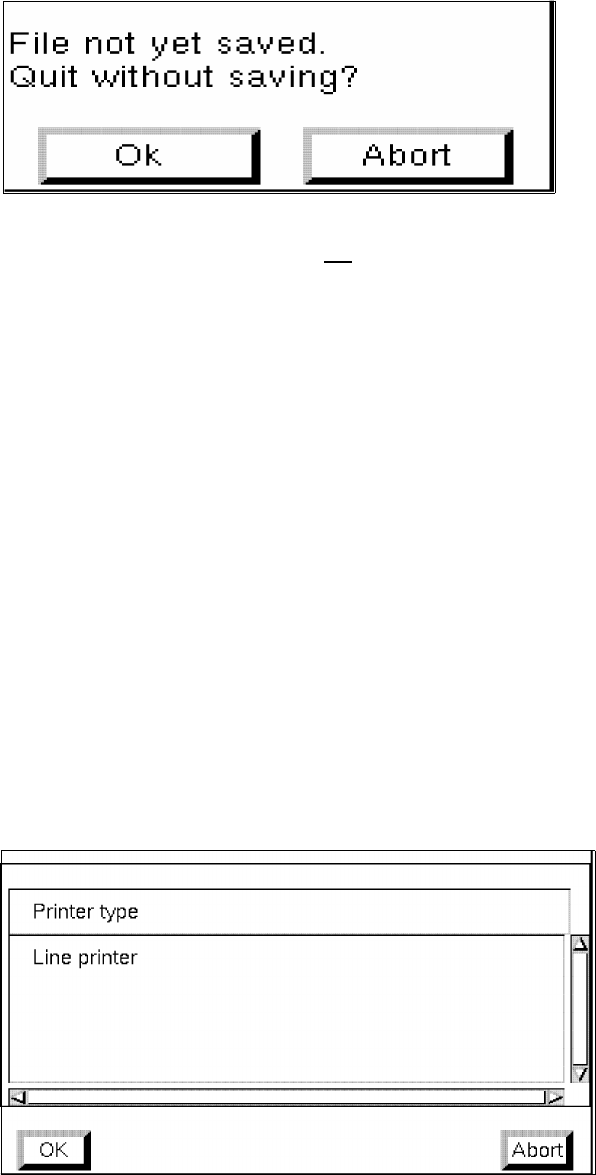
● Click on OK if the modified data are not to be saved.
The application program is closed without saving the modified data.
● Click on Cancel if you wish to save the data prior to exiting from the application program
using the menu option "Save" (or "Save as ...").
2.5.2 Functions of the OPTIONS Menu
- Save state
This menu option allows the printer selected from the "Printer selection" menu option to be retained as
the default printer.
● Select OPTIONS --> Save state.
The selected printer (see menu option below) is used as default printer.
- Printer selection
This menu option allows an installed printer to be selected.
● Select OPTIONS --> Printer selection.
The window for the selection of an installed printer is opened.
● Select the desired printer and click on Ok to confirm your selection.
The window is closed. All data for which a printing operation has been activated
(see section 2.5.1) are output to the selected printer.