00191413-01.pdf - 第167页
User Manual Line Computer UNIX 5 Product / Component Software Version 501.xx 01/99 Issue 5.1 Component Editor 5 - 1 5 Product / Component 5.1 Component Ed itor The Compone nt Edi tor enabl es the user to com pletely des …
User Manual Line Computer UNIX
Software Version 501.xx 01/99 Issue
5 - II
User Manual Line Computer UNIX 5 Product / Component
Software Version 501.xx 01/99 Issue 5.1 Component Editor
5 - 1
5 Product / Component
5.1 Component Editor
The Component Editor enables the user to completely describe the components in terms of their electrical
characteristics. In the Editor, the component type (e.g. diode), its electrical characteristics and its type of
processing (e.g. gluing, placing) are defined. Moreover, the component is assigned a package form no. in
accordance with its particular package design.
5.1.1 Starting the Component Editor
- In the "programming mode" the Component Editor is activated by clicking on the Component icon on
the desktop or via the Data Manager (see chapt. 4).
- If the LC program was installed for the "control mode", the Component Editor can be started via the
"PRODUCT" menu on the desktop, or via the Data Manager.
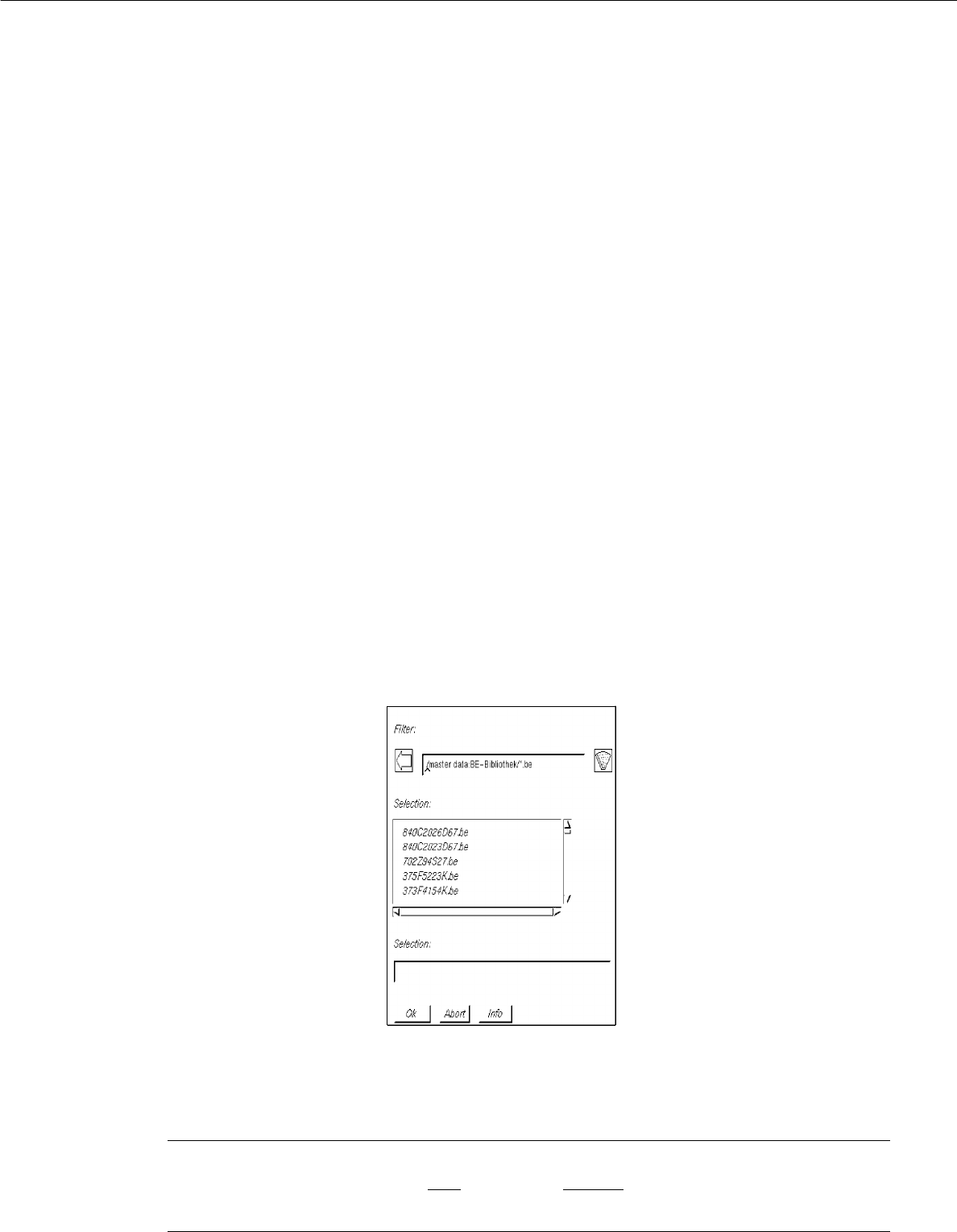
● Click on the Component icon on the desktop (or the "Component Editor" option on the
"PRODUCT" menu). The FSB containing the files of all previously defined components is opened.
● Select component "xx.be" by double-clicking, or enter new name on the keyboard and confirm
with OK.
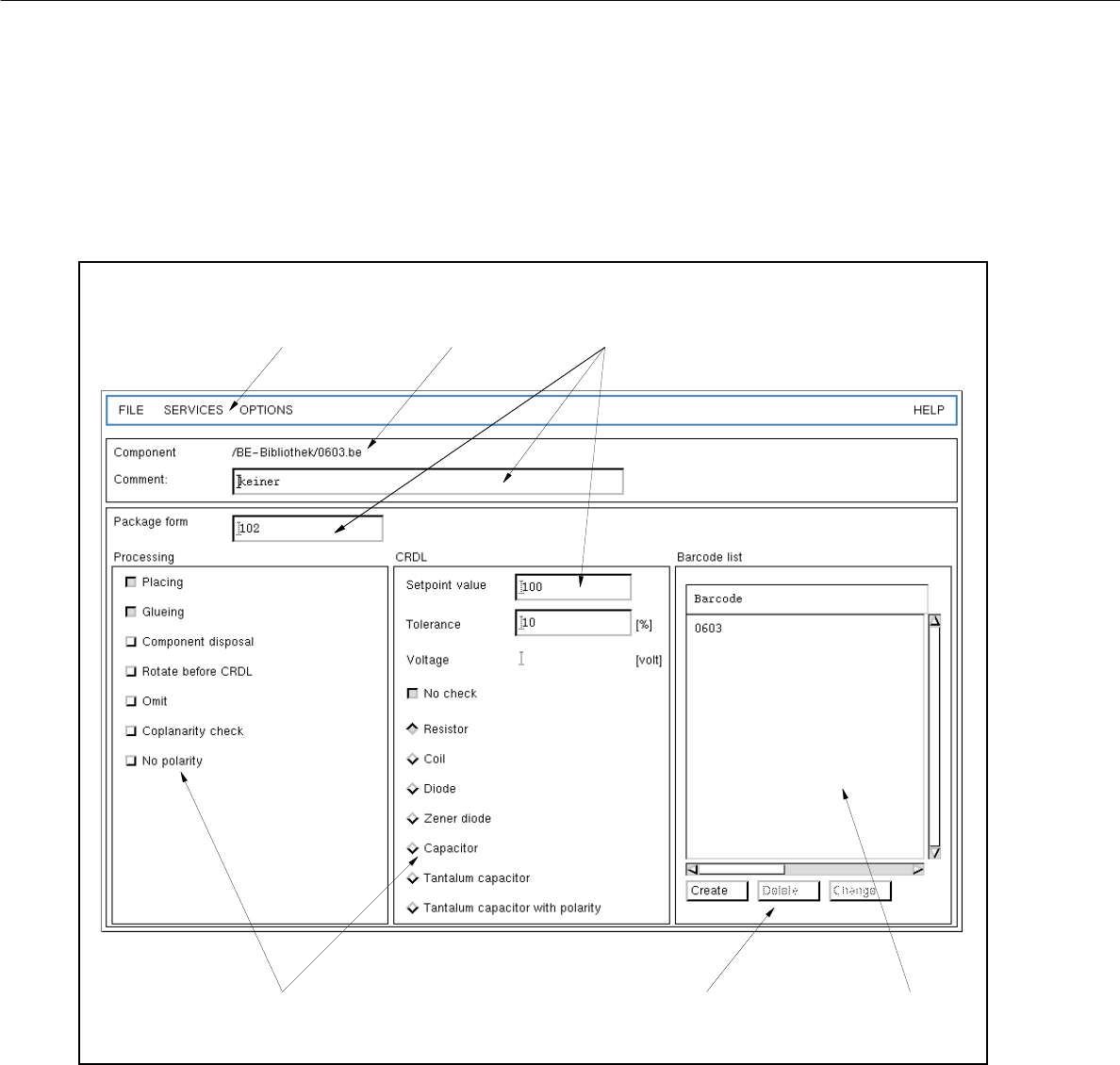
The main window containing the Component Editor (see Fig. 5.1.1) is opened.
NOTE
The component name may comprise max.
20 characters including the suffix ".be". Some characters
must not be used for the name, see chapt. 2, section 2.3 in this connection.
5 Product / Component User Manual Line Computer UNIX
5.1 Component Editor Software Version 501.xx 01/99 Issue
5 - 2
5.1.2 Main Window of Component Editor
The areas of the main window and their functions are explained in the following.
Fig. 5.1.1 Main Window "Component Editor"
The main window is subdivided as follows:
- Menu bar
- Title bar
- Editing fields
- Selection fields
- Command area
- Display area
menu bar
title bar
editing fields
selection fields command area display area