00191413-01.pdf - 第413页
User Manual Line Computer UNIX 13 Production Tools / Set-Up Software Version 501.xx 01/99 Issue 13.1 Set-Up Editor (Feeder Part and WPC Editors) 13 - 15 - Waffle- pack tray carrier Clickin g on the "W affle-pac k tr…
13 Production Tools / Set-Up User Manual Line Computer UNIX
13.1 Set-Up Editor (Feeder Part and WPC Editors) Software Version 501.xx 01/99 Issue
13 - 14
-
Feeder
Clicking on the "Feeder" icon causes a list of all feeders with their designations to be displayed in the
"Feeder list" display area.
When the right scroll bar is moved downward, also those feeders can be displayed that are not visible
in the window.
Example of the designation of the feeders:
FD~S_G_8_EL FD
: feeder
S_G_8_EL
: type designation (8mm-tape feeder, electric)
-
Waffle-pack tray
Clicking on the "Waffle-pack tray" icon causes one or several predefined waffle-pack trays with their
designations to be displayed in the display area.
The number of the divisions and the offset values for the waffle-pack trays of the customers must be
adapted in the Packaging Editor (see section 13.1.3.3).
Example of the designation of the waffle-pack trays:
FM~(5x4)~[ QFP ] FM
: waffle-pack tray
(5x4)
: spacing: divisions in X and Y
[ QFP ]
: component QFP on waffle-pack tray
-
Module
Clicking on the "Module" icon causes a list of all modules with their designations to be displayed in the
display area.
Example of the designation of the modules:
MD~S_L_45_95 MD
: module
S_L_45_95
: type designation
User Manual Line Computer UNIX 13 Production Tools / Set-Up
Software Version 501.xx 01/99 Issue 13.1 Set-Up Editor (Feeder Part and WPC Editors)
13 - 15
-
Waffle-pack tray carrier
Clicking on the "Waffle-pack tray carrier" icon causes a list of all waffle-pack tray carriers and manual
trays with their designations to be displayed in the display area.
Example of the designation of waffle-pack tray carriers:
FT~S_M_FB_51 FT
: waffle-pack tray carrier
S_M_FB_51
: type designation
Display field "Feeder list"
In the display field the lists of the feeders, waffle-pack trays, modules or waffle-pack tray carriers are displayed
that were selected by means of the respective icons.
The feeding units contained in the feeder list are displayed together with their most important characteristics
and their designations. The feeding units are displayed in gray, the divisions of the feeders and waffle-pack
trays are highlighted in dark-blue.
When the lower scroll bar is moved, the front of the feeders and modules can be displayed.
13.1.3.2 Machine Options List
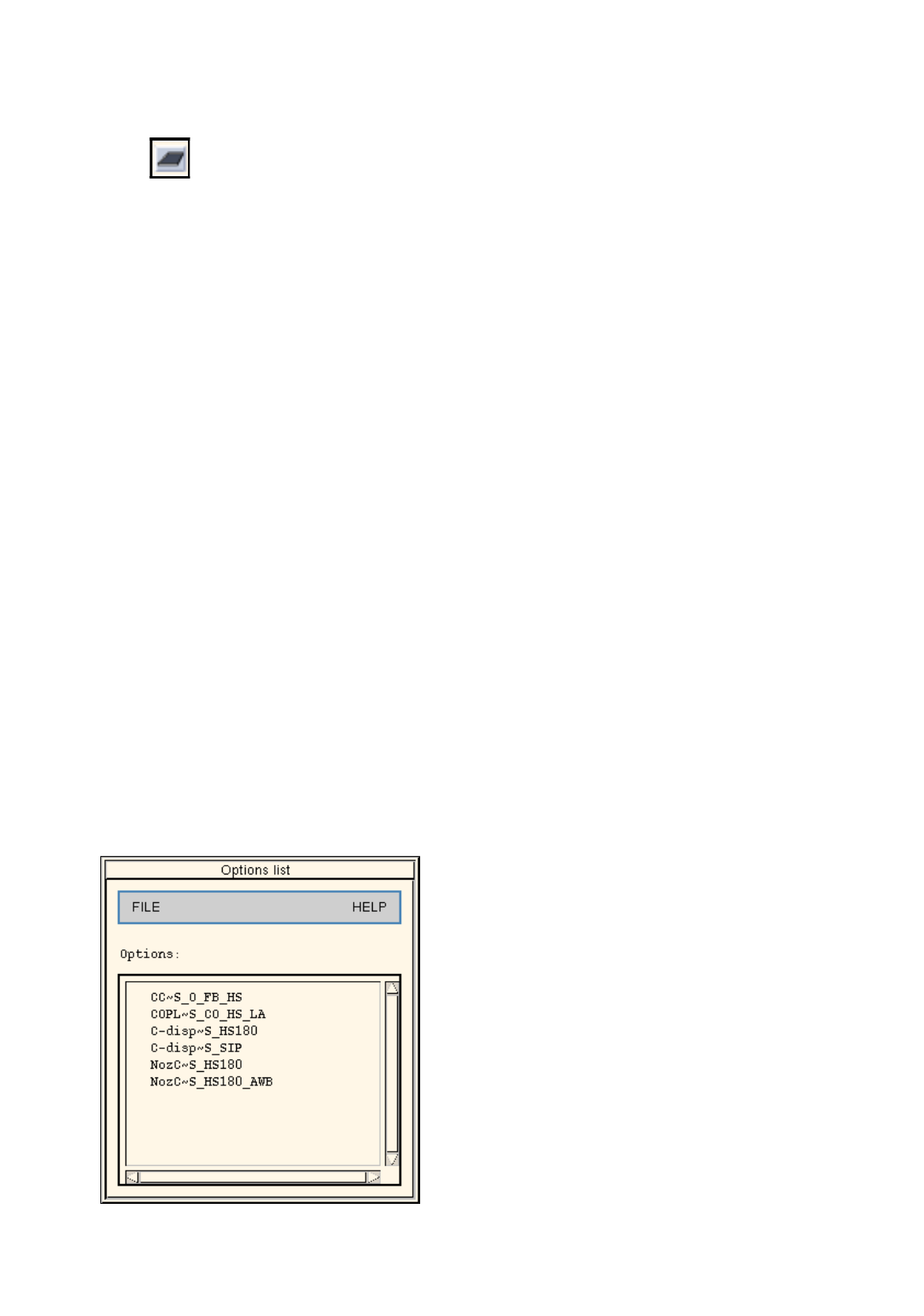
Clicking on the option "Options list" on the SERVICES menu causes the machine options list to be opened (see
Fig. 13.1.9 ).
The machine options list contains the options that can be defined for a line, these being Coplanarity Module,
Nozzle Changer, component centering and disposal belt. These options are allocated to the feeder parts in the
Station Configuration. They cannot be allocated in the Feeder Part Editor, except for the component disposal
conveyor for SIPLACE 80S-20/S-23/F4/F5 placement stations.
.
Fig. 13.1.9 Machine Options List

13 Production Tools / Set-Up User Manual Line Computer UNIX
13.1 Set-Up Editor (Feeder Part and WPC Editors) Software Version 501.xx 01/99 Issue
13 - 16
If the Feeder Part Editor was opened from the Configuration Editor, (see chapt. 12, section 12.1.2.4), the options
can be allocated to the tracks of the feeder parts, provided they are allowed to be set up there.
-
CC~S_O_FB_HS
Component centering station for HS180;
can be set up only once on the left feeder part of an HS180.
-
COPL~S_CO_HS180
Coplanarity module for HS180;
can be set up only once on the right feeder part on an HS180.
-
C-disp~S_HS180
Component disposal belt for HS180;
can be set up once on either feeder part of an HS180.
-
C-disp~S_SIP
Component disposal belt for Siplace;
can be set up once on either feeder part of a Siplace
80S-20/S-23/F4/F5.
-
NozC~S_HS180
Nozzle Changer for HS180;
can be set up only once on the left feeder part of an HS180.
-
NozC~S_HS180_AWB
Nozzle Changer for HS180 with reject box;
can be set up only once on the left feeder part of an HS180.
13.1.3.3 Packaging Box/Packaging Editor
Owing to variations of the exact position of components in the divisions and compartments of tape feeders and
waffle-pack trays it may be necessary to correct the packaging offsets or vibration times to ensure that the
components are picked up with absolute precision.
These corrections are entered in the Packaging Editor. The Packaging Editor is opened by clicking on the
"Packaging box" option on the SERVICES menu.
The Packaging box option is only actually activated when a feeder division or the compartments of a waffle-
pack tray are selected.
The editing area of the Packaging Editor is different for feeders and waffle-pack trays. Therefore, the Packaging
Editors for feeders and waffle-pack trays are described separately in the two sections that follow.
13.1.3.4 Packaging Editor for Feeders
If the coordinates, the pick-up angle or the vibration time of a given component are not accurate, this can be
corrected in the Packaging Editor. These corrections are made separately for each individual feeder division
(see Fig. 13.1.10).
The allocation of the division number to the feeder division is preset by the factory and cannot be changed. The
top division is division 1, the lower division is division 2. Where only one division is available, this division is
division number 1 (see also Fig. 13.1.2).
A separate Packaging Editor is opened for each division. In the title bar of the window, division 1 is identified
by <1> and division 2 by <2>.