00191413-01.pdf - 第91页
User Manual Line Computer UNIX 3 Desktop (Root Window) Software Version 501.xx 01/99 Issue 3.2 Desktop User Interface 3 - 21 - Install options This menu option allo ws the fil es of software op tions (e.g. "Barco de…
3 Desktop (Root Window) User Manual Line Computer UNIX
3.2 Desktop User Interface Software Version 501.xx 01/99 Issue
3 - 20
- Similarity Check
This menu option is used to compare all customer-specific package forms (GF no.
>
1500) for simila-
rity with the standard package forms (GF no.
<
1499).
(For details on the criteria for the similarity check refer to the note on page 3 - 15).
● Click on OPTIONS --> GF Handling --> Similarity check.
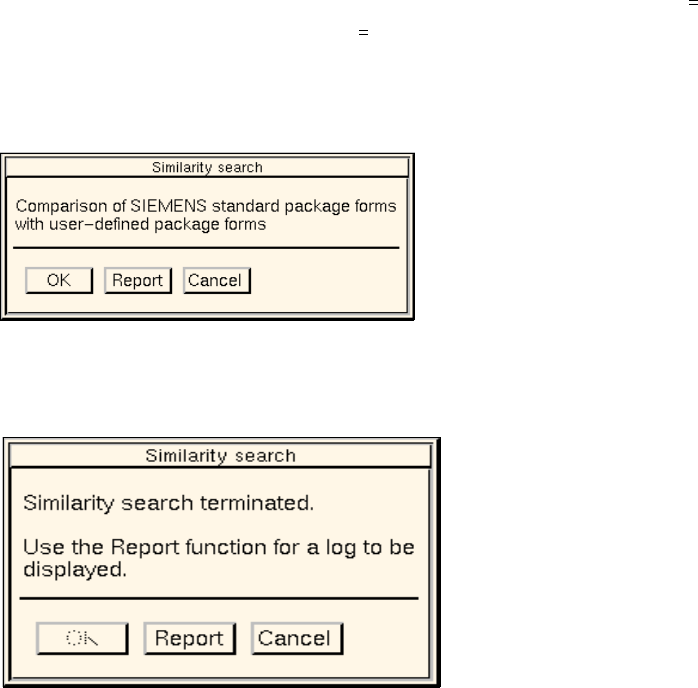
The dialog window below opens.
● Click on the OK button.
The dialog window indicates that the similarity check is being performed.
After the comparison is completed, the dialog window is displayed as follows:
● Click on Report.
The File Display main window opens. The contents of the log file "GF_LibInstall.log" are dis-
played in the view area (see page 3 - 16).
● Close the File Display main window using the menu option FILE --> Quit.
● Click on Cancel in the dialog window.
The dialog window closes.
User Manual Line Computer UNIX 3 Desktop (Root Window)
Software Version 501.xx 01/99 Issue 3.2 Desktop User Interface
3 - 21
- Install options
This menu option allows the files of software options (e.g. "Barcode mode") to be read in from diskette
and to be installed on the hard disk.
● Click on OPTIONS --> Install options.
A UNIX window opens.
● Insert the diskette containing the files of the software option into the floppy disk drive.
● Press the RETURN key twice.
The software option is installed on the hard disk.
● After the installation has been completed successfully, press the RETURN key.
The UNIX window closes.
● Remove the diskette from the disk drive and
● terminate the line computer session using LC-End.
● Using LC-Start restart the line computer session.
After the start, the new software option is ready for use.
- Operating system level
This menu option permits the access to directories and files at the UNIX level provided the current
user’s access right for the function group "Operating system level" includes the "full access" privilege
(see section 3.2.1.3, page 3 - 31).
● Click on OPTIONS --> Operating system level.
A UNIX window in the directory path "/u/P_lr/conf>" opens.
● Perform the desired actions and subsequently close the UNIX window clicking on File --> Exit.
3 Desktop (Root Window) User Manual Line Computer UNIX
3.2 Desktop User Interface Software Version 501.xx 01/99 Issue
3 - 22
3.2.1.3 SERVICES Menu
- Screen Saver
This option is used to set the screen saver.
● Click on SERVICES --> Screen saver.
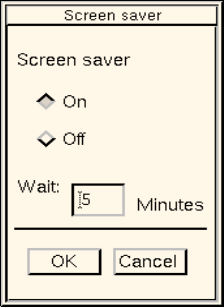
The following dialog box opens.
● Click on the On button.
● In the editing field enter the desired delay time after which the screen saver is to be activated.
● Click on OK.
The dialog box closes. The screen saver goes into effect when there is no mouse or keyboard
activity for the specified length of time. The desktop will reappear as soon as the mouse or key-
board is used.
- Equipment
Serves to open the user interface of the Print and Update Server. It basically serves to manage the dif-
ferent devices. The devices available in the LC system such as printers, diskette and tape drives can
be logged on (activated) or logged off (deactivated).
In addition, it is possible to intitiate the formatting of data carriers from the user interface.
● Click on SERVICES --> Equipment.
The user interface of the Print and Update Server is opened (see chapt. 4).
- Station configuration
Serves to open the user interface of the Configuration Editor. The configuration of a selected station
can be defined with the aid of the editor.
● Click on SERVICES --> Station configuration.
The FSB containing the directory "Master data: Stationen" is opened.
● Open the directory "Master data: Stationen" by double-clicking.
The list of the configured stations is displayed in the FSB.
● Select the desired station by double-clicking.
The user interface of the Configuration Editor is opened (see chapt. 12, section 12.1).