00191413-01.pdf - 第103页
User Manual Line Computer UNIX 3 Desktop (Root Window) Software Version 501.xx 01/99 Issue 3.2 Desktop User Interface 3 - 33 NOTE The user’s name can not be c hanged. ● If an ex isting p asswor d is to be deleted, c lick…
3 Desktop (Root Window) User Manual Line Computer UNIX
3.2 Desktop User Interface Software Version 501.xx 01/99 Issue
3 - 32
- Full access
If this button is activated this means that the user has full access to the function group. The user is
able to execute all functions of the respective application without any restrictions.
- Non-storable
If this button is activated this means that the user has no access to the "Save fiducials / package forms
of station" function group. The user cannot store in the line computer any fiducials and package forms
that were taught at the station.
- Storable
If this button is activated this means that the user has full access to the "Save fiducials / package
forms of station" function group. The user can store in the line computer fiducials and package forms
taught at the station.
Change user account
● In the view area of the "Administration of user accounts" dialog window (see Fig. 3.2.1), click on
the entry containing the user’s name whose account is to be changed.
● Click on USER --> Change user on the menu bar.
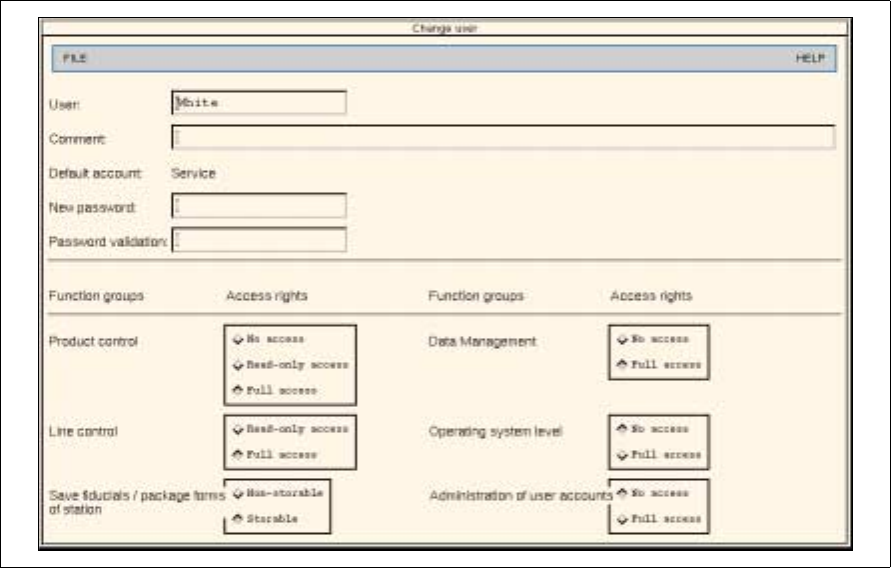
The user account configuration window opens (see Fig. 3.2.3).
Fig. 3.2.3 User Account Configuration Window (Example: Change User)
● Make the desired changes.
User Manual Line Computer UNIX 3 Desktop (Root Window)
Software Version 501.xx 01/99 Issue 3.2 Desktop User Interface
3 - 33
NOTE
The user’s name cannot be changed.
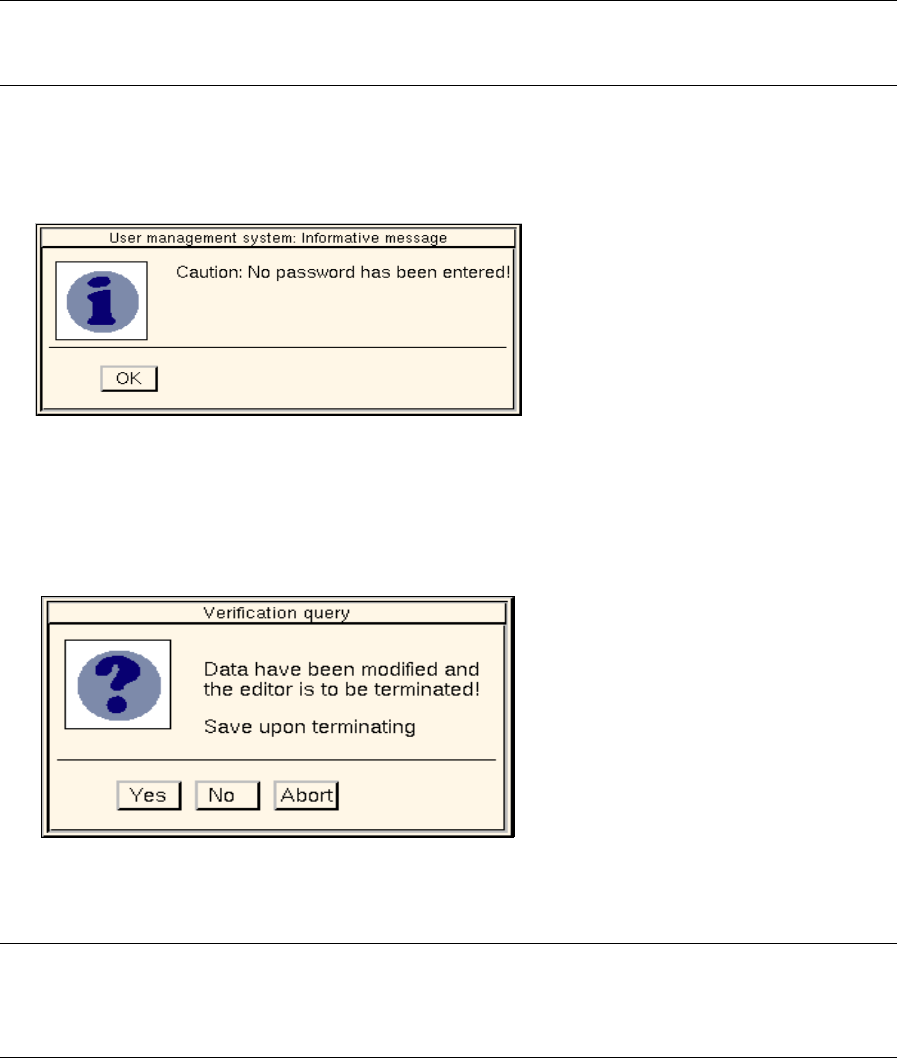
● If an existing password is to be deleted, click on the "New password" editing field and press the
RETURN key. The following dialog box opens.
● Click on OK to confirm your entry. The dialog box closes.
● Once all required entries or changes have been made, click on FILE --> Exit on the menu bar.
The following dialog box is displayed.
● Click on Yes.
The dialog box and the configuration window close.
NOTE
If no password has been specified for the user account, a message telling you that no password has
been entered will be displayed again after the configuration window has been closed (see above).
● Click on OK.
The dialog box closes.
● Click on FILE --> Exit on the menu bar of the "Administration of user accounts" dialog window
(see Fig. 3.2.1). The dialog window closes.
3 Desktop (Root Window) User Manual Line Computer UNIX
3.2 Desktop User Interface Software Version 501.xx 01/99 Issue
3 - 34
3.2.1.4 PRODUCT Menu
- Component Editor
Serves to open the user interface of the Component Editor. The Component Editor allows the user to
completely describe components in their electrical characteristics.
● Click on PRODUCT --> Component Editor.
The FSB containing the file selection of all already-defined components is opened.
NOTE The further procedure to be followed is described in chapt. 5.
- Package Form Editor
Serves to open the user interface of the Package Form Editor. The Package Form Editor allows the
user to completely describe components in their geometrical characteristics.
● Click on PRODUCT --> Package Form Editor.
The FSB containing the file selection of all already-defined package forms is opened.
NOTE The further procedure to be followed is described in chapt. 6.
- Adhesive Pattern Editor
Serves to open the user interface of the Adhesive Pattern Editor. The coordinates of adhesive dots for
adhesive patterns are defined in the Adhesive Pattern Editor. Due to the different adhesive patterns
available it can be ensured that components of various sizes can be securely attached to the PCBs
during production.
● Click on PRODUCT --> Adhesive Pattern Editor.
The FSB containing the ".dm" file is opened. This file contains all already-defined adhesive
patterns.
● Select the .dm adhesive pattern file by double-clicking.
The content of the ".dm" adhesive pattern file is displayed in an FSB.
NOTE The further procedure to be followed is described in chapt. 7.
- PCB Editor
Serves to open the user interface of the PCB Editor. The PCB Editor allows the user to completely
describe a PCB to be processed.
● Click on PRODUCT --> PCB Editor.
The FSB containing the files of all already-defined PCBs is opened.
NOTE The further procedure to be followed is described in chapt. 8.
- CAD Import
This option is used to open the user interface of CAD Import. It enables the operator to easily adapt
placement files that were created on external systems to the SIPLACE format.
● Click on PRODUCT --> CAD-Import.
The FSB containing all ".cad"-files stored in the CAD library opens.
NOTE The further procedure to be followed is described in chapt. 4, section 4.6.