00191413-01.pdf - 第249页
User Manual Line Computer UNIX 8 Product / PCB Software Version 501.xx 01/99 Issue 8.1 PCB Editor 8 - 11 Fig. 8.1.5 Examples "Usage and Results of some Commands in the S tructure Editor" NOTE pertai ning to Fig…
8 Product / PCB User Manual Line Computer UNIX
8.1 PCB Editor Software Version 501.xx 01/99 Issue
8 - 10
8.1.3.2 SERVICES Menu
The menu functions of this menu allow you to open the sub-editors for defining the cluster data and placement
positions, or the Structure Editor for a selected or a new PCB. Moreover, it is possible to toggle between the
Structure Mode and Graphic Mode display types.
- Call up the Placement Position Editor for the definition of placement positions (only possible in the
Structure Mode)
● Activate icon in the command area
● In the display area select partial PCB structure with a mouse-click.
● Select SERVICES --> Placement Position Editor.
The window of the Placement Position Editor (see Fig. 8.1.11) is opened.
- Call up the Cluster Editor for the definition of the cluster data (only possible in the Structure Mode)
● Activate icon in the command area.
● In the display area select partial PCB structure with a mouse-click.
● Select SERVICES --> Cluster Editor
The window of the Cluster Editor (see Fig. 8.1.8) is opened.
- Structure Mode
This menu option serves to switch the view area from the Graphic Mode to the Structure Mode.
● Select SERVICES --> Struct. mode
The view area is switched to the Structure Mode (see Fig. 8.1.4).
- Graphic Mode
This menu option serves to switch the view area from the Structure Mode to the Graphic Mode.
● Select SERVICES --> Graph. mode
The view area is switched to the Graphic Mode (see Fig. 8.1.6).
8.1.3.3 Command Area of the Structure Editor (Structure Mode)
The commands are symbolized by means of icons. If an icon is activated by clicking upon it, the respective
action can be performed on a partial PCB structure subsequently to be selected.
On opening the Structure Editor, the "Select" command is automatically active.
(The arrow in the icon points from the bottom left to the top right).
NOTE
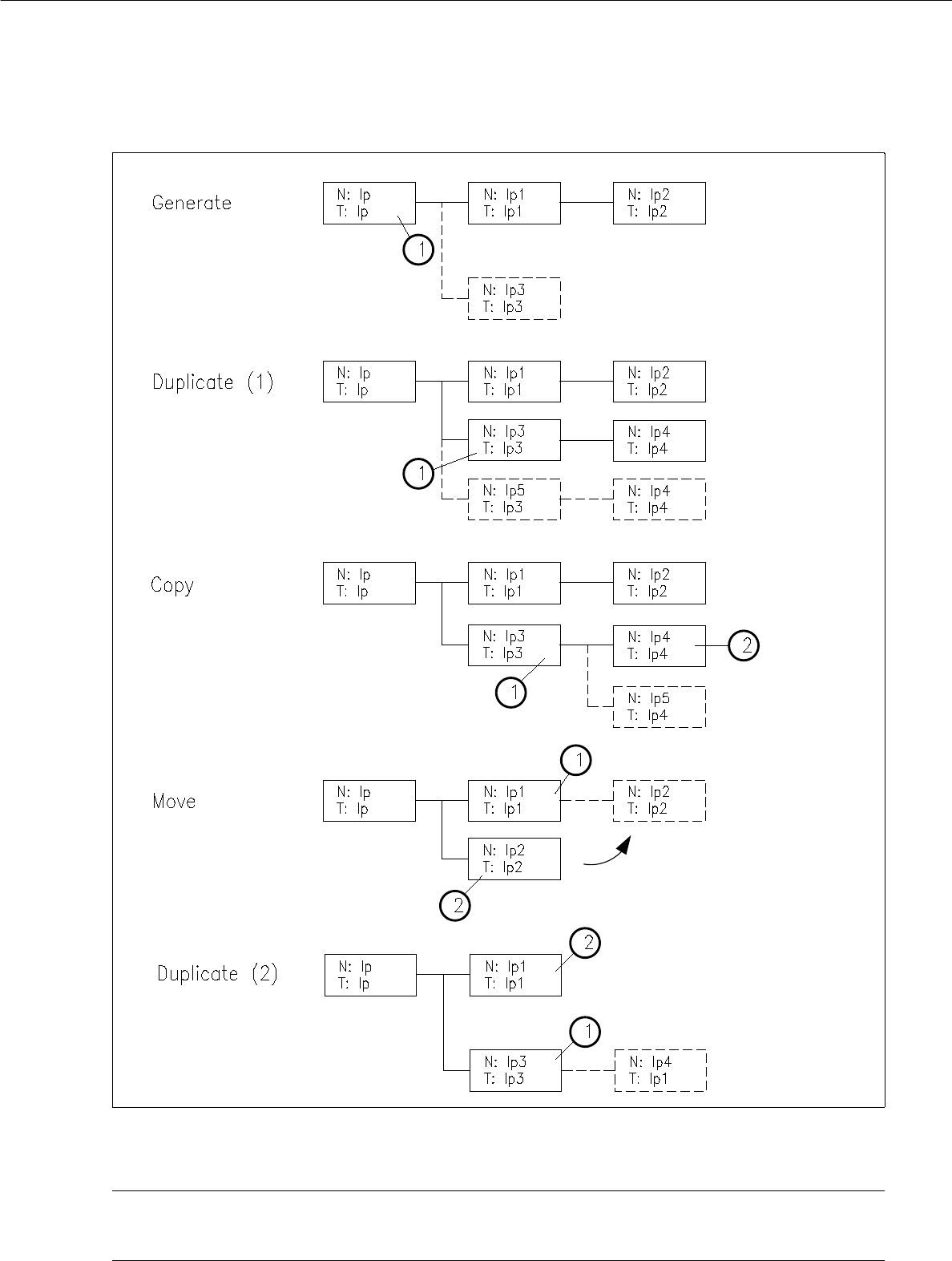
The procedures and results of some of the commands described in the following are shown as examples
in Fig. 8.1.5 where the numbers 1 or 2 indicated in the circles represent the sequence of the steps to be
performed; the structures represented as broken lines stand for the results.
User Manual Line Computer UNIX 8 Product / PCB
Software Version 501.xx 01/99 Issue 8.1 PCB Editor
8 - 11
Fig. 8.1.5 Examples "Usage and Results of some Commands in the Structure Editor"
NOTE pertaining to Fig. 8.1.5
"Duplicating (1)" is described on page 8 - 12 and "Duplicating (2)" on page 8 - 14.
8 Product / PCB User Manual Line Computer UNIX
8.1 PCB Editor Software Version 501.xx 01/99 Issue
8 - 12
- Selection
If this icon is active (displayed in reverse video, with the arrow pointing from the bottom left to the top
right), the PP or NU-Editor can be called up for the selected partial PCB structure. If the topmost par-
tial PCB structure is selected, the current PCB can be duplicated using the "Copy PCB" menu
function.
● Activate icon .
● The partial structure selected is highlighted in light green. All partial structures linked to it are
highlighted in dark green.
● Select desired menu function (e.g. SERVICES --> NU-Editor...).
- Generating a new partial PCB structure with the corresponding new PCB type
This command serves to generate a new partial structure with a cross-reference to a new PCB type.
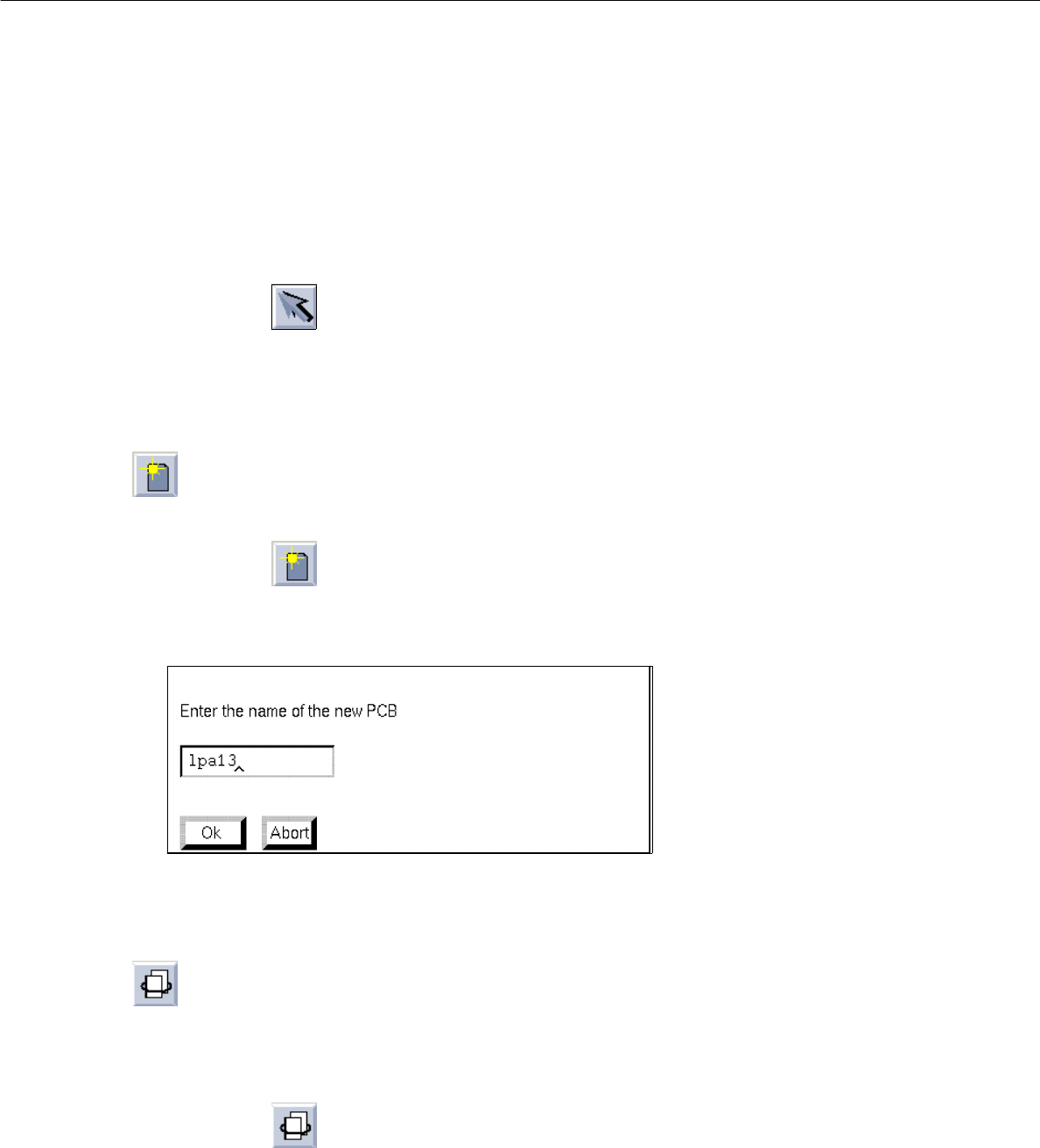
● Activate icon .
● Select PCB type.
The following dialog box for entering the name is displayed.
● Enter the name and confirm with OK.
The new PCB type is appended to the selected one and displayed in the display area.
- Duplicating a partial PCB structure
Existing cross-references to a given PCB type can be duplicated from a PCB partial structure thus
generating a new partial structure. Except for the coordinates, the data of the duplicated partial PCB
structure are identical.
● Activate icon .
● Select partial PCB structure.
The dialog box for entering the name is displayed.
● Enter the name and confirm with OK.