00191413-01.pdf - 第190页
6 Product / Package Form User Manu al Line Computer UNIX 6.1 Package Form Editor Software Version 501.xx 01/99 Issue 6 - 12 - Pin/Ba ll This co mmand per mits the window f or the des cription of the mo del data fo r a se…
User Manual Line Computer UNIX 6 Product / Package Form
Software Version 501.xx 01/99 Issue 6.1 Package Form Editor
6 - 11
6.1.2.4 Package Form Editor Command Area - "Vision data" Screen
NOTE
The command area is not displayed if the current package form is of the "PDC" type (see Fig. 6.1.2).
In the command area (see Fig. 6.1.1) only the "Create" command can initially be selected. The remaining
commands cannot be activated until an already-created pin or grid group is selected from the view area.
COMMANDS
The procedures for executing the commands are described in the following.
-
Create
A new pin group (see section 6.1.3.2) or a new grid group (see section 6.1.3.3) can be created.
●
Click on Create.
The window for the description of the new pin or grid group is opened (see Fig. 6.1.20 and
Fig. 6.1.25).
-
Delete
A selected pin or grid group can be deleted.
●
In the view area, select any pin or ball of the group you wish to delete. The selected group is
displayed, surrounded by a rectangle.
●
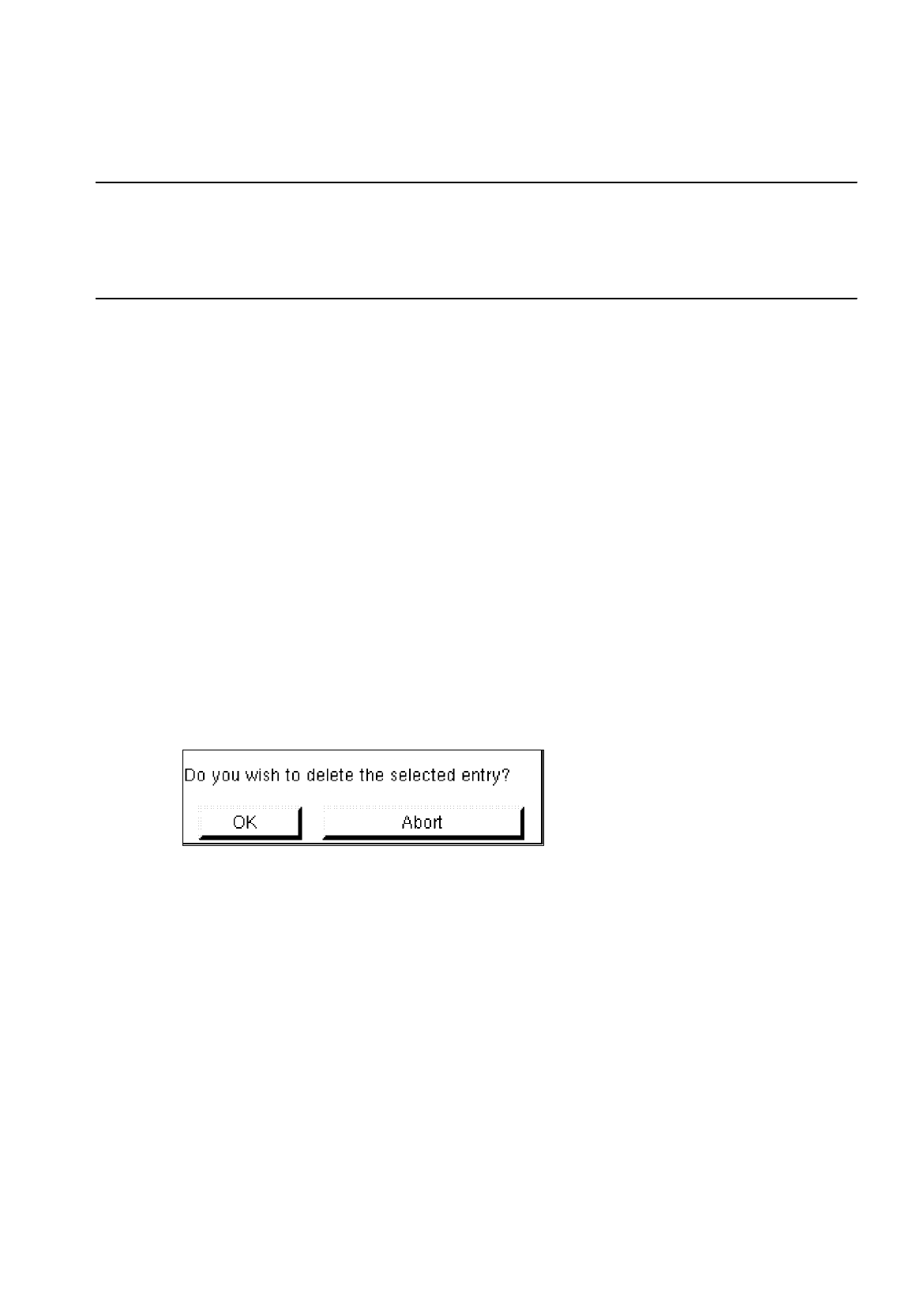
Click on Delete.
The following dialog box is opened.
●
Click on OK in the dialog box.
The dialog box is closed. The group is no longer displayed in the view area.
-
Group
This command permits the window for the description of the group data for a selected object (pin
group/grid group) to be opened.
●
From the view area select the group whose group data you wish to edit.
The selected group is surrounded by a rectangle.
●
Click on Group.
The window for the description of the group data is displayed on the screen (see Fig. 6.1.20 or
Fig. 6.1.25).
6 Product / Package Form User Manual Line Computer UNIX
6.1 Package Form Editor Software Version 501.xx 01/99 Issue
6 - 12
-
Pin/Ball
This command permits the window for the description of the model data for a selected object
(pin/ball) to be opened.
●
From the view area select the group containing the object (pin/ball) whose model data you wish to
edit.
The selected group is surrounded by a rectangle.
●
Click on
Pin/Ball
.
The window for the description of the model data is displayed on the screen (see Fig. 6.1.21 or
Fig. 6.1.26).
6.1.2.5 Package Form Editor Editing Fields - "Vision data" Screen
NOTE
When an existing GF-file is opened upon the start-up of the Package Form Editor, the factory or customer
defined default values are contained in the editing fields described below.
Editing field "Nominal dimensions"
-
X +/-
[mm] component length, with indication of the tolerances
see Fig. 6.1.18 or Fig. 6.1.23
-
Y +/-
[mm] component width, with indication of the tolerances
see Fig. 6.1.18 or Fig. 6.1.23
-
Z +/-
[mm] component height, with indication of the tolerances
see Fig. 6.1.19 or Fig. 6.1.23
NOTE
The length of a component refers to the x-direction and its width to the y-direction.
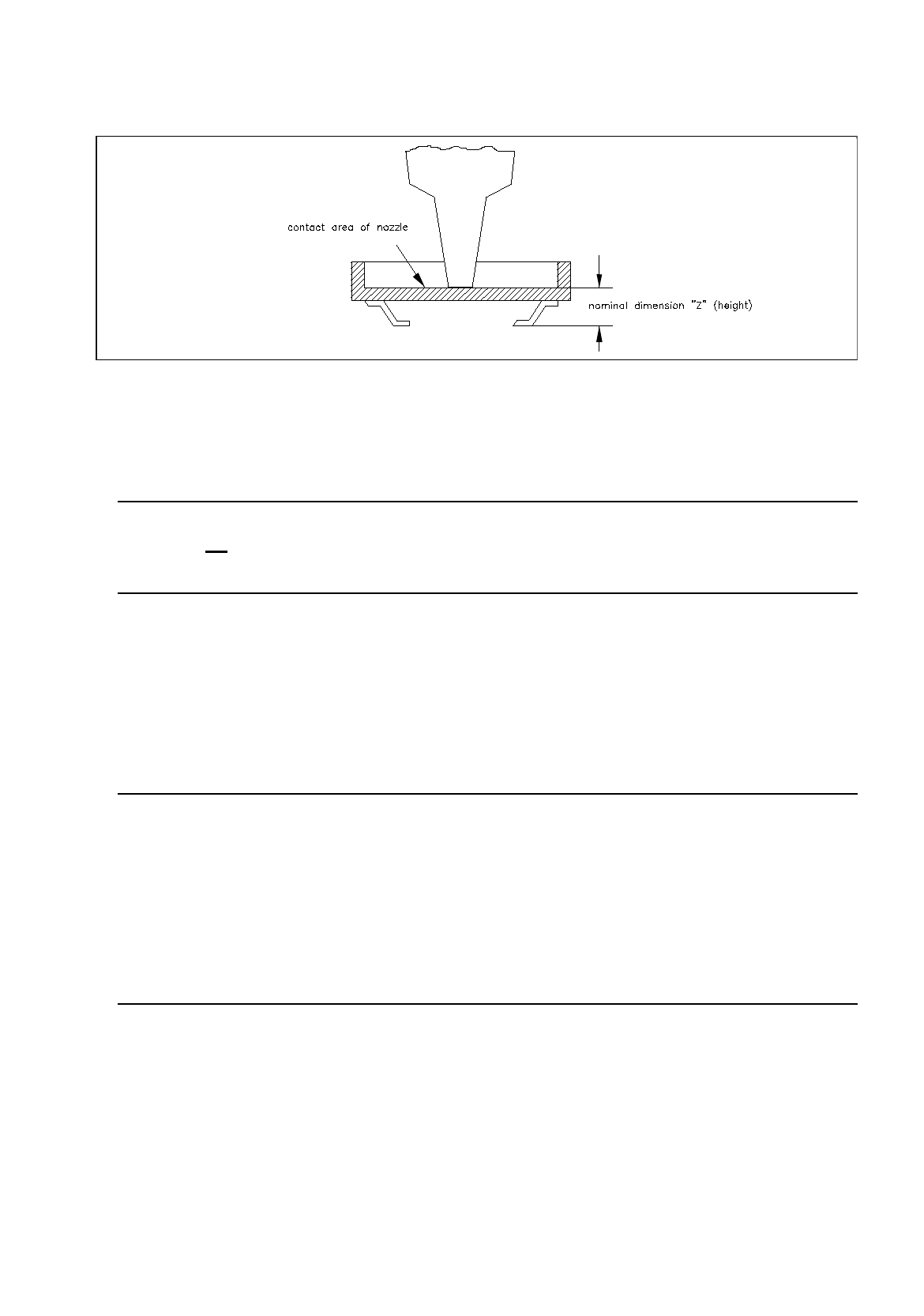
The value for the nominal dimension "Z" (height) is used to calculate the travel path of the z-axis during
picking up and placing the component as well as during centering above the IC- or flip-chip camera. Any
incorrectly entered value can therefore result in errors in processing the component. Normally, the value
entered for "Z" refers to the dimension measured from the top side (= contact area of nozzle) to the bottom
side of the package form. However, in the case of package forms (e.g. headers) featuring an indentation
in the center, care must be taken to enter for "Z" the dimension measured from the indented
area to the
bottom side (see Fig. 6.1.6).
User Manual Line Computer UNIX 6 Product / Package Form
Software Version 501.xx 01/99 Issue 6.1 Package Form Editor
6 - 13
Fig. 6.1.6 Example: nominal dimension "Z" for component with indented surface
Editing Area "Body"
NOTE
This field is not
displayed if the current package form type is a "PDC" (see Fig. 6.1.2) or a "BGA" (see Fig.
6.1.3) since with these types the dimensions of the package body correspond to the nominal dimensions.
-
X
[mm] length of package body (see Fig. 6.1.19)
-
Y
[mm] width of package body (see Fig. 6.1.19)
Editing field "Packaging tolerance"
NOTE
The values in this area define how much the component may shift in its delivery medium. If small values
are entered for the pick-up location, the reject rate may be increased since some components will no
longer be within the area of the search window (vision system).
If high values are entered for the pick-up tolerance, the reject rate may be decreased. Very useful are high
tolerance values for components that are picked up from wafflepack trays as these trays may have been
placed inaccurately on the carrier. Here, the values for the pick-up tolerance (packaging tolerance) in "X"
and "Y" should be set to the maximum value of 3 mm.
-
X
[mm] max. permissible positional tolerance of the component in the
package in x-direction
-
Y
[mm] max. permissible positional tolerance of the component in the
package in y-direction
-
Angle
[Degree] max. permissible deviation from the 0-degree position of the
component (rotational angle in the package)