00191413-01.pdf - 第196页
6 Product / Package Form User Manu al Line Computer UNIX 6.1 Package Form Editor Software Version 501.xx 01/99 Issue 6 - 18 6.1. 2.7 Package Form Editor Command Area - "Handling data" Scr een In the com mand ar…
User Manual Line Computer UNIX 6 Product / Package Form
Software Version 501.xx 01/99 Issue 6.1 Package Form Editor
6 - 17
Opening the window for entering or changing model data
●
Select desired pin or ball by (quickly) double-clicking.
The window for editing the model data is opened (see Fig. 6.1.21 and Fig. 6.1.26).
NOTE
The window for editing the group or model data can also be opened using the commands "Group"
or "Pin/Ball" (see section 6.1.2.4).
6 Product / Package Form User Manual Line Computer UNIX
6.1 Package Form Editor Software Version 501.xx 01/99 Issue
6 - 18
6.1.2.7 Package Form Editor Command Area - "Handling data" Screen
In the command area (see Fig. 6.1.4) two different tools can be selected from (nozzle or sensor type) that can
be created or deleted by means of the corresponding commands. The desired tool type desired is selected by
clicking on the button adjacent to its name.
COMMANDS
The procedures to be followed for the execution of the commands are described in the following.
-
Create
This command can be used to create the nozzles and sensor system types required for the current
package form.
●
Activate the button of the desired tool type.
●
Click on
Create
.
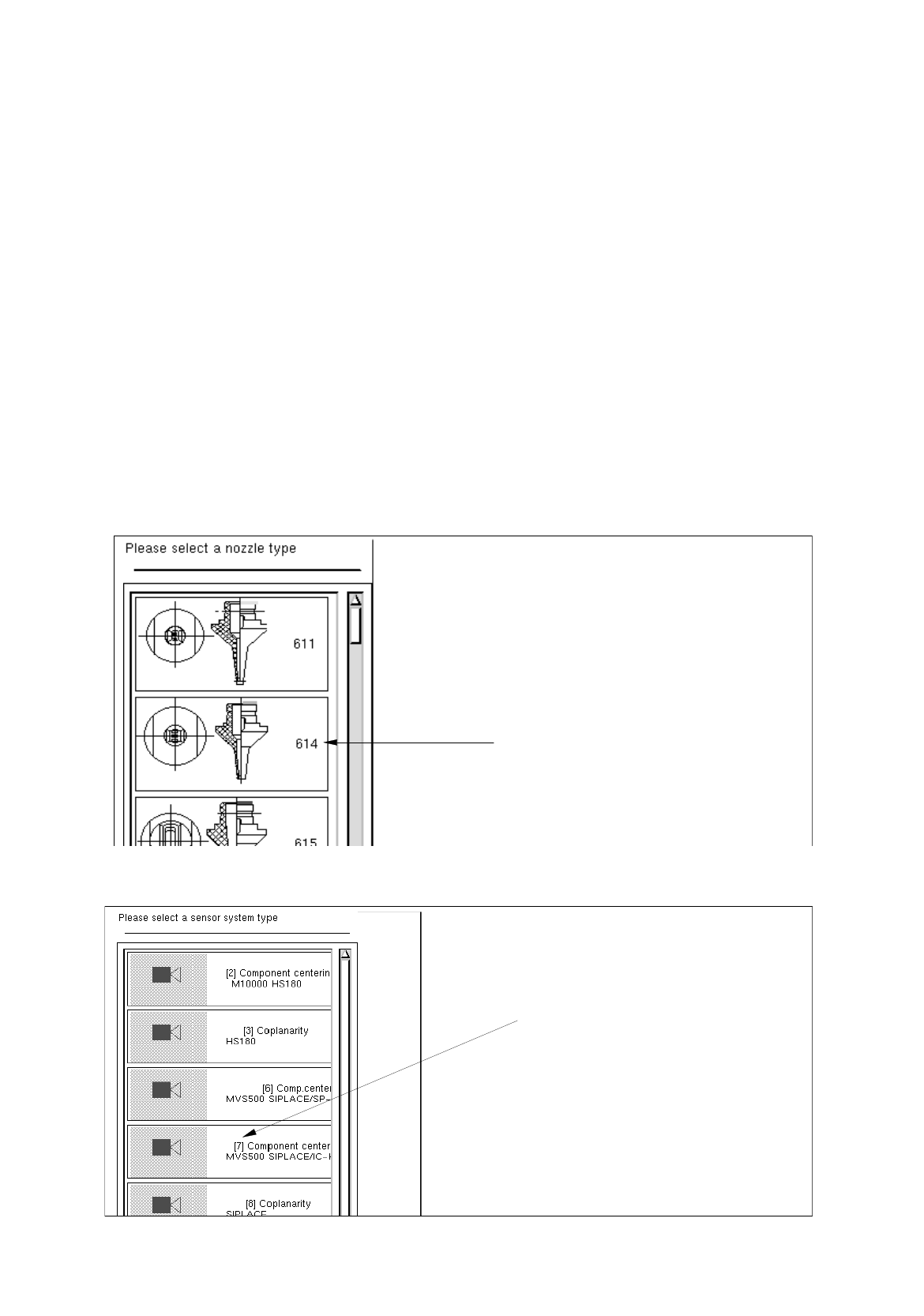
The selection window containing a list of all defined types of the selected tool type is opened.
Fig. 6.1.7 Selection Window of the "Nozzle Type"
Fig. 6.1.8 Selection Window of the "Sensor Type"
type 6xx nozzle
number of the
sensor s
y
stem t
y
pe
User Manual Line Computer UNIX 6 Product / Package Form
Software Version 501.xx 01/99 Issue 6.1 Package Form Editor
6 - 19
●
Click on the desired option (sensor system type or nozzle).
The selection window closes.
If the "Sensor type" option was selected, the icon of the sensor system type created and its num-
ber are displayed in the view area of the main window (see Fig. 6.1.5).
If the "Nozzle" option was selected, the number of the nozzle created is displayed. Adjacent to it,
the buttons for defining the parameters for the "Acceleration" special handling option are shown
(see Fig. 6.1.9).
NOTE
Since no special handling is possible for nozzles of the 3xx type, no buttons are displayed adjacent to
these nozzles.
-
Deleting
An existing tool can be deleted.
●
Click on button of the desired tool type.
All existing tools of the selected type are displayed.
●
Select tool from the view area. The selected option is highlighted in dark.
●
Click on
Delete
.
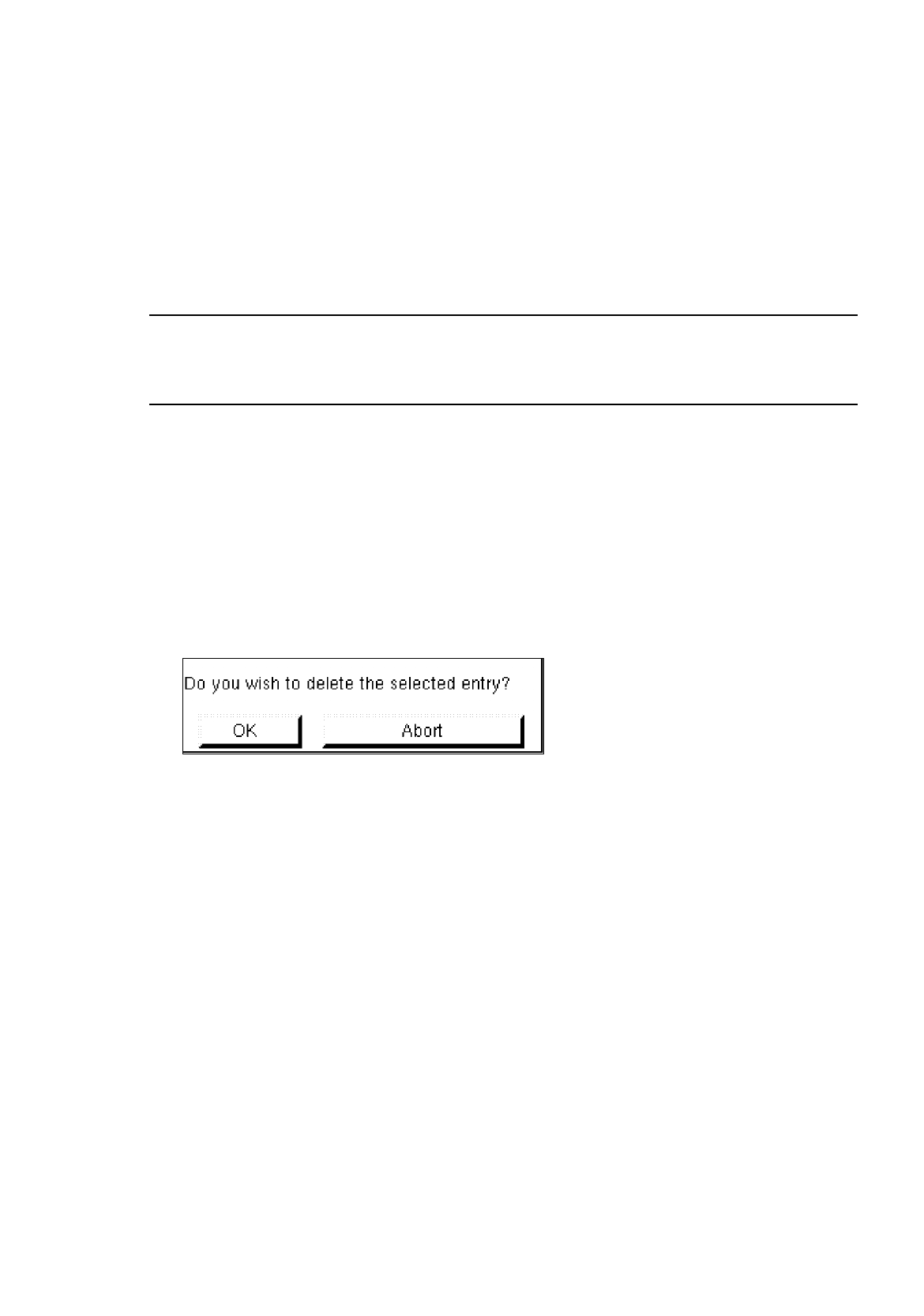
The following dialog box is opened.
●
Click on
OK
in the dialog box.
The dialog box is closed.
The option is no longer displayed in the view area.