00191413-01.pdf - 第443页
User Manual Line Computer UNIX 14 Control / Control Modules Software Version 501.xx 01/99 Issue 0.2 Job Control 14 - 7 14.1.4.1 FILE Me nu In the foll owing, only the menu comm ands "Open", "Reject" a…

14 Control / Control Modules User Manual Line Computer UNIX
0.2 Job Control Software Version 501.xx 01/99 Issue
14 - 6
Menu bar
The menu bar contains the menus "FILE", "SERVICES", "OPTIONS" and "HELP".
Some menu items of the "FILE" menu are explained in section 14.1.4.1, the "SERVICES" and "OPTIONS"
menus are described in the section 14.1.4.2 and section 14.1.4.5.
NOTE
Since the functions and operation of the menus "FILE" and "HELP" are similar to those in other application
programs of the line computer, they described in detail in chapt. 2.
Display Area
In the display area, all jobs contained in the job list or lot file are displayed. To be able to perform job data
manipulations the jobs must be selected with a mouse-click.
Editing Area
Here, jobs can be created or modified. The editing area contains entry fields for the complete description
of a job. In addition, a software switch enables the conveyor lane (track) to be selected on which a particular
job is to be processed.
Command Area
This area contains the commands required for the manipulation and editing of jobs. Each command is
symbolized by a separate icon.
The command area is subdivided into two sections.
- The upper section (command area "Actions") contains the commands with the aid of which selected jobs
can be manipulated in accordance with the command activated (see section 14.1.4.6).
- The lower section contains the commands with the aid of which jobs can be created and be inserted
into the current job list (see section 14.1.4.7).
User Manual Line Computer UNIX 14 Control / Control Modules
Software Version 501.xx 01/99 Issue 0.2 Job Control
14 - 7
14.1.4.1 FILE Menu
In the following, only the menu commands "Open", "Reject" and "Quit" are explained. The remaining menu
items are described in detail in chapt. 2.
- Opening the job list or lot file
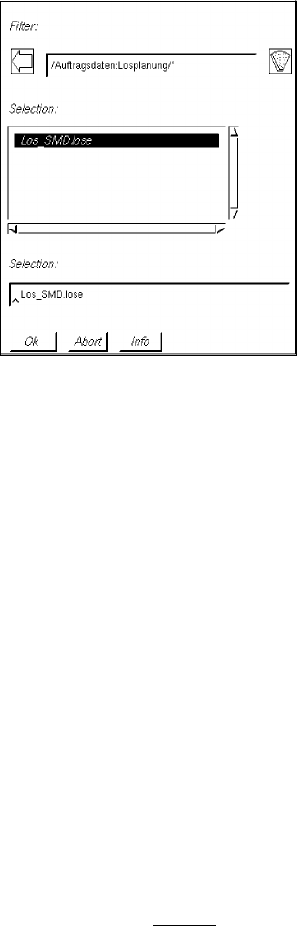
A job list or a lot file to be selected from the FSB (file selector box) can be opened.
The jobs contained therein are displayed in the display area.
● Select menu item FILE --> Open --> Job list.
The contents of the job list are displayed in the main window.
Or:
● Select menu item FILE --> Open --> Lot file.
The FSB containing the files of all already-defined lot files opens.
● Select a file from the selection window by double-clicking.
The contents of the selected lot file are displayed in the main window.
Or: (to create an empty, new lot file)
● Enter, for example, new_SMD.lose in the selection field of the FSB and confirm with OK.
- Rejecting edited lot files
This menu item enables the lot file loaded to be reset to its initial state (prior to editing).
● Click on FILE --> Reject.
All changes made will be ignored and the initially loaded data will be redisplayed.
- Closing the main window
● Click on FILE --> Quit.
The current editing session is completed and the main window closed. The background activities
of the job control continue to be available.
If the main window contains a lot file that has been changed but not saved yet, the operator can
either initiate a save via the dialog box which is now displayed („Lot file not saved“) by selecting
Yes, or close the window by selecting No, without
saving the data.
14 Control / Control Modules User Manual Line Computer UNIX
0.2 Job Control Software Version 501.xx 01/99 Issue
14 - 8
14.1.4.2 SERVICES Menu
- Merge
This menu option allows the following operations to be initiated:
- Inserting jobs from the job list displayed in the main window into a selected lot file.
- Inserting jobs from a selected lot file into the job list displayed in the main window.
- Inserting jobs from a selected lot file into the lot file displayed in the main window.
NOTE
All or individual jobs from the job list
or individual jobs from a lot file can only be inserted into the job
list or lot file in the main window from the "Merge" dialog window
.
All jobs from a lot file can also be inserted into the current job list or lot file with the aid of the
command (in the main window) (see section 14.1.4.6).
● Click on SERVICES --> Merge... --> Job list or Lot file.
If "Lot file" is selected, the FSB containing all created lot files appears.
● Select lot file by double-clicking.
In both cases the dialog window "Merge" is now displayed.
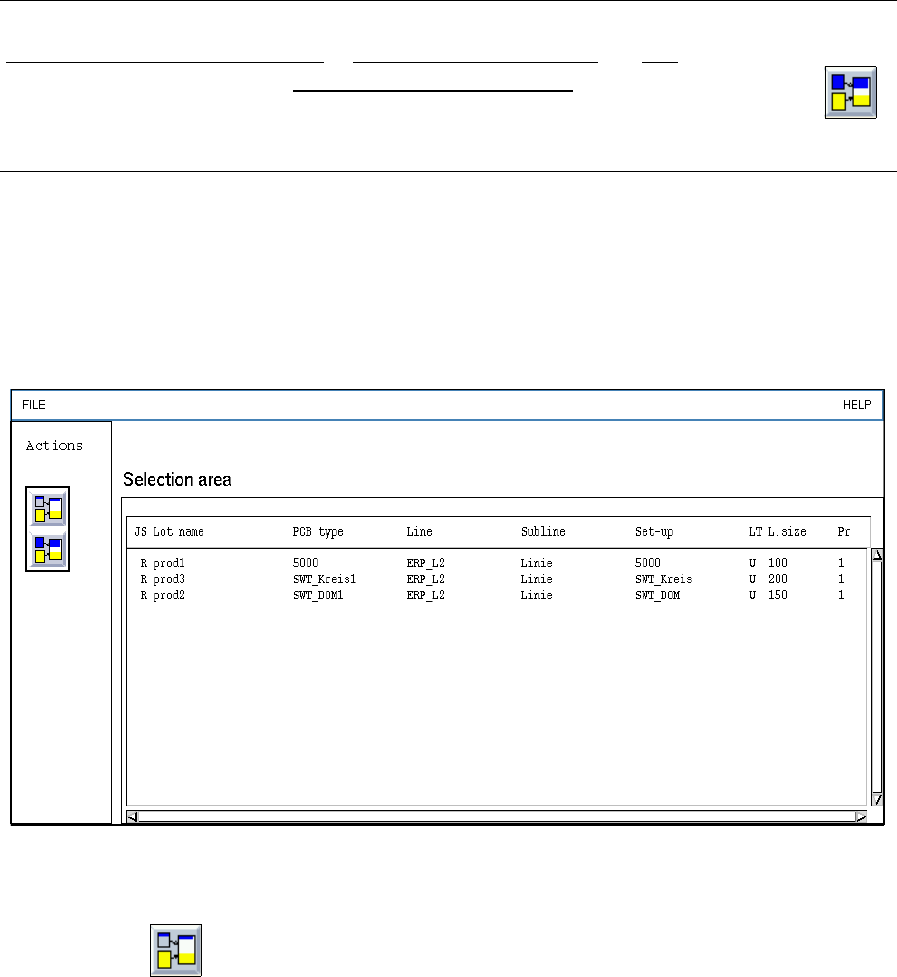
In the selection area all jobs are now listed that are contained in the job list or in the selected lot
file.
Fig. 14.1.2 "Merge" Dialog Window
● Activate the (Merge) in the dialog window.
● Select the desired jobs from the selection area.
The selected jobs are added to the current job list or lot file.
On the menu bar click on FILE --> Quit. The dialog window closes.