FlexTRAK OH Material Handler Manual.pdf - 第92页
FlexTRAK-OH Material Handli ng System IOM Manual Material Handler Operation 4-4 © 2023 Nordson C orporation 4.6 HMI Data Input/Output Indicator s 4.6.1 HMI Data Input Indi cators The HMI input button s input data to the …
FlexTRAK-OH Material Handling System IOM Manual Material Handler Operation
© 2023 Nordson Corporation 4-3
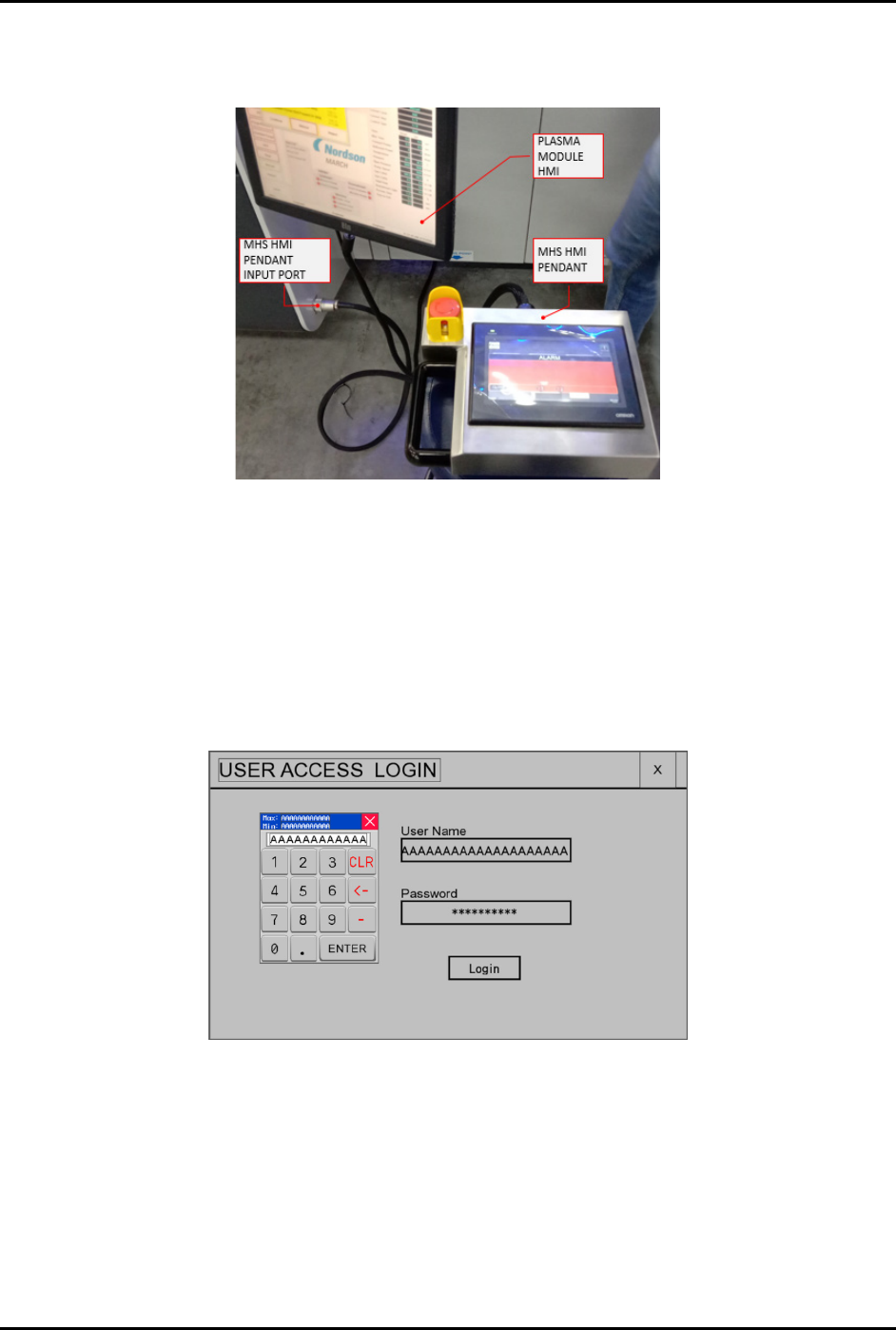
4. Plug the pendant socket into the intended MHS machine pendant input port (Figure 4-2).
5. Secure the connection by turning the locking ring.
Figure 4-2 Pendant Setup
4.5 User Access Login and Logout
The FlexTRAK OH software automatically starts when the machine is powered on.
To login to the system:
1. To exit from current user account, press the
LOGOUT on bottom right of home screen.
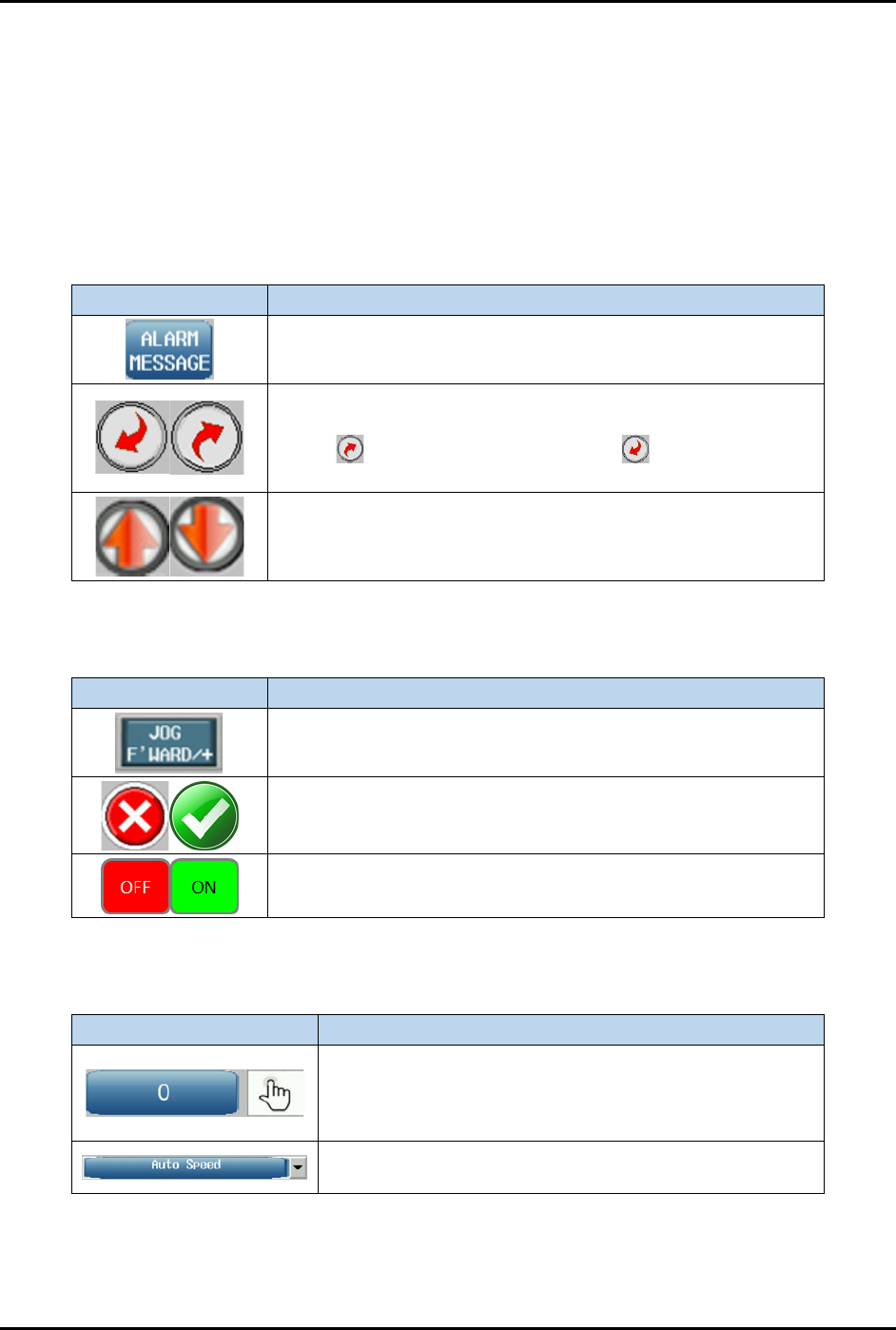
The user access login screen will display (Figure 4-3).
Figure 4-3 User Access Login Screen
2. Enter the user name and press enter on the screen keypad.
3. Enter the password and press enter on the screen keypad.
The default user name and password is listed below:
- User Name: ADM
- Password: 111111
4. Press
Login when done.
FlexTRAK-OH Material Handling System IOM Manual Material Handler Operation
4-4 © 2023 Nordson Corporation
4.6 HMI Data Input/Output Indicators
4.6.1 HMI Data Input Indicators
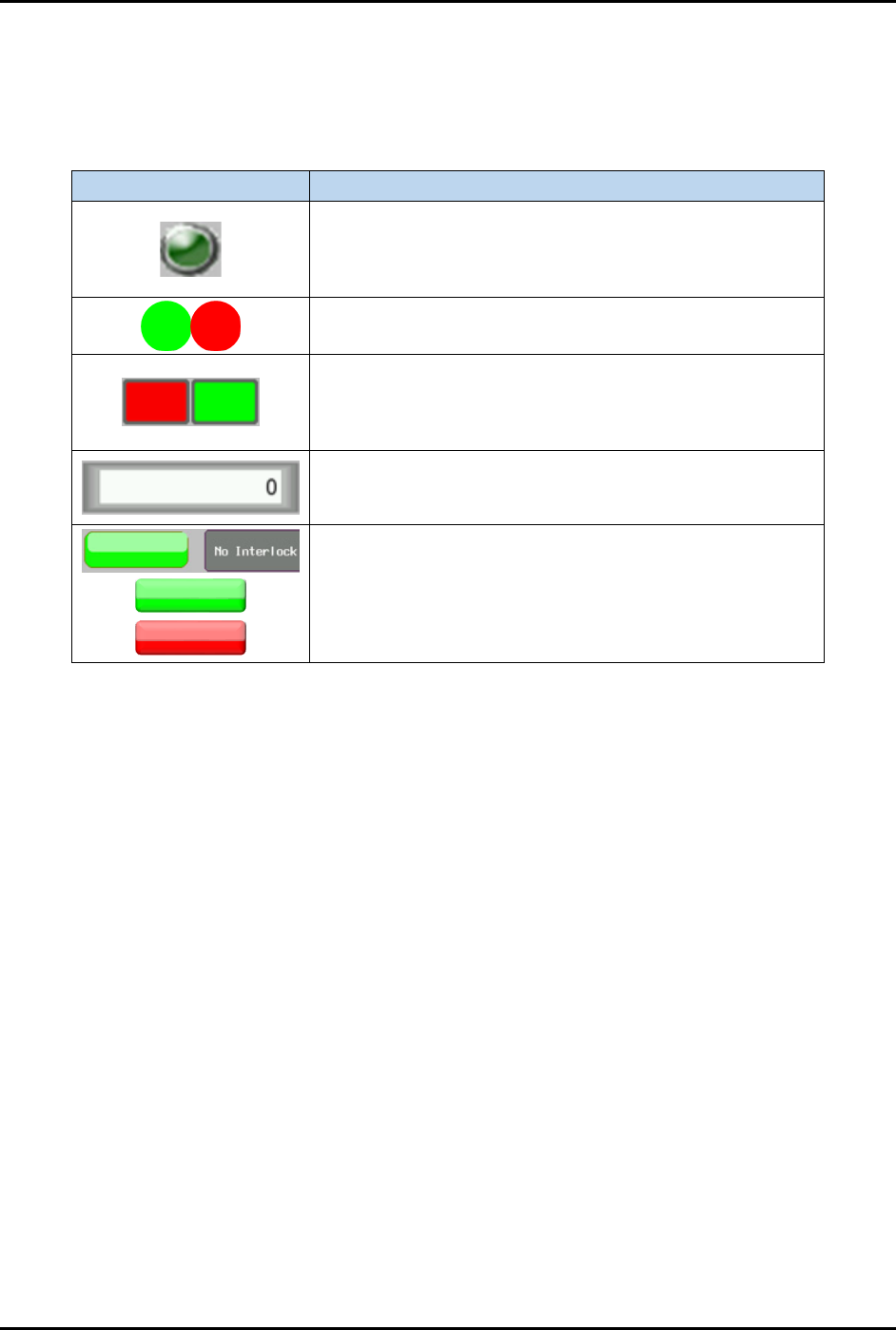
The HMI input buttons input data to the machine logic controller. Each label on the button describes its
function. Some buttons use a pictogram/symbol rather than text to describe their functions. See Table 4-1
through Table 4-3 for detailed descriptions of the HMI Data Input buttons.
4.6.1.1 Screen Navigation Buttons
Table 4-1 Screen Navigation Buttons
Button Description
Shows the machine HMI screen as labeled on the button text.
Some screens have multiple pages in order to show all
available features and indicators.
Select to move to the next screen or to move to
previous screen.
Scrolls the page up/down.
4.6.1.2 Control Switches
Table 4-2 Control Switches
Button Description
Triggers the function labeled on the button text.
Enables (unlocks) or disables (locks) the motor actuation
switch to jog the axis.
Enables (ON) or disables (OFF) a specific component function.
4.6.1.3 Data Selection and Update Forms
Table 4-3 Data Selection and Update Forms
HMI Object Description
When pressed, the HMI keypad displays so you can
insert a specific decimal value (Example: 1, 20, 300, 000)
for the form function. The data value type is labeled
beside the form.
Click the down arrow to list all available parameters
related to the current screen.
FlexTRAK-OH Material Handling System IOM Manual Material Handler Operation
© 2023 Nordson Corporation 4-5
4.6.2 HMI Data Output Indicators
The HMI output indicator buttons display a specific machine process or component availability state. See
Table 4-4 for a detailed description of the HMI Output Indicator buttons.
Table 4-4 HMI Data Output Indicator
HMI Object
Description
Indicates specific motor actuation status as labeled beside
the indicator to show whether an axis control switch is
enabled (light green button) or disabled (dark green
button) to actuate a motor.
Enables (green button) or disables (red button) a specific
station I/O component function.
Enables (green button) or disables (red button) a specific
station process sequence status. Once the station process
sequence is complete, the indicator will be red (process
error) or green (good process).
Shows the current measured value/previously saved
parameter value. The data value type is labeled beside the
box.
Locks (red button) or unlocks (green button) the cylinder’s
switching interlock state.